Features of Employee Monitoring Tools Explained Clearly
Explore features of employee monitoring tools, including tracking, security, and productivity insights, to choose the right solution.

Picking an employee monitoring tool without understanding its features often leads to choosing a system that only tracks login times without showing how work actually happens. You see logged hours, attendance data, and dashboards filled with numbers, but none of it connects to clear actions or decisions. Work still feels unclear, and you’re left guessing instead of knowing what’s actually happening. The right features change that. This guide breaks down the essential features of employee monitoring tools, which ones matter most based on how your team works, what to look for in compliance and data security, and how to choose a tool that fits your actual needs rather than a generic checklist.
What is an Employee Monitoring Tool?
An employee monitoring tool is a software that records how work happens across systems, apps, and tasks during work hours. The tool captures activity data such as time spent on tasks, app usage, website access, and work patterns, so you can see how time connects to actual output.
But what does that visibility really give you beyond raw data? It helps you understand where time goes, how work flows, and where delays or inefficiencies start. Instead of relying on assumptions, you get clear, structured insights that show what is productive, what is not, and what needs attention.
What are the Essential Features of Employee Monitoring Tools?
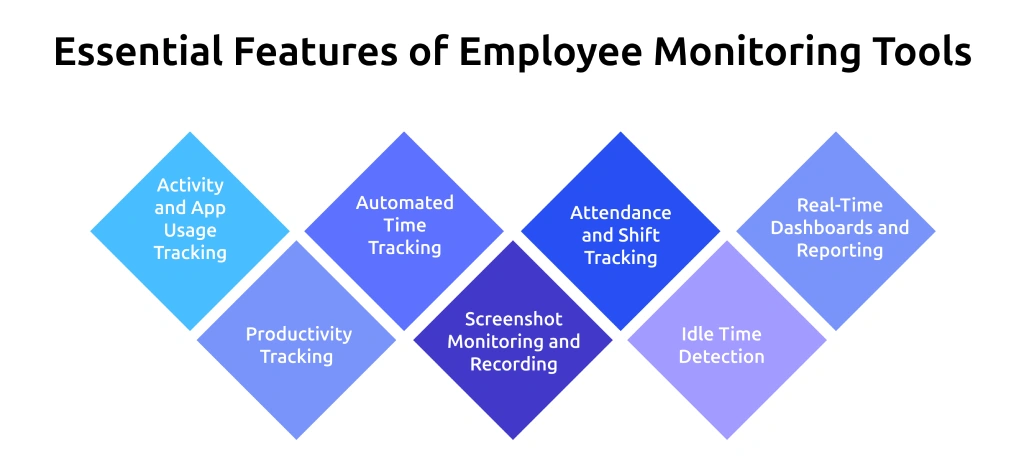
Not every feature adds value. Some only collect data, while others show how work actually happens. The right set of features helps you track time, understand activity, and make clear decisions without guesswork. Here are the features that matter.
1. Activity and App Usage Tracking
Activity and app usage tracking records the applications and websites used during work sessions and logs the time spent on each one. Activity logs show exactly where work hours go, which tools the team uses, and where time shifts to off-task activity.
This feature works best when you can define productivity based on roles. For example, time spent in a code editor counts as productive for development work, while time on unrelated sites does not. If a tool applies the same rules to every role, it can give you inaccurate insights. Choose a tool that lets you set app classifications based on how work actually happens.
2. Productivity Tracking
Productivity tracking shows how time translates into actual work by analyzing activity across apps and tasks. It classifies each application as productive, non-productive, or neutral based on the role. Two users can log the same number of hours but achieve very different levels of output, and this feature makes that difference clear without relying on assumptions.
The accuracy of productivity tracking depends on how well you define these classifications. When you set productive apps at the role, team, or individual level, the data reflects real work patterns. If the tool uses a fixed, generic classification, it can mislabel important tools and give a misleading view of productivity.
3. Automated Time Tracking
Time tracking records how work hours move across tasks, apps, and projects throughout the day. Automated time tracking captures when work starts, how long each task takes, when breaks happen, and how teams allocate hours across activities. It gives you a clear view of where time goes without relying on manual entries.
For teams that bill clients by the hour, this feature separates billable and non-billable time at the task level. You can generate payroll-ready and invoice-ready data from the same records. If work happens in the field or in low-connectivity environments, offline tracking with sync support ensures you capture every minute without missing any data.
4. Screenshot Monitoring and Screen Recording
Screenshot monitoring takes snapshots of the screen after certain time intervals, whereas screen recording records the video of on-screen activities either continuously or event-based. These captures create a verifiable work trail for audits and compliance purposes. They also support transparency by showing how work aligns with defined policies and standards.
Control how often you capture screenshots so you get enough visibility without making monitoring feel intrusive. Look for options like screenshot blur to hide sensitive information and access controls that limit who can view recordings.
5. Attendance and Shift Tracking
Attendance and shift tracking automatically determine login and logout times by monitoring system activity, record shift adherence across scheduled hours, and send alerts for late logins, missed check-ins, and unexplained absences. Automated attendance eliminates manual check-ins and covers remote, hybrid, and in-office teams from a single dashboard.
For hybrid and distributed work, you need a single view that shows office attendance, remote activity, and field location data together. This helps you track work consistently across different setups without switching between reports. If your work spans multiple time zones or rotating shifts, choose a tool that supports shift scheduling so everything stays aligned.
6. Idle Time Detection
Idle time detection identifies moments during a session when keyboard and mouse activity drops below a set threshold. This feature keeps track of the duration of such inactive periods and their frequency, allowing you to distinguish between active work time and idle time clearly and to know how work hours reflect actual activity.
Idle time becomes useful when you look at patterns, not just individual gaps. Short idle periods after meetings or breaks are normal. Repeated long idle periods across multiple sessions can point to unclear tasks, workflow issues, low engagement, or early signs of burnout. It helps you identify these patterns early before they affect performance.
7. Real-Time Dashboards and Reporting
With real-time dashboards, you get a full view of live activities, productivity levels, attendance, and even alerts, all in one place without any manual updates. Reporting organizes tracked data into structured reports across daily, weekly, and monthly periods, so you can review work patterns, prepare payroll data, and maintain compliance records.
The detail that separates useful reporting from basic reporting is trend visibility. A snapshot of today's productivity scores tells you where the team stands right now. A weekly trend showing a drop in productivity over several weeks highlights an issue that needs attention early. Choose a tool that highlights these changes clearly, so you don’t have to compare multiple reports manually.
Get clear visibility into how work actually happens, not just hours on a screen.
Use Time Champ to track time, monitor activity, and turn every work hour into meaningful output.
How Do Features Vary Based on Team Needs?
The core features covered above apply across every team type. But which ones you need to prioritize depends on how your team actually works. A fully remote team, a hybrid setup, and a field-based workforce each have different visibility gaps, and the right monitoring tool fills those gaps specifically.
1. Remote Teams
Activity monitoring and productivity scoring turn out to be your main sources of visibility when your team works remotely. You have no way to observe work directly, so the data has to do that job for you.
Activity tracking demonstrates your team's tool usage along with time spent, automated attendance replaces manual check-ins, while screenshot monitoring provides you with session-level work evidence for client billing or compliance audits.
2. Hybrid Teams
Comparison blindness is a risk that arises when working with a hybrid team. Your office-based employees show up in attendance logs and hallway conversations, while your remote employees show up only in data. Without a tool that puts both in the same dashboard, you end up making scheduling and workload decisions based on who you can see, not on who is actually performing.
Look for hybrid monitoring that shows WFH versus WFO productivity side by side. That single comparison gives you objective data for policy decisions, workload distribution, and shift planning across a mixed-location team.
3. Field Teams
Field teams need GPS tracking and geofencing as core features. Field employee tracking confirms your team stays at the right job site during scheduled hours, logs route history for client visits, and creates location-based attendance that replaces manual check-ins.
Offline sync is the one feature you should verify before choosing any tool for field work. If tracking stops when the signal drops, gaps appear in payroll and compliance records. Choose a tool that stores data locally and syncs it once the connection returns.
Which Features Support Compliance and Data Security?
If the monitoring tool you are using doesn't have the right compliance features, the information gathered could end up posing a legal risk rather than providing clarity. One of the features you should consider is audit-ready activity logs. These logs maintain a timestamped documentation of each session. Use role-based access controls, which limit who can view specific employee data. Also, check for a data loss prevention module that monitors file movements, denies the use of unauthorized USB devices, and identifies uploads to personal cloud storage.
Transparency features are equally important as security. In fact, most compliance frameworks mandate that employee monitoring must be clearly communicated to employees, limit tracking to work-related activities only on company devices, and allow employees to access their own data.
A tool that includes these controls by default helps you maintain compliance without extra setup. If you handle these settings manually, you increase the risk of missing key requirements and creating gaps that can cause issues later. For the detailed analysis of the legal requirements in various regions, refer to the employee monitoring legal compliance guide.
How to Choose an Employee Monitoring Tool?
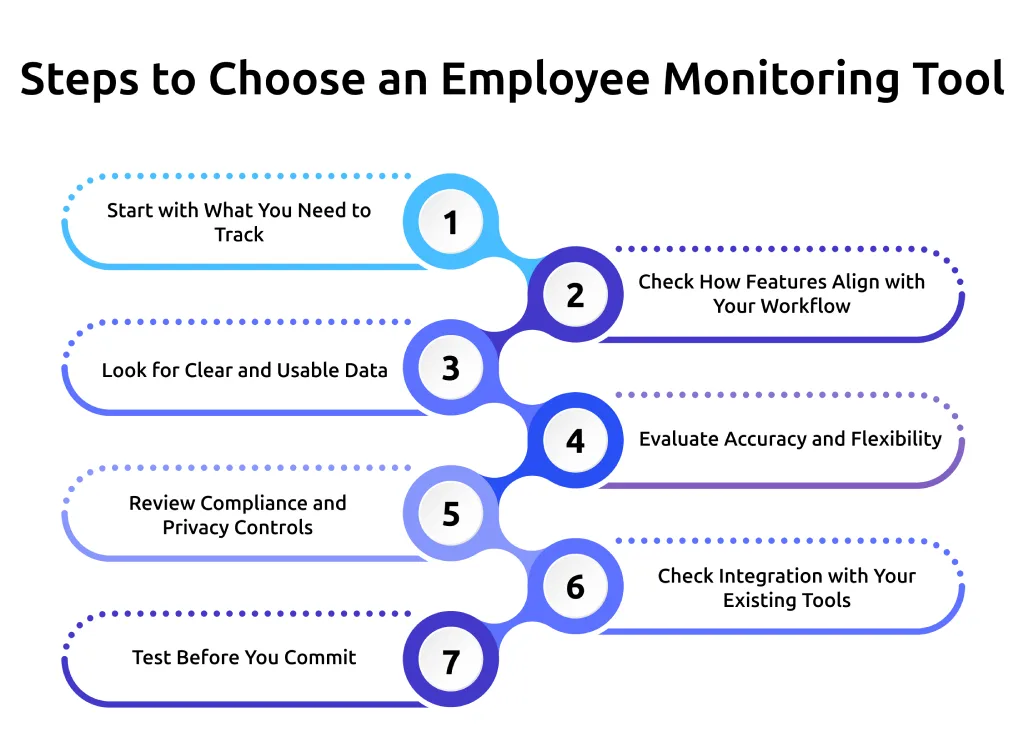
The employee monitoring software market reached an estimated $4.5 billion in 2026, with the US leading growth, according to a 2021–2026 report by IndustryARC. This growth shows how businesses are adopting these tools at scale, but not every tool delivers real value. The difference comes down to choosing one that fits how your work actually runs. Here are the things you need to check before you decide.
1. Start with What You Need to Track
Define what you want to understand first. An agency billing clients hourly needs time tracking and project-level breakdowns. A BPO managing shifts needs attendance, idle detection, and real-time dashboards. When you start with your need, you avoid paying for features that don't solve your actual problem.
2. Check How Features Align with Your Workflow
Each team operates in a different way. Choose a tool that fits your workflow instead of forcing you to adjust your process. For example, project tracking is essential for task-oriented work, while attendance and idle tracking are crucial for shift-based work.
3. Look for Clear and Usable Data
Data should guide your decisions, not leave you confused. Choose a tool that presents insights in a simple way through dashboards and reports. If you struggle to understand the data, you won’t use it.
4. Evaluate Accuracy and Flexibility
Accurate tracking depends on how well you can configure the tool. Check whether you can define productivity rules, set tracking limits, and adjust settings based on roles or tasks.
5. Review Compliance and Privacy Controls
You need control over what you monitor and who can access it. Look for features like role-based access, audit logs, and data controls that will help you stay compliant with regulations.
6. Check Integration with Your Existing Tools
Your monitoring tool should work with the tools you already use. Integration reduces manual work and keeps your data consistent across systems.
7. Test Before You Commit
Always try the tool before making a decision. A trial helps you see how it works in real conditions and whether it fits your workflow without friction.
Why Do Teams Choose Time Champ for Employee Monitoring?
Time Champ is an employee monitoring software that brings all essential features into one platform. You can track activity, monitor productivity, capture work hours automatically, take screenshots, manage attendance, detect idle time, and view real-time reports without switching between tools. Everything stays connected, so you get a clear and complete view of how work happens across tasks and systems.
You can manage remote, hybrid, and field work from a single dashboard, which keeps visibility consistent across locations. Time Champ also supports compliance with standards like GDPR, ISO 27001:2022, HIPAA, and SOC 2 Type I. Role-based access controls and audit logs help you maintain data security and accountability. It also identifies early signs of burnout and attrition using actual work patterns, so you can respond before it impacts performance or retention.
Conclusion
Several factors play a role in selecting an employee monitoring tool. The key is to recognize the exact nature of each feature and its relevance to your operation. When you focus on the right employee monitoring tool features like time tracking, activity visibility, productivity insights, and compliance controls, you move from guesswork to clear decisions. The goal is to track the right things so your data stays useful and relevant. When features align with how your work runs, you get accurate data, better control, and a clear view of where improvements can happen.
See where time goes, how tasks move, and what drives output.
Use Time Champ to turn daily work data into meaningful insights.

Thasleem Shaik

Table of Content
-
 What is an Employee Monitoring Tool?
-
What are the Essential Features of Employee Monitoring Tools?
-
How Do Features Vary Based on Team Needs?
-
Which Features Support Compliance and Data Security?
-
How to Choose an Employee Monitoring Tool?
-
Why Do Teams Choose Time Champ for Employee Monitoring?
-
Conclusion
Instant Signup
Thank you for your request!
We have received your signup request and our team will get back to you soon. In the meantime, you can book a demo to see Time Champ in action.
Book a DemoFree trial. No credit card required. Prefer a walkthrough? Book a demo.
Related Blogs

The AI employee monitoring software goes beyond basic tracking. It predicts risks, reveals patterns, and gives you real clarity to lead your team better.
Shabana Shaik | Apr 17, 2026
Learn how to address employee monitoring concerns with transparency, clear policies, and trust-building practices that improve engagement and reduce resistance.
Anjali | Apr 17, 2026
Learn how IAM and employee monitoring work together to manage access, track activity, and reduce risks across your systems.
Thasleem Shaik | Apr 20, 2026
Learn how employee monitoring in healthcare protects patient data, tracks admin productivity, detects insider threats, and keeps your organization audit-ready.
Anjali | Apr 20, 2026
Learn if your employer can monitor your personal phone after hours. Explore legal rules, real examples, and how to protect your privacy beyond work time.
Anjali | Apr 17, 2026
Understand the zero-trust model in employee monitoring and how it helps you control access, track activity, and reduce risks effectively.
Thasleem Shaik | Apr 17, 2026


 4.7/5 avg.
Ready to Manage Your Workforce Smarter?
Join our family of 1500+ companies using smart insights to redefine workforces!

Free Trial
No Credit Card Required