Top 10 Best Collaboration Tools for Remote Teams in 2026
Compare top collaboration tools for remote teams based on features, use cases, pricing, and strengths to choose the right platform for your workflow.
Remote work is no longer just about working from different places. It is about staying connected, solving problems faster, and keeping everyone moving in the same direction without constant follow-ups. The right collaboration tool can turn scattered chats, missed updates, and endless meetings into a smoother way of working.
In this article, we will look at the best collaboration tools for remote teams that help to communicate clearly, manage work better, and stay productive.
What are Remote Collaboration Tools?
Remote collaboration tools are digital platforms that help you communicate, share information, coordinate tasks, and work together when your team works from different locations. Instead of keeping conversations, files, meetings, and project updates scattered across different places, these tools give you a shared digital space to keep work connected.
10 Best Collaboration Tools for Your Remote Teams
Here are the 10 best collaboration tools for remote teams, with a closer look at what each one does well, where it fits, and what you should consider before choosing it.
| Tool | Best For | Starting Price | Reviews |
|---|---|---|---|
| Time Champ | Time tracking and project management | $3.9/user/month | G2: 4.8/5 Capterra: 4.9/5 |
| Asana | Project management and team coordination | $10.99/user/month | G2: 4.4/5 Capterra: 4.5/5 |
| Slack | Team communication and quick coordination | $4.38/user/month | G2: 4.5/5 Capterra: 4.7/5 |
| Notion | Documentation, project planning, and task management | $10/user/month | G2: 4.6/5 Capterra: 4.7/5 |
| Wrike | Structured project work and cross-functional collaboration | $10/user/month | G2: 4.2/5 Capterra: 4.4/5 |
| Trello | Visual project and task management | $5/user/month | G2: 4.4/5 Capterra: 4.5/5 |
| Miro | Visual collaboration, brainstorming, and planning | $8/user/month | G2: 4.6/5 Capterra: 4.7/5 |
| Zoom | Video meetings and real-time communication | $14.16/user/month | G2: 4.6/5 Capterra: 4.6/5 |
| monday.com | Customizable project and workflow management | $9/user/month | G2: 4.7/5 Capterra: 4.6/5 |
| Ziflow | Creative review and approval workflows | $199/month (flat) | G2: 4.5/5 Capterra: 4.8/5 |
1. Time Champ
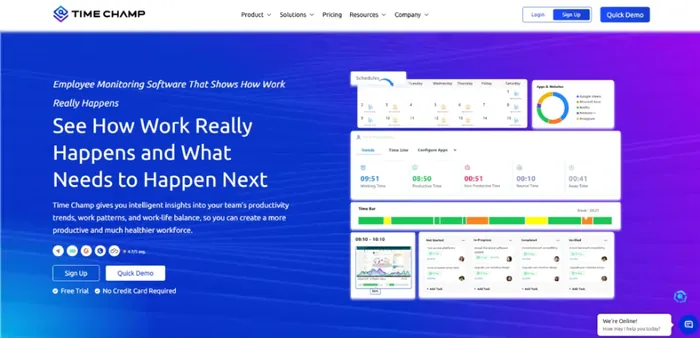
Time Champ is a time tracking and project management software that helps remote teams collaborate, coordinate tasks, and keep work moving smoothly. With features like Kanban boards and drag-and-drop functionality, it enhances your team’s performance by enabling you to allocate tasks and monitor working hours seamlessly. Time Champ also helps you to organize your project workflows, track the progress of your projects, and set deadlines to ensure that everyone is on track.
It assists you in defining your company objectives, creating sprints, tasks, or work items, and managing your budgets. You can generate project reports, work log reports, and timesheets on how your team is utilizing their time and where they can improve.
Key Features
- Project and Task Management: Create projects, assign tasks, set priorities, add deadlines, and organize work through Kanban boards. Follow each task as it moves through different stages and keep project work structured from start to finish.
- Time Tracking: Track time across projects and tasks without relying on separate time logs. Connect tracked hours with project work to see how much time each task requires.
- Productivity Tracking: Review productive, neutral, and unproductive activity patterns across apps and websites. Use these insights to see how work progresses and identify areas that may need attention.
- Activity Tracking: Track app and website usage, active time, idle periods, and activity patterns during work hours. This gives you more context when you review how work moves throughout the day.
- Real-Time Project Progress: Check task statuses, deadlines, milestones, and project progress from one place. Spot delayed work earlier and keep your projects moving without depending on repeated follow-ups.
- Workload and Resource Planning: Review capacity and availability before assigning work. Distribute tasks according to current workloads and reduce the risk of putting too much work on one team member.
- Timesheets and Project Reports: Generate timesheets from tracked work and review project reports covering time, tasks, budgets, and resource usage. These reports give you useful context when reviewing project progress and workload.
- Workflow and Approval Controls: Set task stages, approval flows, and reporting structures around the way your team works. This helps you keep recurring workflows consistent across projects.
- Collaboration Integrations: Connect your existing workflow, such as Slack, Asana, Jira, Microsoft Teams, GitHub, and many more. These integrations help you keep communication and project work connected instead of rebuilding your workflow from scratch.
Pros
- Connects daily work with project progress.
- Supports productivity and activity tracking alongside collaboration.
- Gives remote teams real-time project visibility.
- Helps distribute work according to team capacity.
- Supports Kanban boards for visual task management.
- Tracks time directly against projects and tasks.
- Provides detailed reports for projects and resources.
- Connects with widely used workplace collaboration tools.
- Supports workflows across remote and hybrid teams.
- Offers flexible plans for different team requirements.
Cons
- Some advanced capabilities require higher-tier plans.
- Larger deployments may need additional configuration.
Pricing
Time Champ offers a 7-day free trial, so you can test its features and workflows before choosing a plan.
- Starter: $3.9 per user per month, billed annually
- Professional: $6.9 per user per month, billed annually
- Enterprise: $13.9 per user per month, billed annually
Each plan includes different features to suit different team sizes, workflows, and operational needs. You can review the full plan details on the Time Champ Pricing Page.
Reviews
- G2: 4.8/5
- Capterra: 4.9/5
Struggling to keep remote projects and tasks on track?
Use Time Champ to connect collaboration, time tracking, and project progress in one place.
2. Asana
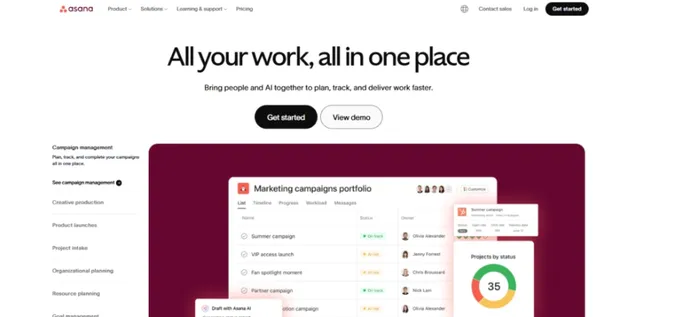
Asana is project management and collaboration software that helps you organize tasks, plan projects, and coordinate work across your remote team. You can break larger projects into smaller tasks, assign responsibilities, set deadlines, and keep project discussions connected to the work. Multiple project views also help you see what is in progress, what is coming next, and where work stands. It works well when you need a structured way to manage projects while keeping your team connected.
Key Features
- Task Management: Create tasks with assignees, due dates, subtasks, attachments, comments, and dependencies to keep responsibilities clear.
- Project Views: Switch between list, board, calendar, timeline, and Gantt views to plan and review work from different angles.
- Team Communication: Add comments, mentions, attachments, and project updates directly to tasks so conversations stay connected to the work.
- Workflow Customization: Add custom fields, rules, forms, and templates to shape projects around your existing workflows.
- Reporting: Use reporting dashboards to review project progress and see real-time information about ongoing work.
Pros
- Easy task tracking keeps deadlines and ownership clear.
- Multiple project views support different planning preferences.
- Comments keep project conversations connected to tasks.
- Flexible workflows fit different types of projects.
- Custom fields provide more control over task details.
Cons
- Advanced features require higher-priced subscription plans.
- Large projects can feel complex to navigate.
- Users report a noticeable learning curve for advanced features.
- Search functionality can make finding work less convenient.
- Basic plans offer fewer customization and reporting options.
Pricing
- Starter: $10.99 per user/per month (billed annually)
- Advanced: $24.99 per user/per month (billed annually)
- Enterprise: Custom pricing
Reviews
- G2: 4.4/5
- Capterra: 4.5/5
3. Slack
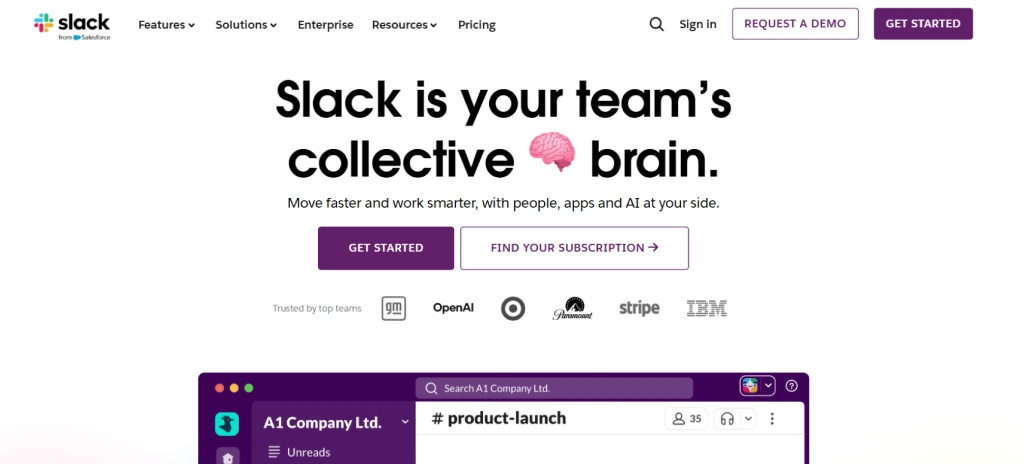
Slack is a communication and collaboration software that helps remote teams keep conversations, updates, files, and quick discussions in one place. It organizes communication through channels, direct messages, and huddles, making it easier to discuss work without relying on long email threads. You can also connect Slack with project management, file sharing, and other workplace tools to keep your existing workflow connected. Its strongest fit comes when your priority is fast communication and easy coordination across remote teams.
Key Features
- Channels: Create separate channels for projects, departments, topics, or specific workstreams. This keeps related conversations together and gives you a dedicated space for ongoing discussions.
- Direct Messages and Huddles: Send direct messages for quick conversations or start huddles for real-time audio and video discussions. Huddles also support screen sharing when you need to work through an issue together.
- Slack Lists: Create and manage tasks directly inside Slack Lists. You can assign work, add due dates, and track progress without moving every task into another application.
- Workflow Builder: Create no-code workflows for routine processes and repetitive tasks. This can help you automate actions that would otherwise require repeated manual steps.
- File Sharing and Canvases: Share files within conversations and use canvases to organize documents, notes, images, and other project information alongside your discussions.
Pros
- Keeps project conversations organized through dedicated channels.
- Supports quick communication across distributed remote teams.
- Makes real-time discussions simple through huddles.
- Automates recurring workflows without requiring coding knowledge.
- Supports convenient file sharing within conversations.
Cons
- High message volumes can create notification overload.
- Too many channels can make conversations harder to follow.
- Free plans provide limited message history access.
- Advanced project management features remain relatively limited.
- Larger workspaces can require careful channel organization.
Pricing
- Pro: $4.38 per user/per month
- Business+: $9 per user/per month
- Enterprise+: Custom pricing
Reviews
- G2: 4.5/5
- Capterra: 4.7/5
Still relying on constant follow-ups to track project progress?
Use Time Champ to keep tasks, deadlines, and work updates visible.
4. Notion
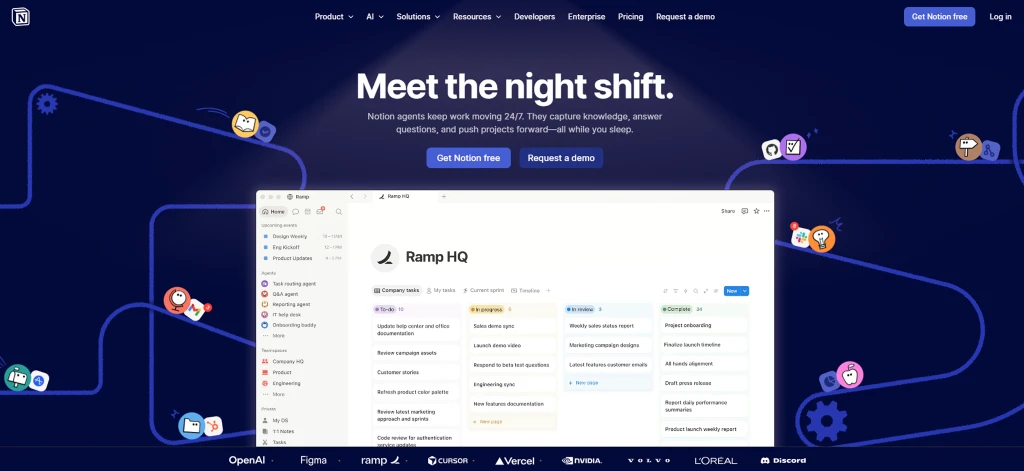
Notion is a collaboration software that brings documents, project planning, task management, and team knowledge into one flexible workspace. You can create project pages, write meeting notes, build knowledge bases, and organize tasks without moving between separate applications. Its database-based approach also lets you arrange the same information in different views based on how you want to work. This makes it a useful choice when documentation and project coordination need to stay closely connected.
Key Features
- Docs and Knowledge Bases: Create project documents, meeting notes, process guides, and internal knowledge pages in the same workspace.
- Task and Project Management: Create tasks, assign work, set deadlines, add subtasks, and track dependencies. You can also switch between boards, calendars, tables, and timelines to review projects.
- Databases: Build custom databases to organize projects, tasks, content, or other information. Add properties, filters, and different views to match your workflow.
- Real-Time Collaboration: Work together on documents, add comments, suggest edits, and keep discussions connected to the relevant content.
- Templates and Customization: Use templates or create your own page structures to set up project plans, meeting notes, task boards, and documentation faster.
Pros
- Lets you customize workspaces around different workflows.
- Keeps project information and documentation closely connected.
- Supports several views for organizing project information.
- Makes real-time document collaboration simple for teams.
- Includes built-in AI features for selected plans.
Cons
- Initial setup can take time for complex workspaces.
- Advanced project management needs may require other tools.
- Large databases can affect performance in some cases.
- Mobile experience may feel less convenient than the desktop.
- Flexible customization can create unnecessary workspace complexity.
Pricing
- Plus: $10 per user/per month
- Business: $20 per user/per month
- Enterprise: Custom pricing
Reviews
- G2: 4.6/5
- Capterra: 4.7/5
5. Wrike
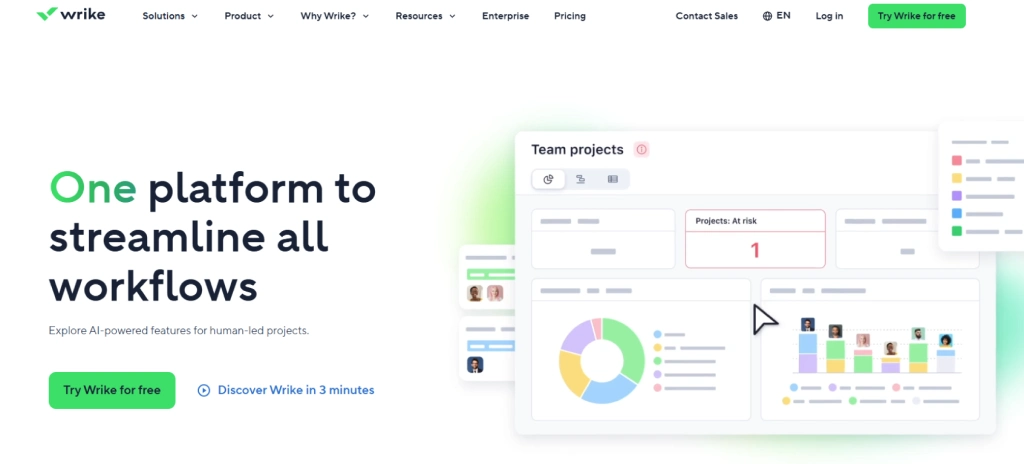
Wrike is a team collaboration software built for structured project work, task coordination, and cross-functional collaboration. You can organize complex projects, assign work, track dependencies, and keep project communication connected to tasks. Interactive Gantt charts, workload views, proofing, approvals, and custom workflows give you more control when several projects move at the same time. It fits remote teams that need more structure than a basic task or communication tool can provide.
Key Features
- Interactive Gantt Charts: Map tasks, milestones, deadlines, and dependencies on a visual timeline. Adjust project schedules as priorities change.
- Proofing and Approvals: Add feedback directly to creative files, compare versions, and manage approvals without moving discussions into separate email threads.
- Custom Workflows: Create workflows around recurring processes and automate routine actions to keep project work moving with fewer manual steps.
- Workload Management: Review workload across projects and reassign tasks when capacity changes. This helps you keep assignments balanced during busy periods.
- Request Forms: Collect project requests through customizable forms and route them into the appropriate workflow.
Pros
- Handles complex projects with a structured workflows.
- Provides several views for planning project work.
- Keeps feedback connected directly to project assets.
- Helps balance workloads across multiple ongoing projects.
- Connects project tasks with external collaboration tools.
Cons
- Advanced features require higher pricing tiers.
- The extensive feature set can take time.
- Smaller teams may find Wrike unnecessarily complex.
- Advanced capacity planning starts with Pinnacle.
- Some integrations and capabilities require additional costs.
Pricing
- Team: $10 per user/per month
- Business $25 per user/per month
- Pinnacle & Apex: Custom pricing
Reviews
- G2: 4.2/5
- Capterra: 4.4/5
6. Trello
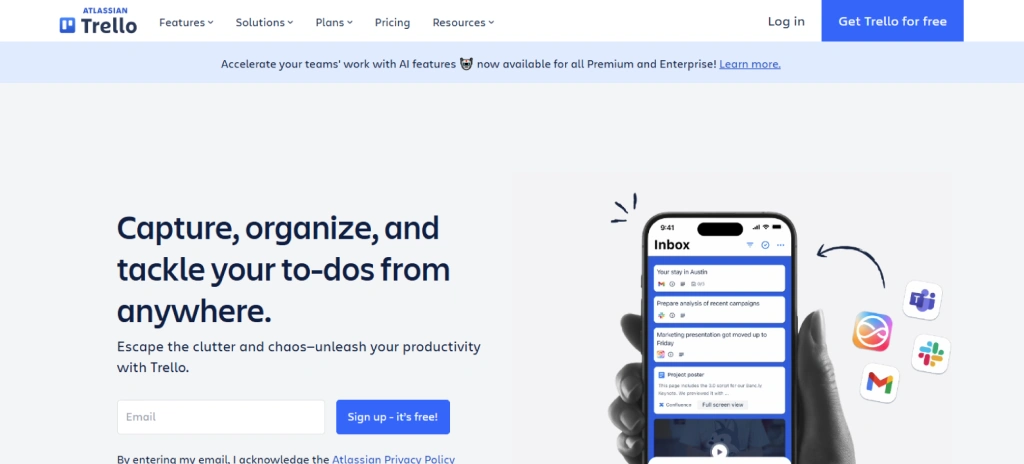
Trello is a visual team collaboration tool that helps you organize projects and tasks through boards, lists, and cards. You can see what needs attention, who handles each task, and how work moves from one stage to another without digging through long updates. Its simple layout works well when you want a clear view of everyday work without adding a complicated project management setup. Trello also supports automation, templates, integrations, and different project views as your workflow grows.
Key Features
- Boards and Cards: Create boards for projects and use cards to represent individual tasks. Move cards across lists to show progress and keep priorities visible.
- Checklists and Due Dates: Break larger tasks into smaller steps, assign due dates, and keep important work from slipping through the cracks.
- Comments and Attachments: Add comments, files, and other details directly to cards so project discussions stay connected to the relevant task.
- Automation: Create rules and automated actions for recurring tasks and routine workflow updates.
- Planner: Connect your calendar and schedule focused time around your Trello cards. This helps you bring task planning and daily scheduling closer together.
Pros
- Makes project progress easy to see visually.
- Offers a simple setup for everyday collaboration.
- Supports flexible boards for different workflows.
- Keeps task discussions attached to relevant cards.
- Provides useful automation for recurring workflow actions.
Cons
- Complex projects can become difficult to manage.
- Advanced reporting capabilities remain relatively limited.
- Large boards can become harder to navigate.
- Built-in dependency management remains less comprehensive.
- Resource planning requires more advanced project tools.
Pricing
- Standard: $5 per user/per month (billed annually)
- Premium $10 per user/per month (billed annually)
- Enterprise: $17.50 per user/per month (billed annually)
Reviews
- G2: 4.4/5
- Capterra: 4.5/5
7. Miro
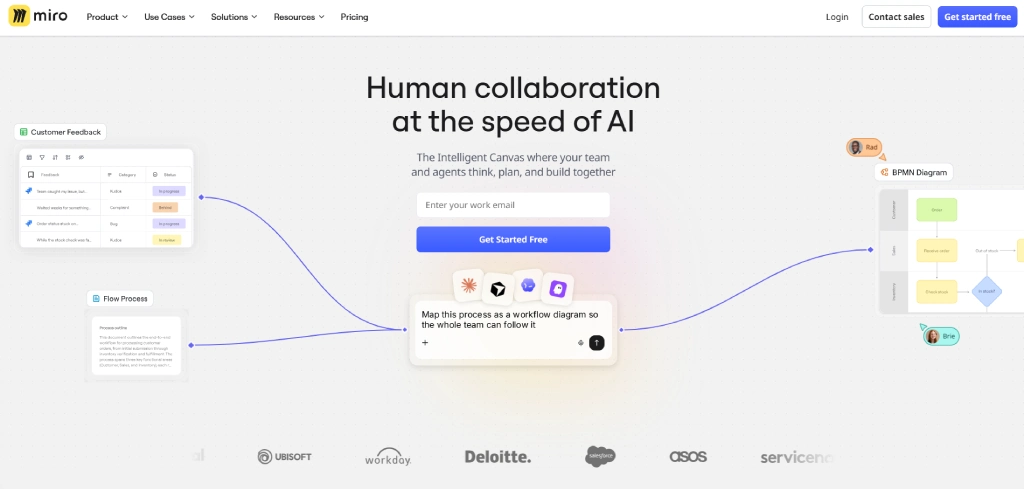
Miro is a visual collaboration software that gives remote teams a shared space for brainstorming, planning, diagramming, and working through ideas together. Its infinite canvas lets you arrange sticky notes, diagrams, documents, tables, and other content without the limits of a traditional document. You can also work together in real time or contribute asynchronously when your schedules do not overlap. This makes Miro particularly useful for workshops, product planning, retrospectives, and other work that benefits from visual collaboration.
Key Features
- Infinite Canvas: Build large visual workspaces where you can map ideas, workflows, diagrams, and project plans in one place.
- Real-Time Collaboration: Work together on the same board, add comments, share screens, and use video calls when you need live interaction.
- Templates: Start with ready-made templates for brainstorming, retrospectives, roadmaps, mind maps, workshops, and other collaborative activities.
- Mind Mapping and Diagramming: Turn ideas into visual maps, flowcharts, process diagrams, and other structures that make complex topics easier to discuss.
- Sticky Notes and Reactions: Capture ideas quickly with sticky notes and use reactions to gather feedback during collaborative sessions.
Pros
- Creates a flexible workspace for visual collaboration.
- Makes remote brainstorming feel more interactive.
- Supports both live and asynchronous collaboration.
- Handles diagrams, roadmaps, and mind maps.
- Provides useful workshop and facilitation features.
Cons
- Large boards can become difficult to navigate.
- Complex workspaces may require additional learning.
- Detailed task management remains less central.
- Free plans limit the number of editable boards.
- Advanced collaboration features require paid plans.
Pricing
- Starter: $8 per user/per month (billed annually)
- Business: $20 per user/per month (billed annually)
- Enterprise Custom pricing
Reviews
- G2: 4.6/5
- Capterra: 4.7/5
Are scattered conversations making collaboration harder?
Try Time Champ to bring your team’s work and communication closer together.
8. Zoom
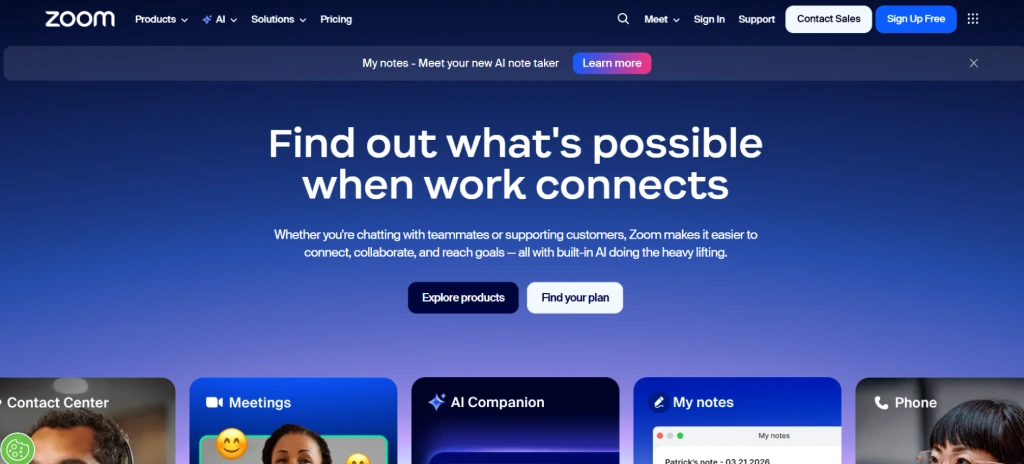
Zoom is a video conferencing and online collaboration software that helps remote teams communicate through live meetings, screen sharing, chat, and interactive sessions. You can use it for regular team meetings, client calls, training sessions, webinars, and larger company gatherings. Beyond video calls, Zoom Workplace now includes tools such as Chat, Whiteboard, Clips, Docs, Tasks, and AI features. This makes it useful when your remote workflow depends heavily on real-time communication.
Key Features
- Breakout Rooms: Split larger meetings into smaller discussion groups for workshops, training, brainstorming, or focused conversations. Hosts can create, assign, and manage multiple breakout rooms during a session.
- Zoom Chat: Continue conversations outside meetings through instant messaging, channels, and shared files. This gives you a way to keep communication going between scheduled calls.
- Whiteboard: Brainstorm and organize ideas through interactive whiteboards with sticky notes, drawing tools, comments, and other visual collaboration features.
- Meeting Summaries and AI Notes: Generate meeting summaries, capture action items, and use AI features to catch up on discussions without replaying an entire recording. Availability depends on the plan and feature settings.
- Clips and Tasks: Record short video messages through Clips and manage tasks through Zoom's built-in task features. These tools can help you share updates without scheduling another meeting.
Pros
- Provides reliable video and audio for remote meetings.
- Makes screen sharing simple during live discussions.
- Connects meetings with calendars and workplace workflows.
- Keeps team communication going through Zoom Chat.
- Supports interactive whiteboards for visual collaboration.
Cons
- Advanced features require paid subscription plans.
- Project management capabilities remain less extensive than dedicated tools.
- Large workspaces may require additional administration.
- Cloud recording storage varies by subscription.
- Heavy reliance on meetings can create communication overload.
Pricing
- Pro: $14.16 per user/per month (billed annually)
- Business: $18.33 per user/per month (billed annually)
- Enterprise: Custom pricing
Reviews
- G2: 4.6/5
- Capterra: 4.6/5
9. monday.com
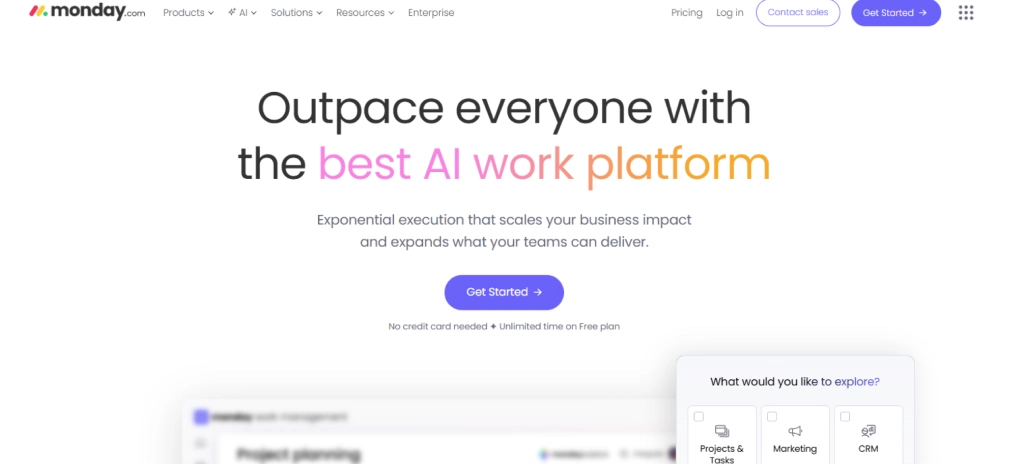
monday.com is a team collaboration platform that helps you organize projects, assign tasks, share updates, and track work through customizable boards. You can shape each workspace around your workflow instead of following one fixed project structure. Dashboards, automations, integrations, and multiple project views also give you more ways to manage work across distributed teams. It fits well when you want visual project tracking with room to customize how your team works.
Key Features
- Customizable Boards: Build boards with different columns, statuses, owners, dates, and other fields to match the way you manage projects and tasks.
- Project Views: Switch between views such as Kanban, Timeline, Gantt, Calendar, and charts to review work from different angles.
- Dashboards: Bring information from multiple boards into dashboards to monitor project progress, workload, budgets, and other key details from one place.
- Task Management: Create tasks, assign ownership, set deadlines, add priorities, and track progress through visual boards.
- Automations: Create no-code rules for recurring actions such as notifications, status changes, assignments, and other workflow updates.
Pros
- Offers flexible boards for different project workflows.
- Makes project progress easy to view visually.
- Supports real-time updates across distributed teams.
- Keeps task discussions connected to specific work.
- Provides useful dashboards for project visibility.
Cons
- Extensive customization can take time to configure.
- Complex boards can become difficult to maintain.
- Advanced automations require higher pricing tiers.
- Some advanced views require paid plans.
- Larger workflows may need careful board organization.
Pricing
- Basic: $9 per user/per month (billed annually)
- Standard: $12 per user/per month (billed annually)
- Pro: $19 per user/per month (billed annually)
- Enterprise: Custom pricing
Reviews
- G2: 4.7/5
- Capterra: 4.6/5
10. Ziflow
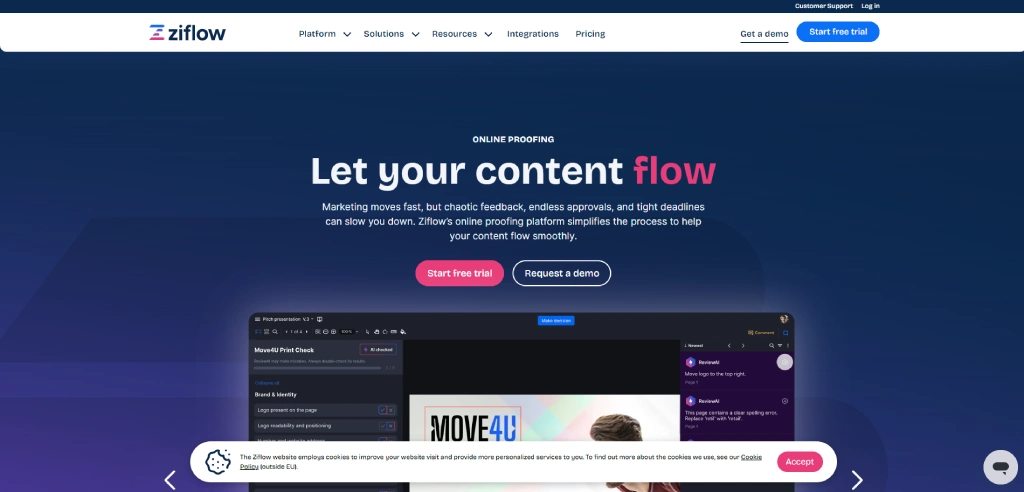
Ziflow is a collaboration software built around creative review and approval workflows. You can bring images, videos, PDFs, documents, web pages, and other creative assets into one review space and collect feedback directly on the work. Version comparison, comments, markups, deadlines, and approval stages help remote creative teams keep feedback organized without relying on scattered email threads. It works best when your collaboration process centers on reviewing and approving visual or media-heavy work.
Key Features
- Collaborative Proofing: Review images, documents, videos, audio files, web pages, and other creative formats in one place.
- Real-Time Comments: Add comments and markups directly to creative assets so feedback stays connected to the exact part that needs attention.
- Version Comparison: Compare different versions side by side or through overlays to spot changes before approving the latest version.
- Approval Workflows: Create sequential or parallel review stages and move work through defined approval steps.
- Review Deadlines: Set deadlines for reviews and send reminders when feedback remains outstanding.
Pros
- Keeps creative feedback in one centralized workspace.
- Supports many image, document, and media formats.
- Makes visual feedback precise with direct markups.
- Simplifies approval workflows across remote creative teams.
- Makes version comparison easier during content reviews.
Cons
- Focuses more on proofing than on general project management.
- Advanced workflow controls require higher subscription plans.
- Large creative files can require substantial storage.
- Complex review setups may require initial configuration.
- Some integrations become available only on higher plans.
Pricing
- Standard: $199 per month (billed annually)
- Pro: $329 per month (billed annually)
- Enterprise: Custom pricing
Reviews
- G2: 4.5/5
- Capterra: 4.8/5
Bonus Tool Options for You
11. Bit.ai
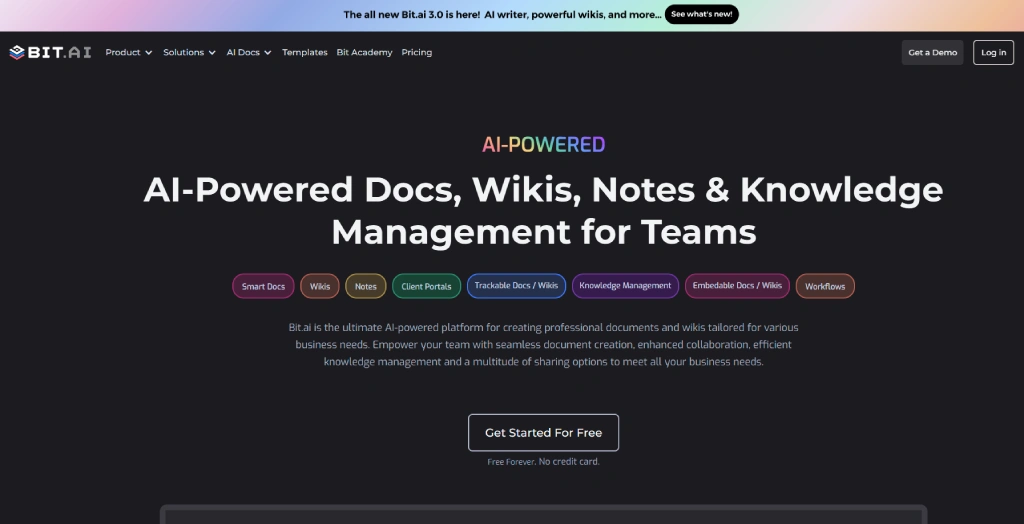
Bit.ai is a smart document collaboration and knowledge management platform that helps teams create, share, and track interactive documents in one place. You can create project wikis, proposals, training guides, and more with images, videos, charts, and other rich media.
Key Features
- Create interactive documents and wikis with videos, charts, code, and other rich media.
- Collaborate in real time with inline comments, @mentions, and live edits.
- Connect with 100+ tools, including Google Drive, Figma, Airtable, and Trello.
- Track document views, engagement, and time spent on content.
- Use the AI writing assistant to draft, summarize, and format documents.
Pricing
- Pro Plan: $8 per user/month (billed annually)
- Business Plan: $15 per user/month (billed annually)
Reviews
- G2: 4.1/5
- Capterra: 5/5
12. ProofHub
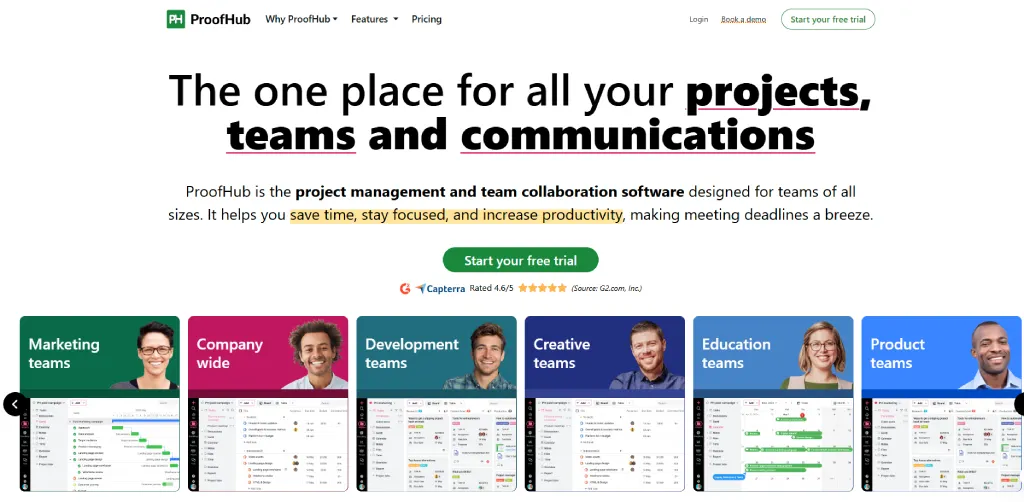
ProofHub is an all-in-one project management software that helps teams plan, organize, and track work. It combines project management with collaboration features to keep work organized. You can add comments and attachments to tasks, share files, and mention team members directly within tasks.
Key Features
- Use Gantt charts, Kanban boards, Table view, and Calendar to view project tasks.
- Create tasks, set start and due dates, assign owners, and add custom task fields.
- Collaborate through announcements, discussion boards, 1-1 chats, and group chats.
- Set custom permissions and roles to control access to projects.
- Track time and use detailed reports to compare actual time with estimated time.
Pricing
- Ultimate Control: $89 per month (billed annually)
- Essential: $45 per month (billed annually)
Reviews
- G2: 4.6/5
- Capterra: 4.6/5
How to Choose the Right Collaboration Tools for Your Remote Team?
Choosing a collaboration tool can feel simple until you start comparing features, pricing, integrations, and workflows. The best choice depends on how you actually work, what your remote team struggles with, and how much structure you need.
Before you choose a tool, here are the key things to consider.
1. Match the Tool to Your Workflow
Start with the work you need to manage every day. If you mainly handle conversations, a communication-focused tool may fit better. If you coordinate projects, deadlines, and tasks, look for stronger project management capabilities. For creative reviews, visual collaboration, or documentation, prioritize tools built around those needs.
2. Check How Your Team Communicates
Think about how you share updates and discuss ongoing work. Look for features such as channels, direct messages, comments, video meetings, file sharing, and real-time collaboration. A good fit should make communication easier without forcing you to move between too many separate tools.
3. Look at Project and Task Management
If you manage several projects at once, check how easily you can create tasks, assign work, set deadlines, track progress, and review project status. Tools such as Time Champ, Asana, Wrike, Trello, and monday.com offer different approaches to organizing project work.
4. Check Integrations Before You Commit
Your collaboration tool should work with the applications you already rely on. Check whether it connects with tools such as Microsoft Teams, Google Workspace, or GitHub. Integrations can help you keep communication and project work connected instead of rebuilding your existing workflow.
5. Consider How Much Customization You Need
Some tools give you a simple structure, while others let you build detailed workflows around your way of working. Decide whether you need customizable boards, templates, dashboards, databases, or automated workflows. Too much flexibility can also create unnecessary complexity, so choose only what supports your daily work.
6. Compare Pricing and Test the Tool
Do not choose a tool simply because it has a lower starting price. Check which features come with each plan and whether the capabilities you need require a higher tier. If the tool offers a free plan or trial, test it with a real project, a few tasks, and the integrations your team already relies on. This gives you a clearer idea of whether the tool fits your workflow before you commit.
Jumping between different apps just to keep everyone in sync?
Use Time Champ to connect team collaboration, tasks, and work activities.
Conclusion
Remote work does not have to feel disconnected. The right tools can bring conversations, tasks, files, and project updates closer together so your team can spend less time chasing information and more time moving work forward.
The best collaboration tools for remote teams are not always the ones with the longest feature lists. Choose the tool that fits your workflow, supports the way your team communicates, and gives you the right level of structure.
Start with what your team needs today, then choose a tool that can grow with you.
Table of Content
 What are Remote Collaboration Tools?
- 10 Best Collaboration Tools for Your Remote Teams
- 1. Time Champ
- 2. Asana
- 3. Slack
- 4. Notion
- 5. Wrike
- 6. Trello
- 7. Miro
- 8. Zoom
- 9. monday.com
- 10. Ziflow
- Bonus Tool Options for You
- 11. Bit.ai
- 12. ProofHub
- How to Choose the Right Collaboration Tools for Your Remote Team?
- Conclusion
Related Blogs
Attendance management systems help automate employee attendance, shifts, leave, and payroll. Compare features, benefits, types, and selection tips.
Thasleem Shaik | Jul 22, 2026
Compare top cloud-based productivity and collaboration tools for communication, project management, file sharing, teamwork, and productivity tracking.
Thasleem Shaik | Jul 03, 2026
Compare the best time tracking tools for virtual assistants to track hours, manage clients, boost productivity, simplify billing, and stay organized.
Thasleem Shaik | Jun 04, 2026
Looking for the best software development tools? Compare 15 top tools for coding, version control, DevOps, deployment, and project management!
Guna Lakshmi | Jul 14, 2026
AI productivity tools help employees automate tasks, work smarter, and boost overall productivity. Learn their benefits, risks, top tools, and best practices.
Anjali | Jul 04, 2026
Find the best communication tools for hybrid teams in 2026. Learn how to build a communication stack, choose sync or async tools, and boost collaboration.
Jahnavi Pulluri | Jun 16, 2026


 4.7/5 avg.
Ready to Manage Your Workforce Smarter?
Join our family of 1500+ companies using smart insights to redefine workforces!

Free Trial
No Credit Card Required