Employee Screenshot Monitoring Frequency: Best Practices
Choose the right employee screenshot monitoring frequency for your team type. See role-based guidance and interval tradeoffs.
Employee screenshot monitoring frequency may seem like a small setting, but it directly shapes how your team experiences monitoring every day. If you set it too high, it feels intrusive. If you set it too low, the data becomes useless. In fact, a survey by Raconteur found that 38% of employees would consider leaving their jobs if workplace monitoring feels too intrusive or becomes micromanagement. That one choice can change how your team feels about monitoring and whether the data actually helps you take action. The detail here sits inside a wider conversation covered in our enterprise employee monitoring guide.
In this guide, you’ll learn how to choose the right employee screenshot monitoring frequency based on roles, use cases, and privacy balance, so your team stays productive, comfortable, and informed.
What Employee Screenshot Frequency Actually Measures
Screenshot frequency defines how often you capture an employee’s screen during work. For example, every 5 minutes gives you 12 screenshots per hour, every 10 minutes gives 6, and every 15 minutes gives 4. Each option changes how much data you collect and how closely work is visible.
Screenshot frequency doesn’t tell you how productive someone is. Taking more screenshots just means you capture the screen more often. Actual productivity comes from activity data like active time, app usage, and productivity scores. Screenshots help you understand what causes changes in your team’s activity and productivity.
The difference between screenshot frequency and productivity data matters when you choose the right setting. When you align screenshot frequency with your goals, it becomes more useful and less intrusive. You don’t need more screenshots. You need the right level of visibility to support better decisions. What matters is choosing a frequency that actually fits how your team works and what you’re trying to understand, which is also a key part of ethical employee monitoring.

Did You Know?
78% of employers use tools to monitor employees in remote or hybrid environments.
The Three Interval Options and What Each One Delivers
Choosing a screenshot interval directly affects how your team experiences monitoring. Each option gives you a different level of visibility, and each comes with a different impact on trust and privacy. The table below maps each interval setting to its appropriate use case, purpose, and privacy impact.
| Screenshot Interval | Best Suited For | Purpose | Privacy Impact |
|---|---|---|---|
| Every 5 minutes | BPO and call center staff, data entry operators, and financial services compliance roles | High-frequency oversight for roles where real-time work verification is required for client SLAs or regulatory audit trails. | High. Use only with full disclosure and where role justification is clearly documented. |
| Every 10 minutes | Remote knowledge workers, software developers, customer support, and agencies billing by the hour | Balanced visibility across the workday. Sufficient to verify work activity and generate accurate client billing records without creating anxiety. | Moderate. Acceptable in most transparent monitoring implementations with employee consent. |
| Every 15 minutes | Creative teams, managers, senior individual contributors, and hybrid teams with output-based roles | Lightweight check-in. Confirms engagement during work sessions without granular oversight. Best for teams where output matters more than activity. | Low. Most employees in output-focused roles find this proportionate. |
| Manual only | Executive roles, senior leadership, and teams where trust is established and compliance needs are minimal. | Screenshots are taken on demand rather than automatically. Useful for specific reviews or incident investigation rather than ongoing monitoring. | Very low. Removes scheduled capture entirely and places oversight at the manager's discretion. |
The last column, privacy impact, matters the most because it directly shapes how your team experiences monitoring and whether your setup holds up over time without creating discomfort or resistance. Using a very high frequency, like every 5 minutes, for roles that do not need strict tracking, does not improve monitoring. It creates pressure, reduces trust, and can also lead to compliance issues in some regions.
A better approach is to use the lowest frequency that still gives you enough visibility. This keeps monitoring useful while avoiding unnecessary pressure on your team.
Finding it hard to choose the right screenshot frequency for each role?
See how Time Champ helps you adjust monitoring based on your team’s work style.
Does Screenshot Frequency Affect Employee Morale?
Yes, screenshot frequency does affect employee morale. The way you set it can influence how employees feel about monitoring, how they behave during work, and how much they trust the system.
High Screenshot Frequency Can Change How Your Team Works
When you set a high screenshot frequency, your team becomes more aware of being monitored. High-frequency capture often leads them to focus on what appears in screenshots instead of doing meaningful work. As a result, work may look productive on the surface, but the actual quality does not improve.
Visible Monitoring Can Lead to Performative Work
Since screenshots capture the screen at regular intervals, your team may start adjusting their behavior to match what is visible. They may keep certain apps open or switch screens just to appear active, which creates a pattern of working for visibility instead of real outcomes.
The Right Frequency Helps Maintain Trust
When you set a frequency that matches the role, you reduce unnecessary pressure. When your team understands why you use monitoring and sees that the setting is reasonable, they are more likely to accept it without frustration.
Matching Frequency to the Role Improves Acceptance
Different roles require different levels of visibility. A setting that works for compliance-heavy roles may feel excessive for creative or senior roles. When you match the frequency to the nature of the work, you maintain both productivity and employee comfort.
Screenshot Frequency by Role and Industry
Choosing the same screenshot frequency for every team rarely works. Each role has a different way of working, a different level of accountability, and a different need for visibility. What feels reasonable for one team can feel excessive or unnecessary for another.
To make this easier, the table below breaks down recommended screenshot frequencies across 10 different roles and industries. This helps you set a frequency that fits how the work actually happens, instead of relying on a one-size-fits-all approach.
| Industry / Team Type | Recommended Interval | Key Reason |
|---|---|---|
| BPO / Call Center | 5 minutes | Client SLA verification requires frequent visual proof of agent activity. Compliance and QA needs justify a higher frequency. |
| Software Development | 10–15 minutes | Developers work in long focus blocks. Frequent screenshots interrupt the flow without adding insight. Activity data and commits are stronger performance signals. |
| Financial Services | 5–10 minutes | Regulatory compliance often requires detailed audit trails of employee activity on financial systems. FINRA and SEC oversight requirements. |
| Creative / Design Teams | 15 minutes | Creative work is non-linear. High-frequency screenshots capture blank canvases and iteration states that look unproductive but are part of the process. |
| Customer Support | 10 minutes | Sufficient to verify tool usage and response patterns without intrusive oversight. Balances accountability with trust. |
| Remote Knowledge Workers | 10–15 minutes | Output-focused roles benefit more from productivity scoring and activity data than from frequent visual capture. |
| Agencies (Client Billing) | 10 minutes | Provides a visual audit trail for client billing disputes without over-monitoring. Supports accurate billable hour documentation. |
| Healthcare / Legal | 5–10 minutes | Compliance with HIPAA, legal professional requirements, and data handling obligations. Screenshot blur is essential for patient and client data protection. |
| Construction / Field Teams | Not applicable | Field teams use GPS attendance and mobile tracking. Screenshot monitoring applies to office and desk-based roles only. |
| Executive / Senior Leadership | Manual only | Oversight at this level is output and outcome-based. Scheduled screenshots are disproportionate and counterproductive to trust. |
Four Factors That Should Determine Your Frequency Setting
Before you set the screenshot frequency, look at these four factors for each role. They help you choose a setting that actually fits your team.
Monitoring Purpose and Business Need
Start by identifying why you need screenshots. If your goal is compliance or audits, you may need more frequent screenshots to create a clear and reliable record. If your goal is billing or tracking work, you only need enough screenshots to confirm the work was completed. If you want to improve performance, a moderate frequency works better, so you can identify patterns without creating too much data. For security-related needs, data loss prevention tools provide better visibility into file, system, and web activity alongside screenshots.
Nature of the Work and Task Structure
Consider how your team performs the work each day. Roles with short, repetitive tasks like data entry or customer support benefit from higher frequency because each screenshot shows a different step in the workflow. Roles with long, focused tasks like writing, designing, or coding do not need frequent screenshots, since the screen may look similar for longer periods. In these cases, activity tracking provides a more accurate view of productivity than screenshots alone.
Transparency and Communication with Employees
Set a frequency that you can confidently explain to your team. If the reason behind a setting is unclear or difficult to explain, it is likely not the right frequency for that role. Being open about monitoring helps build trust and creates a more comfortable work environment. In some regions, transparency is also a legal requirement. Clear workplace communication makes your monitoring approach easier to accept and sustain over time.
Storage, Review, and Practical Usage
More screenshots mean more data for you to store and review every day. For example, a large team with frequent screenshots can generate thousands of images daily. The important question is whether you will actually review and use this data. If you don’t, it becomes unnecessary overhead without real value. Choose a frequency that you can realistically manage, review, and use for better decision-making.
Did You Know?
57% of companies began using employee monitoring software within the past six months, showing how quickly organizations are adopting new ways to track and manage employee activity.
Common Screenshot Frequency Mistakes to Avoid
Most issues with screenshot monitoring don’t come from the tool. They come from how you set the frequency. A few small decisions can quickly turn a useful setup into something that feels excessive or gets ignored. Here are some common mistakes you need to avoid while setting screenshot frequency in your team.
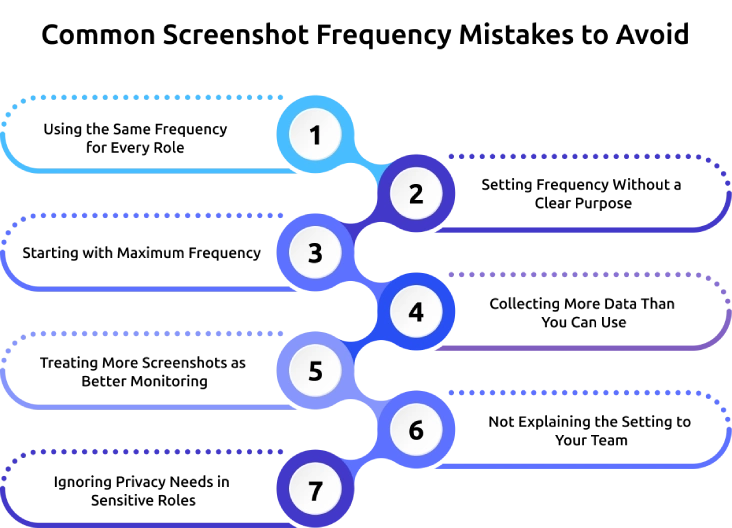
Using the Same Frequency for Every Role
Applying one setting across all teams may seem simple, but different roles work in very different ways. A frequency that fits one team can feel too much for another. When you adjust frequency based on the role, it feels more relevant and easier for your team to accept.
Starting with Maximum Frequency
Setting the highest frequency from the beginning can create unnecessary pressure on your team. Once that pressure builds, it becomes difficult to bring things back to normal. It works better when you start with a level that fits the role and increase it only when there is a clear reason.
Treating More Screenshots as Better Monitoring
Taking more screenshots only increases how much data you collect. It does not improve the quality of insights. If you do not review or use those screenshots, they do not help you. Activity data gives clearer insights, while screenshots add context.
Ignoring Privacy Needs in Sensitive Roles
If your team handles confidential information, you need to be careful with how screenshots are captured. Clear screenshots in such cases can create risk. Using options like screenshot blur helps you protect sensitive data while still maintaining visibility.
Setting Frequency Without a Clear Purpose
When you choose a frequency without a clear reason, the setup becomes hard to justify. This can lead to confusion and resistance from your team. A clear purpose helps you choose the right level and explain it better.
Collecting More Data Than You Can Use
Higher frequency creates a large number of screenshots every day. If you do not review them, they only add to storage and management effort. It is more useful to set a frequency that you can actually manage and use for decisions.
Not Explaining the Setting to Your Team
When your team does not understand why screenshots are being taken, they may develop concerns or misunderstand the intent. This affects how they feel about monitoring. When you explain the purpose clearly, it helps build understanding and reduces unnecessary concern.
Set Screenshot Frequency the Right Way with Time Champ
Setting the right screenshot frequency becomes much easier when you have the flexibility to match it to how your teams actually work. As a workforce intelligence and employee monitoring software, Time Champ gives you that control by supporting 5, 10, and 15-minute intervals, which you can configure at the company level, team level, or even for individual employees. This allows you to apply 5-minute intervals to BPO agents, 10-minute intervals to your remote support team, and 15-minute intervals to developers, all within the same platform, without managing separate setups.
Time Champ also makes it easier to handle privacy and sensitive data without losing visibility. Screenshot blur is available for roles that deal with confidential information, so captured images stay secure while monitoring continues. Role-based access controls ensure that only the right people can view, download, or manage screenshots for their teams.
Beyond screenshots, Time Champ supports complete performance visibility. Time tracking, attendance monitoring, and overtime tracking help you understand how time is spent across the workday. App and website usage tracking shows where time goes, while productivity classification gives clear insight into productive and non-productive activities. Together, these features help you connect screenshot data with real performance trends, so you are not relying on visuals alone.
Ready to make monitoring more effective for your team?
Start using Time Champ to get the right balance of visibility and trust.
Conclusion
Employee screenshot monitoring frequency is a setting that directly shapes how monitoring works in your organization. It works best when it matches the purpose of the role, can be clearly explained to your team, and produces screenshots that you will actually review and use. What matters is setting the right level for each team, being clear about why it is used, and protecting privacy where needed. When you apply it in a proper way, screenshot monitoring becomes a practical tool that supports better decisions and keeps your team comfortable with how it is used.
For the broader framework on employee screenshot monitoring software, see our complete feature guide.

Guna Lakshmi

Table of Content
-
 What Employee Screenshot Frequency Actually Measures
-
The Three Interval Options and What Each One Delivers
-
Does Screenshot Frequency Affect Employee Morale?
-
Screenshot Frequency by Role and Industry
-
Four Factors That Should Determine Your Frequency Setting
-
Common Screenshot Frequency Mistakes to Avoid
-
Set Screenshot Frequency the Right Way with Time Champ
-
Conclusion
Instant Signup
Thank you for your request!
We have received your signup request and our team will get back to you soon. In the meantime, you can book a demo to see Time Champ in action.
Book a DemoFree trial. No credit card required. Prefer a walkthrough? Book a demo.
Related Blogs

Employee screen monitoring captures work activity in real time. Learn all monitoring types, how they boost productivity, and how to implement them ethically.
Jahnavi Pulluri | Apr 17, 2026
Background screening also known as pre- employment screening, is a comprehensive screening process that employers implement to filter the history of candidates.
Sai Keerthi Uppala | Feb 14, 2024
In the ever-changing landscape of modern business, the tools we use to assess, monitor, and manage our work can mean the difference between success stagnation.
Mounika Sai | Dec 02, 2023
Managing an async team? Learn how asynchronous work employee monitoring works and what to track to keep your team productive.
Guna Lakshmi | Apr 16, 2026
Track the right employee monitoring metrics to understand work patterns, improve performance, and make data-driven decisions with confidence.
Thasleem Shaik | Apr 22, 2026
Understand how keystroke logging works, what it tracks, and where it is legal. Learn how to use it without crossing ethical boundaries.
Guna Lakshmi | Apr 17, 2026


 4.7/5 avg.
Ready to Manage Your Workforce Smarter?
Join our family of 1500+ companies using smart insights to redefine workforces!

Free Trial
No Credit Card Required