Using Screenshots in Employee Performance Reviews
Use screenshots in performance reviews the right way. Learn when they help, where they fail, and how to use them with complete performance data.

Screenshots from employee monitoring software can support a performance review, but most teams use them the wrong way. They pick a few screenshots, interpret them on their own, and use them to judge performance. The problem is that a screenshot tells you what was on screen at one moment. It says nothing about the quality of the work, the output delivered, or how the employee performed across the full review period. The detail here sits inside a wider conversation covered in our enterprise employee monitoring guide.
That kind of review creates defensiveness, damages trust, and often does not hold up when questioned. Screenshots become genuinely useful in performance reviews when you treat them as contextual evidence, not primary evidence. You use them alongside productivity data, task completion records, activity trends, and attendance patterns to explain specific moments in a larger data picture.
This blog covers when screenshots add real value in a performance review, when other data does the job better, how to build a complete monitoring data set, and how to bring screenshots into a performance conversation without making it feel like criticism.
What is Screenshot Monitoring, and Why Are Companies Using It Today?
Screenshot monitoring is a feature within employee monitoring software that automatically captures images of an employee's screen at set intervals throughout the workday. Depending on how you configure it, the software takes these captures every few minutes and stores them with a timestamp, so you can see what was on screen at any given point during a tracked work session.
You get a visual record of what your team was working on, which applications were open, and how time was being used across the day. Unlike activity scores or app usage reports that give you numbers, screenshot monitoring gives you the actual picture behind those numbers.
The reason more companies are turning to this today comes down to one simple gap that other monitoring data cannot fill on its own. Productivity scores tell you how much work teams complete, and task records show what teams deliver, but neither explains what actually happens when output drops or a project falls behind.
Screenshot monitoring fills that gap. Whether you manage a remote team, a hybrid setup, or an in-office team handling multiple projects, screenshots help you review what happened at a specific time, confirm billable work, and understand work patterns that numbers alone cannot show.
What Can Screenshots Actually Tell You About an Employee's Performance?
Screenshots give you visual evidence of activity at a specific moment, but they do not measure performance on their own. You need to use them as supporting signals, not final proof. When you interpret them correctly, they help you understand patterns behind the numbers.
- Work Activity and Tool Usage: Screenshots show which applications, websites, or files are active during work hours. This helps you verify whether time aligns with assigned tasks and identify where focus shifts during the day.
- Context Behind Productivity Drops: When output slows down, screenshots help you see what actually happened at that time. You can check if work has shifted to a different task, paused due to blockers, or moved into an unrelated activity.
- Workflow Patterns and Habits: Over time, screenshots reveal how work flows across the day. You can spot repeated interruptions, task switching patterns, or long gaps that affect consistency.
- Time Validation for Billed Work: Screenshots help you confirm that logged hours match actual activity. This is especially useful when you need clarity on billable time or project-based work tracking.
- Early Signs of Inefficiency: You can identify delays, distractions, or unclear workflows before they become bigger issues. This allows you to address problems early instead of waiting for missed deadlines.
Stop relying on scattered screenshots to explain performance gaps.
Use Time Champ to connect screenshots with real work data and run reviews with clarity, not assumptions.
When Do Screenshots Add Value in a Performance Review, and When Don't They?
Screenshots can support performance reviews, but only in specific situations. If you treat them as primary evidence, they create wrong conclusions. The value depends on how and where you use them.
When Screenshots Add Value
Screenshots help when you need context behind a specific situation. If output drops, timelines slip, or work patterns change, they let you review what actually happened during that time. This makes it easier to validate effort, check task alignment, and understand delays without relying on assumptions.
They also work well when you need to support conversations with evidence. Instead of speaking in general terms, you can refer to specific activities and make discussions clearer and more fact-based.
When Screenshots Do Not Add Value
Screenshots fail when you try to measure performance directly from them. A single image cannot show effort, complexity, or outcome. If you rely on them too much, you risk judging activity instead of results.
They also create problems when taken out of context. Without time data, task tracking, or output metrics, screenshots can lead to misinterpretation. This often results in unnecessary friction and weak performance decisions.
How to Use Screenshots in Performance Conversations Without Creating Conflict?
Screenshots can easily feel like surveillance if you bring them into a review the wrong way. The moment the focus shifts to “what you were doing,” the conversation becomes defensive. The goal is not to question behavior, but to understand context and improve outcomes.
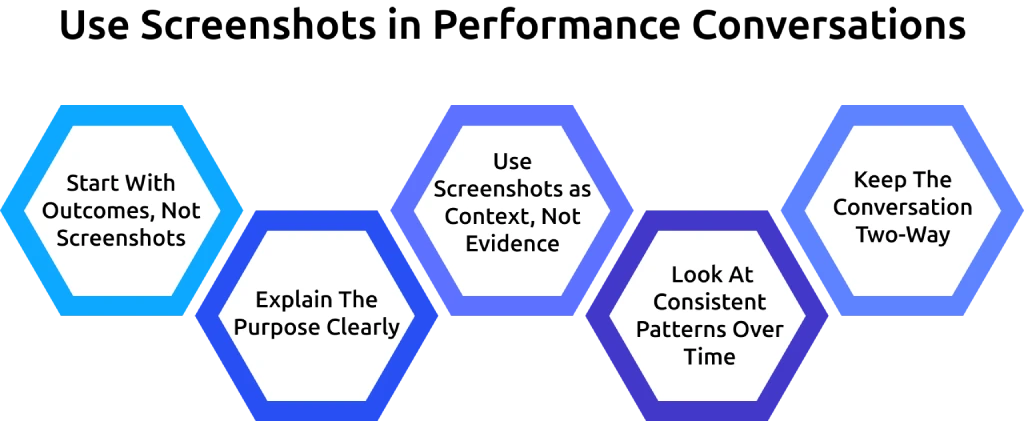
1. Start With Outcomes, Not Screenshots
Begin the conversation with results, timelines, and deliverables. This keeps attention on performance and progress instead of shifting it to activity tracking. When you bring in screenshots after discussing outcomes, they help explain specific situations without shifting focus away from results. This approach keeps the review structured and focused on what actually matters.
2. Explain The Purpose Clearly
State why you use screenshots before you refer to them in the performance review conversation. When you frame the intent around visibility and understanding work patterns, it becomes easier to accept. A clear purpose removes doubt and avoids the feeling of constant observation. It also sets the expectation that screenshots support a broader system, not a tool to question every action.
3. Use Screenshots as Context, Not Evidence
Treat screenshots as supporting information rather than final judgment. They help explain what happened at a certain point, but they do not capture effort, complexity, or outcomes. When you position them as context, the discussion stays balanced and fair. This keeps the performance evaluation focused on actual work results instead of judging based on isolated activity.
4. Look At Consistent Patterns Over Time
A single screenshot cannot represent an entire work cycle. Looking at repeated behavior across time gives a more accurate view of consistency and focus. Patterns help you identify whether an issue is occasional or recurring, which leads to better decisions. This helps you avoid making decisions based on limited information that does not represent overall performance.
5. Keep The Conversation Two-Way
Allow space for explanation instead of treating screenshots as final conclusions. There can be factors outside visible activity that affect work, such as task complexity or dependencies. A two-way discussion helps uncover these details and avoids incorrect assumptions. This makes the conversation more constructive and leads to better outcomes for both sides.
How Does Time Champ Help You Use Screenshots Effectively in Performance Reviews?
Screenshots alone do not give you a complete view of performance. You need to connect them with time data, task activity, and actual output to understand what is really happening. Without that connection, screenshots remain isolated visuals that are easy to misinterpret. A structured system brings all this data together so you can move from assumptions to clear, evidence-based decisions.
Time Champ helps you do this by linking screenshots with real work activity. You can view screenshots alongside tracked time, application usage, and task-level insights, which gives you full context for every situation. Instead of relying on a single screenshot, you can see the exact activity timeline around it, including the apps used, time spent, and task activity during that period. This allows you to review performance with clarity, identify patterns across workdays, and have more accurate and fair performance discussions.
Conclusion
Screenshots can support performance reviews, but they should never stand alone. They help you understand what happened at a specific moment, but real performance comes from combining that view with time, tasks, and outcomes. When you use screenshots with the right context, they add clarity instead of confusion and support better decisions instead of assumptions. The goal is to use activity data to build a complete and accurate picture of work, so performance reviews are based on clear evidence, not assumptions.
Don’t let screenshots mislead your performance reviews.
Use Time Champ to bring clarity with complete, connected work data.

Thasleem Shaik

Table of Content
-
 What is Screenshot Monitoring, and Why Are Companies Using It Today?
-
What Can Screenshots Actually Tell You About an Employee's Performance?
-
When Do Screenshots Add Value in a Performance Review, and When Don't They?
-
How to Use Screenshots in Performance Conversations Without Creating Conflict?
-
How Does Time Champ Help You Use Screenshots Effectively in Performance Reviews?
-
Conclusion
Instant Signup
Thank you for your request!
We have received your signup request and our team will get back to you soon. In the meantime, you can book a demo to see Time Champ in action.
Book a DemoFree trial. No credit card required. Prefer a walkthrough? Book a demo.
Related Blogs

Understand monitoring reports vs performance reviews, key differences, and how to use both for better performance decisions and team clarity.
Thasleem Shaik | Apr 23, 2026
The right employee performance tracking software turns activity data into decisions. See what to look for, how to compare, and what works for your team.
Guna Lakshmi | Apr 18, 2026
Find the 10 best performance management software for 2026. Compare features, pricing, pros & cons to boost employee performance.
Tarun Kumar Reddy | Apr 02, 2026
Proof of work screenshots for remote teams help you see how work gets done and track real activity. Learn when to use screenshots effectively.
Guna Lakshmi | Apr 23, 2026
Choose the right employee screenshot monitoring frequency for your team type. See role-based guidance and interval tradeoffs.
Guna Lakshmi | Apr 23, 2026
Employee screen monitoring captures work activity in real time. Learn all monitoring types, how they boost productivity, and how to implement them ethically.
Jahnavi Pulluri | Apr 17, 2026


 4.7/5 avg.
Ready to Manage Your Workforce Smarter?
Join our family of 1500+ companies using smart insights to redefine workforces!

Free Trial
No Credit Card Required