Best practices for using collaboration tools in remote environments
Discover how collaboration tools for remote teams can improve teamwork, simplify communication, and help your distributed team stay productive.

The average employee is now interrupted every two minutes during core work hours by a meeting, an email, or a chat message, which adds up to roughly 275 interruptions a day, according to Microsoft's 2025 Work Trend Index. Most of those interruptions arrive through the very tools that were supposed to make remote work easier, and that is the uncomfortable truth about collaboration tools in remote environments.
This guide walks you through why remote environments make them harder to use well, and eleven best practices that help your team get real work out of them instead of more notifications.
What Are Collaboration Tools in Remote Environments?
Collaboration tools in remote environments help teams communicate, share files, manage projects, and work together from different locations. They replace many office-based activities, such as meetings, quick discussions, and document sharing, with digital solutions.
The tools you choose and how your team uses them can directly affect communication, productivity, and workflow efficiency. Understanding the different types of collaboration tools helps you select the right software and avoid unnecessary overlap.
| Category | What it does | Common examples | Best used for |
|---|---|---|---|
| Communication tools | Support real-time and asynchronous messaging, voice calls, and video meetings. | Slack, Microsoft Teams, Zoom, Google Meet | Quick questions, team discussions, important decisions, and regular meetings. |
| Document collaboration tools | Allow teams to edit documents together, add comments, and maintain version history. | Google Workspace, Microsoft 365, Notion | Creating proposals, specifications, reports, and documents that require input from multiple people. |
| Project and task management tools | Help teams organize tasks, assign responsibilities, set deadlines, and manage project progress. | Asana, Time Champ, Trello, Jira, Click Up | Understanding who is responsible for each task, when it is due, and where work is delayed. |
| Visual collaboration tools | Provide shared whiteboards and diagrams for collaborative planning and idea development. | Miro, FigJam | Brainstorming, process mapping, and planning sessions. |
| Knowledge management tools | Store important information in a searchable space that team members can access. | Confluence, Notion, Guru | Onboarding materials, standard operating procedures, and decision logs. |
| File storage and sharing | Provide a central location for storing, organizing, and sharing files with permission controls. | Google Drive, OneDrive, Dropbox | Managing final documents, client deliverables, and archived files. |
| Workforce visibility and time tracking | Provide insights into how work hours are spent across apps, tasks, and projects. | Time Champ | Understanding workloads, focus time, and whether your tools and workflows support productivity. |
Why Do Remote Environments Make Collaboration Harder?
Remote work does not make collaboration harder because people cannot work together. It becomes challenging when teams lose the informal communication and workplace signals they once relied on. Digital tools must now fill those gaps, and using too many tools without clear processes can create additional coordination problems.
- Loss of Workplace Signals: Remote teams cannot easily see when colleagues are busy, available, or working on the same file.
- Information Overload: 47% of digital workers struggle to find the information they need, according to Gartner.
- Time Wasted Searching: Teams spend around 25% of their time searching for answers, according to Atlassian's State of Teams 2025.
- Time Zone Challenges: 19% of remote workers identify time zones as a struggle, according to Buffer.
- Unplanned Meetings: 57 % of meetings are ad hoc calls without calendar invites, according to Microsoft.
- Tool Overload: Unclear communication channels and scattered information can create unnecessary coordination and delays.
If your team is dealing with the broader communication challenges in remote work, the practices below give you a way to fix them tool by tool, starting with the stack you already have.
Looking to improve productivity across your remote team?
Time Champ gives you clear insights into employee work hours, app usage, and project progress so you can manage work more effectively.
11 Best Practices for Using Collaboration Tools in Remote Environments
These 11 best practices for using collaboration tools in remote environments will help you organize your tools, improve communication, protect focus time, and build a more productive remote work environment.
1. Audit the Tools You Already Have Before Adding Another One
Before introducing a new collaboration tool, review the tools your remote team already uses. Many teams use multiple platforms for similar tasks, which can create confusion, duplicate work, and unnecessary costs.
Start by creating an inventory of your existing tools. Record what each tool is used for, who manages it, and whether its features overlap with another platform.
Follow These Steps:
- List all collaboration tools your team currently uses or pays for.
- Identify the purpose of each tool and its owner.
- Find overlapping features and duplicate tools.
- Keep only the tools your team genuinely needs.
- Store the tool inventory in your knowledge base.
- Review the list every quarter to remove unnecessary tools.
A regular tool audit helps you reduce overlap, simplify workflows, and ensure each platform has a clear purpose.
2. Give Every Tool One Clear Purpose
Each collaboration tool should have a specific role in your remote workflow. Define what each tool should be used for and communicate these guidelines to your team.
| Tool | Use it for | Avoid using it for |
|---|---|---|
| Chat tools such as Slack or Teams | Quick questions, informal updates, and urgent alerts | Important decisions, approvals, and long-term information |
| Project management tools such as Asana, Jira, or Trello | Tasks, owners, deadlines, and progress updates | Long discussion threads that belong in documents |
| Document tools such as Google Docs or Notion | Drafts, project details, decisions, and meeting notes | Task tracking or storing final deliverables |
| Shared drives | Final documents, client deliverables, and contracts | Working drafts that change frequently |
| Video conferencing tools | Decision-making, sensitive feedback, and team discussions | Routine updates that can be shared through messages or task boards |
| Whiteboard tools such as Miro or FigJam | Brainstorming, process mapping, and planning | Permanent records. Move final outcomes to a document |
3. Make Asynchronous Communication the Default
Remote teams work across different locations, time zones, and schedules. Requiring everyone to respond immediately can interrupt focus time and create unnecessary meetings.
Follow These Best Practices:
- Share updates and requests in writing whenever possible.
- Include the specific task or question you need help with.
- Provide enough context for others to understand the request.
- Mention the deadline for a response or action.
- Clearly explain what the completed work should look like.
- Post the information in the tool where the work is managed.
For example, instead of scheduling a meeting for a simple project update, post the update in the relevant project board or team channel. This helps your team reduce unnecessary meetings while keeping work organized and accessible.
4. Set Clear Response Time Expectations
Remote teams use different communication channels for different types of requests. Without clear response time expectations, employees may feel pressured to reply immediately or may miss important updates.
| Communication channel | Expected response time | Best used for |
|---|---|---|
| Phone or on-call alert | Immediately | Production outages, client escalations, or safety issues |
| Urgent chat message | Within 30 minutes during working hours | Blocked work or urgent requests |
| Chat channel | Within the same working day | Questions, updates, and coordination |
| Task or document comment | Within one working day | Reviews, feedback, and clarifications |
| Within two working days | External communication, formal requests, and non-urgent matters |
Additional Best Practices:
- Define which situations require an immediate response.
- Set different expectations for urgent and non-urgent messages.
- Establish overlapping working hours for teams in different time zones.
- Share response guidelines with all team members.
- Review the guidelines regularly and update them when needed.
5. Keep One Source of Truth for Files and Decisions
Remote teams often share information across chat messages, emails, documents, and project management tools. When important details are scattered across different platforms, employees may struggle to find the latest information.
Follow These Best Practices:
- Keep one live document for each important project or process.
- Store approved files in a shared drive.
- Use clear file names and folder structures.
- Maintain a decision log with the date, decision, owner, and relevant link.
- Share links to the latest version instead of uploading multiple copies.
- Avoid storing important decisions only in chat messages.
For example, keep project decisions in a shared document and link to that document from your project board. This helps your team find accurate information quickly and reduces confusion caused by outdated files or duplicate versions.
6. Improve Work Visibility Through Collaboration Tools
Remote employees should not have to send repeated messages asking for project updates. Use collaboration tools to make work progress, task status, and availability visible to the team.
Follow These Best Practices:
- Update the project board as work progresses.
- Assign an owner and deadline to each task.
- Use clear status labels such as Not Started, In Progress, Blocked, and Completed.
- Share project updates through /the relevant task board.
- Use chat messages to link to tasks instead of repeating information.
- Maintain a shared timeline for project dependencies and deadlines.
For example, when a task is blocked, update its status on the project board and add a short explanation. This helps team members understand the situation without repeatedly asking for updates.
Want better visibility into how your remote team works?
With Time Champ, you can manage employee hours, understand workload distribution, and identify opportunities to improve team efficiency.
7. Run Meetings That Respect Tools and Time Zones
Remote meetings should have a clear purpose and help your team make progress. Without proper planning, meetings can take up valuable work time and create challenges for employees in different time zones.
Use collaboration tools to organize meetings, share information, and document outcomes.
Follow These Best Practices:
- Share an agenda before sending the meeting invite.
- Clearly explain whether the meeting is for discussion, decision-making, or planning.
- Share a summary or recording within one hour after the meeting.
- Add action items to the project management tool.
- Rotate meeting times when teams work across different time zones.
- Allow employees to decline meetings that do not have a clear agenda.
For example, if a meeting results in new tasks, assign an owner and deadline for each task on the project board. This helps ensure that decisions lead to action and keeps everyone aligned.
8. Onboard Employees to Your Collaboration Tools
Introducing new collaboration tools without proper guidance can create confusion and slow down remote workflows. Employees need to understand how each tool works, when to use it, and where to find important information.
Include tool training as part of your employee onboarding process.
Follow These Best Practices:
- Add a collaboration tool guide to the first-day onboarding checklist.
- Explain the purpose of each tool and its communication rules.
- Provide examples of how employees should use each platform.
- Assign a team member to support new employees during their first two weeks.
- Establish clear naming conventions for files, channels, and projects.
- Store tool guidelines in an accessible knowledge base.
For example, a new employee should know where to post questions, update tasks, store documents, and record decisions. Clear onboarding helps employees use collaboration tools consistently from the beginning.
9. Protect Focus Time with Notification Rules
Constant notifications can interrupt employees and make it difficult for them to concentrate on important tasks. Remote teams need clear notification guidelines to support focused work without missing urgent updates.
Set notification rules that help employees manage interruptions and communicate their availability.
Follow These Best Practices:
- Schedule focus blocks for tasks that require concentration.
- Use Do Not Disturb settings during focused work.
- Set a visible status to show when you are unavailable.
- Disable unnecessary notifications from collaboration tools.
- Keep urgent communication channels available for critical issues.
- Encourage yourself to follow the same notification practices.
For example, an employee working on an important report can use focus mode and update their status. Team members can then check their availability before sending non-urgent messages.
10. Secure Access and Clean Up When Employees Leave
Remote teams share files, documents, and business information through collaboration tools. Without proper access controls, sensitive information may be exposed to unauthorized users.
Set clear security practices and remove access when employees leave the organization.
Follow These Best Practices:
- Use single sign-on (SSO) where available.
- Enable two-factor authentication (2FA).
- Give employees access based on their roles and responsibilities.
- Review guest accounts and external user access regularly.
- Maintain a list of users with access to important tools.
- Include access removal in the employee offboarding checklist.
- Revoke access promptly when employees leave.
For example, when an employee leaves the company, remove their access to communication platforms, shared drives, project boards, and other collaboration tools.
11. Measure Tool Usage and Make Improvements
Using collaboration tools does not automatically mean they are improving your team's workflow. Review how employees use these tools to identify unnecessary applications, workload challenges, and opportunities for improvement.
Follow These Best Practices:
- Review app and website usage across your team.
- Identify how much time employees spend on different tools.
- Analyze focus time, workload, and capacity.
- Compare meeting time with stalled or delayed work.
- Identify tools that are rarely used or no longer needed.
- Discuss findings with your team and gather feedback.
- Review tool usage regularly and adjust your workflows.
Regular reviews help ensure your collaboration tools continue to meet your team's needs and business goals.
Are your collaboration tools actually improving productivity?
Time Champ's tool usage reports help you identify app usage patterns, spot underused tools, and make smarter decisions.
Common Mistakes Teams Make With Remote Collaboration Tools
Remote collaboration tools can improve teamwork, but using them incorrectly can create confusion, delays, and unnecessary work. Here are some common mistakes teams should avoid.
- Using Too Many Collaboration Tools: Using multiple tools for the same purpose can create confusion and increase costs.
- Lack of Clear Tool Guidelines: Failing to define each tool’s purpose can make it difficult for employees to know where to share information.
- Overusing Instant Communication: Relying too much on instant messages and meetings can interrupt focused work.
- Unclear Response Expectations: Not setting up response time guidelines can create communication delays and unnecessary pressure.
- Scattered Files and Information: Storing files across different platforms can make it difficult to find the latest information.
- Outdated Task Statuses: Failing to update task progress can make it harder to identify delays and blockers.
- Unplanned Meetings: Scheduling meetings without a clear agenda can waste time and reduce productivity.
- Ignoring Time Zone Differences: Overlooking time zone differences can make collaboration difficult for remote employees.
- Excessive Notifications: Too many alerts can interrupt employees and reduce their focus.
How to Choose the Right Collaboration Tools for Remote Teams
Choosing the right collaboration tools helps your remote team communicate effectively, manage tasks, and maintain productive workflows. Follow these steps to select tools that match your team's needs.
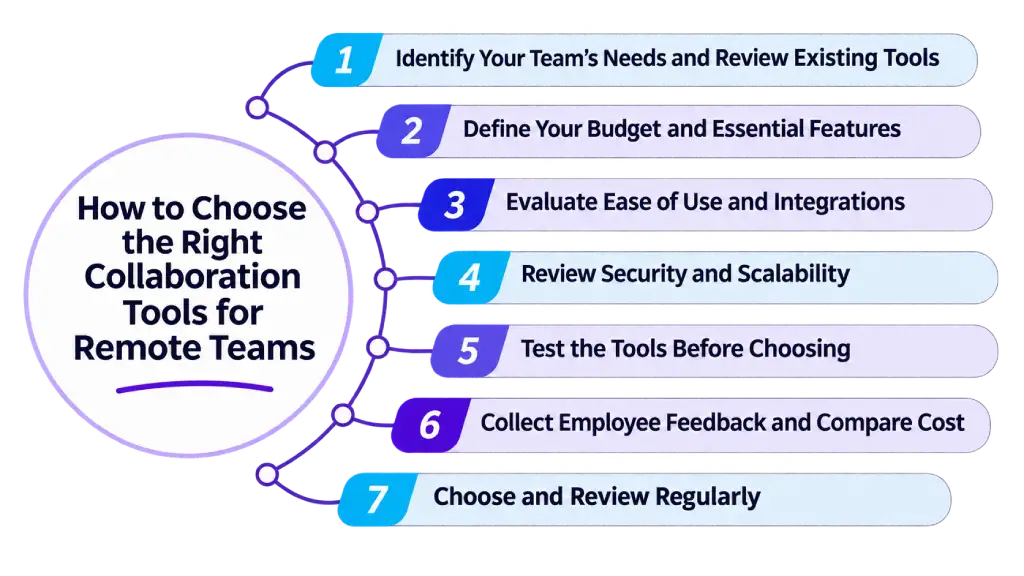
1. Identify Your Team's Needs and Review Existing Tools
Understand how your team communicates, manages projects, shares files, and collaborates. Review your existing tools to identify overlapping features, unnecessary platforms, and missing capabilities.
2. Define Your Budget and Essential Features
Set a budget based on your team size, required features, and ongoing costs. Identify essential features such as messaging, file sharing, task management, video meetings, and document collaboration.
3. Evaluate Ease of Use and Integrations
Choose tools that are easy to learn and use. Check whether they integrate with your existing software to simplify workflows and reduce unnecessary platform switching.
4. Review Security and Scalability
Evaluate features such as access controls, authentication, permissions, and data protection. Make sure the tools can support your team as it grows and its requirements change.
5. Test the Tools Before Choosing
Use free trials or product demonstrations to evaluate the tools. Test their key features and check how well they fit your team's daily workflows.
6. Collect Employee Feedback and Compare Costs
Ask employees about usability, challenges, and required features. Compare pricing, functionality, integrations, and potential value before making your decision.
7. Choose and Review Regularly
Select the tools that best match your team's needs and business goals. Review their effectiveness regularly to ensure they continue supporting your team's collaboration and productivity.
How Time Champ Supports Collaboration in Remote Teams
Managing collaboration across remote teams requires more than communication and project management tools. You also need visibility into workloads, time usage, and how employees manage their daily tasks. Time Champ helps you understand work patterns and improve workforce productivity through time tracking and more features.
It helps remote teams improve work visibility, manage projects, and understand workforce productivity through features such as:
- Automatic Time Tracking: Understands how employees spend their working hours across tasks and projects.
- Project Management: Assigns tasks, manages deadlines, and improves project coordination.
- Productivity Analytics: Gives you insights into work patterns, focus time, and productivity trends.
- Reports and Analytics: Uses workforce data to review performance and identify workflow improvements.
- Weekly Timesheets: Maintains accurate records of working hours and project time.
- Application and Website Usage: Understands how employees use digital tools during work hours.
- Employee Activity Tracking: Gain visibility into work activities across remote teams.
Ready to improve your remote team's productivity?
Choose Time Champ to gain workforce visibility, manage workloads, and make informed decisions with real-time insights.
Conclusion
The right collaboration tools for remote teams can improve communication, simplify workflows, and support productivity. Clear guidelines, organized processes, and regular tool reviews help teams reduce distractions and work more effectively.
With Time Champ, you can gain insights into work hours, project progress, and productivity patterns to build a more efficient remote work environment.

Guna Lakshmi

Table of Content
 What Are Collaboration Tools in Remote Environments?
- Why Do Remote Environments Make Collaboration Harder?
- 11 Best Practices for Using Collaboration Tools in Remote Environments
- Common Mistakes Teams Make With Remote Collaboration Tools
- How to Choose the Right Collaboration Tools for Remote Teams
- How Time Champ Supports Collaboration in Remote Teams
- Conclusion
Related Blogs
Compare top cloud-based productivity and collaboration tools for communication, project management, file sharing, teamwork, and productivity tracking.
Thasleem Shaik | Jul 03, 2026
Boost remote team productivity with practical management tips, proven best practices, key metrics, and tools that help your remote teams perform better.
Anjali | Jul 16, 2026
Learn how to track time for remote workers using simple methods and remote tracking tools and learn best practices that improve trust and productivity.
Guna Lakshmi | May 19, 2026
Don't let remote work myths hold your team back. Learn how to overcome challenges and build a productive, engaged remote workforce.
Guna Lakshmi | Aug 04, 2026
Learn effective remote team alignment strategies to enhance communication, boost productivity, and keep your team connected.
Thasleem Shaik | Mar 13, 2025
Misread messages, missed updates, endless pings? Learn how to overcome communication challenges in remote work and keep your team connected.
Guna Lakshmi | Jul 20, 2026


 4.7/5 avg.
Ready to Manage Your Workforce Smarter?
Join our family of 1500+ companies using smart insights to redefine workforces!

Free Trial
No Credit Card Required