12 Best Remote Work Tools for Employees in 2026
Remote work shouldn’t feel chaotic. Discover the 12 best remote work tools for 2026 to help you collaborate, stay organized, and get more done each day.
Remote work can get messy when messages, meetings, tasks, and files are spread across too many platforms. You end up switching constantly between apps, missing updates, and losing focus on what actually matters. The right remote work tools can bring your daily work together, reduce distractions, and make it easier to stay focused and productive.
Here you’ll learn about the 12 best tools that can simplify communication, collaboration, task management, productivity, and time tracking. You'll also understand a comparison of their key uses that will help you find the right tools for the workday.
What Are Remote Work Tools?
Remote work tools are software applications that help you communicate, collaborate, manage tasks, share files, track time, and stay productive while working outside a traditional office. They bring essential work activities into digital spaces, helping you stay connected, organized, and aligned across locations and time zones.

Did You Know?
According to the U.S. Bureau of Labor Statistics (BLS) June 2026 data, 33.7 million U.S. workers teleworked or worked at home for pay. This highlights the need for reliable tools to manage communication, tasks, files, and time across locations.
Quick Comparison of the Best Remote Work Tools
| Tool | Starting Price | Free Plan | Rating |
|---|---|---|---|
| Time Champ | $3.90/user/month | Yes | G2: 4.8 |
| Slack | $6.67/user/month | Yes | G2: 4.5 |
| Asana | Custom pricing | Yes | G2: 4.4 |
| ClickUp | $7/user/month | Yes | G2: 4.6 |
| Trello | $5/user/month | Yes | G2: 4.4 |
| Todoist | $5/user/month | Yes | G2: 4.5 |
| Zoom | $14.16/user/month | Yes | G2: 4.5 |
| Google Workspace | $7/user/month | No | G2: 4.6 |
| Notion | $10/user/month | Yes | G2: 4.6 |
| Loom | $18/user/month | Yes | G2: 4.7 |
| Miro | $8/user/month | Yes | G2: 4.6 |
| Grammarly | Custom pricing | Yes | G2: 4.7 |
12 Best Remote Work Tools for Employees in 2026
Working remotely becomes easier when each tool solves a clear part of your workday. The right mix can help you track time, manage tasks, communicate with teammates, join meetings, organize files, and stay focused without constantly switching between disconnected workflows.
Below are 12 remote work tools grouped by their primary purpose. Each one has different strengths, so the best choice depends on the type of work you do and how you and the team collaborate.
Time Tracking & Productivity
1. Time Champ
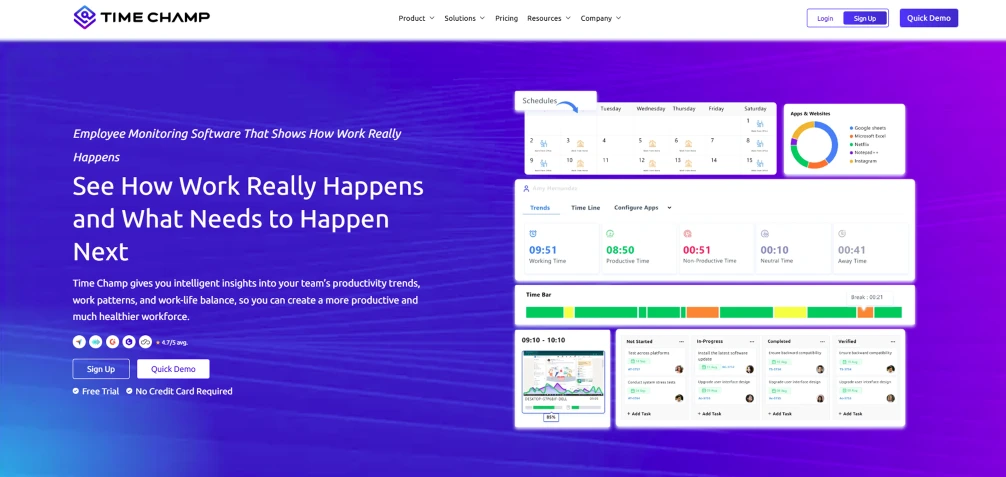
Time Champ is a smart employee monitoring software with time-tracking and real-time productivity insights designed to help you understand how your workday is spent. It combines automatic time tracking, task and project tracking, activity insights, timesheets, attendance, and productivity analytics in one workspace. Time Champ makes it easier to keep an accurate record of working hours, understand work patterns, and review where time goes across your projects and tasks.
Key Features
- Automatic Time Tracking: Records the time you spend on apps, projects, and tasks in the background, helping you avoid manual tracking and focus more on the actual work.
- Task & Project Time Tracking: Links every minute of work to specific tasks and projects, helping you clearly understand where your time goes and stay more organized and accountable.
- Automated Timesheets: Instantly generates timesheets based on real work activity, saving you from the hassle of filling out timesheets manually and reducing errors.
- Productivity & Activity Insights: Provides you with a clear breakdown of productive hours, idle time, app usage, and daily work patterns so you can self-evaluate and improve your efficiency.
- Attendance Tracking: Automatically records clock-ins, clock-outs, and breaks, making it easier for you to track working hours without manual attendance logs.
- Project Management: Helps you manage tasks, deadlines, and milestones in one place while connecting your work directly with tracked time for better planning and execution.
Pros
- Combines time tracking, productivity, attendance, and work management on one platform.
- Automatically records work time, reducing the need for manual timers and timesheets.
- Helps you understand work patterns and time spent on tasks.
- Supports remote and hybrid work with centralized work and time information.
Cons
- The wide range of features may take some time to configure.
- Advanced workforce features can be more than an individual employee needs.
- Some monitoring features may require clear workplace policies and communication.
Pricing
- Comes with a free trial
- Starter: $3.90/user/month (billed annually)
- Professional: $6.90/user/month (billed annually)
- Premium: $13.90/user/month (billed annually)
Reviews
Struggling to keep track of your work hours?
Time Champ tracks your time and productivity automatically.
2. Slack
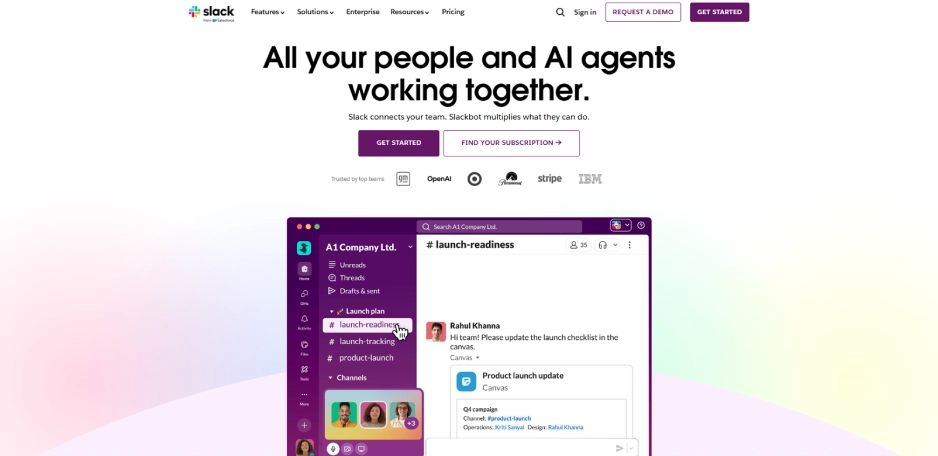
Slack is a workplace communication platform built around channels, direct messages, huddles, file sharing, and integrations. It works well when you need quick conversations without filling every question or update with another meeting. Slack also supports canvases, workflows, and connections with other workplace applications.
Key Features
- Organizes conversations around your teams, projects, or topics.
- Handles quick one-to-one or small-group conversations.
- Starts audio or video conversations directly from a channel or message.
- Connects Slack with other workplace applications and services.
Pros
- Makes quick team communication easy.
- Channels keep project conversations organized.
- Huddles reduce the need for some formal meetings.
- Large integration ecosystem connects Slack with other work tools.
Cons
- Frequent notifications can become distracting.
- Busy channels can make important messages easy to miss.
- The free version has meaningful limitations.
- Using Slack alongside many other tools can add to app switching.
Pricing
- Comes with a free trial
- Pro: $4.38 /user/month (billed annually)
- Business+: $9 /user/month (billed annually)
- Enterprise+: Contact the Slack sales team for pricing details
Reviews
Project & Task Management
3. Asana
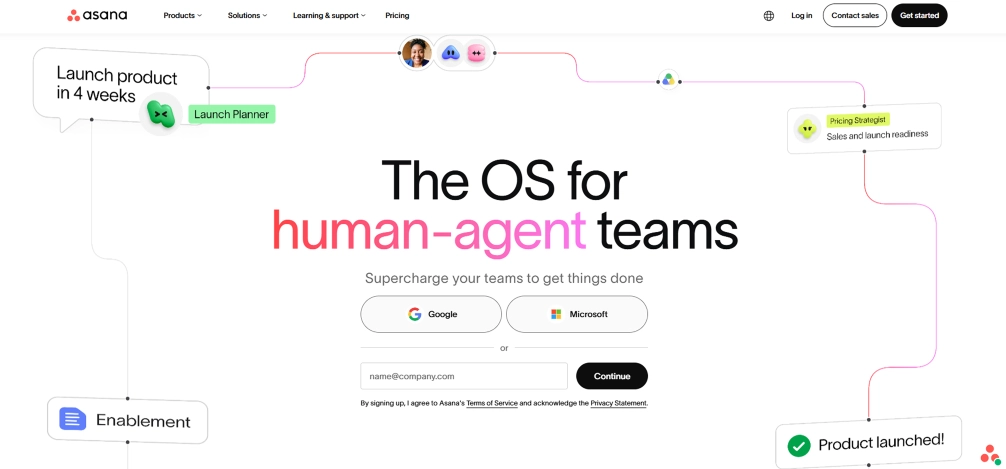
Asana is a project and task management platform that helps you organize assignments, deadlines, dependencies, and project work. Its views include lists, calendars, timelines, Gantt charts, and Kanban boards, making it useful for both individual tasks and larger team projects.
Key Features
- Assigns work, sets owners, adds due dates, and includes supporting details.
- Switches between list, calendar, timeline, Gantt, and Kanban views.
- Shows when one task depends on another.
- Collects your assigned work in one place for easier prioritization.
Pros
- Clear task ownership and deadlines.
- Multiple project views suit different working styles.
- Useful for complex projects with dependencies.
- Strong collaboration and integration capabilities.
Cons
- Advanced features are restricted to higher plans.
- Large projects can feel complex for new users.
- Pricing can become expensive as teams grow.
- Some features are more useful for structured teams than individual workers.
Pricing
- Comes with a free trial
- Starter: $10.99 /user/month (billed annually)
- Advanced: $24.99 /user/month (billed annually)
- Enterprise: Contact the Asana sales team for pricing details
Reviews
4. ClickUp
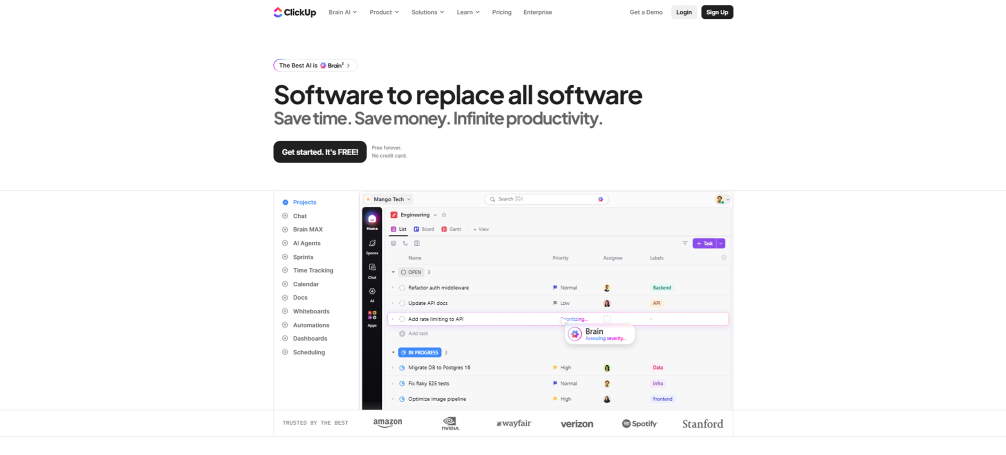
ClickUp is an all-in-one work management platform that combines tasks, projects, goals, documents, whiteboards, chat, and other workplace functions. Its broad feature set makes it useful when you want to manage several parts of your workflow from one workspace.
Key Features
- Creates tasks with assignees, due dates, priorities, and statuses.
- Connects daily work with broader targets.
- Links dependent tasks and shows how work connects.
- Organizes work through different project and workflow views.
Pros
- Brings many work functions into one platform.
- Highly customizable task workflows.
- Supports multiple project management approaches.
- Can reduce the number of separate tools you need.
Cons
- The large feature set can feel overwhelming.
- Setup may require more customization than simpler task tools.
- Some advanced capabilities are limited to paid plans.
- Using every available feature can add unnecessary complexity.
Pricing
- Comes with a free trial
- Unlimited: $7/user/month (billed annually)
- Business: $12/user/month (billed annually)
- Enterprise: Contact the ClickUp sales team for pricing details
Reviews
5. Trello
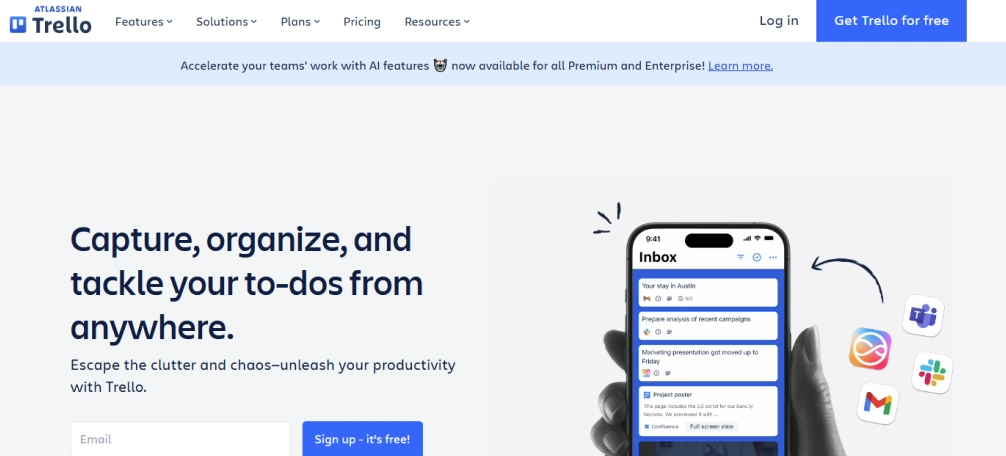
Trello uses a visual board-and-card system to help you organize tasks and projects. Each board can contain lists and cards that show what needs to be done, what is in progress, and what has been completed. It also supports automation, templates, integrations, and multiple views.
Key Features
- Organizes projects and individual tasks visually.
- Breaks work into manageable steps.
- Automates repetitive actions and workflows.
- Uses board, timeline, table, calendar, dashboard, and other views depending on the plan.
Pros
- Simple visual interface.
- Easy to start using with minimal training.
- Useful for personal and small-team task management.
- Automation can reduce repetitive task updates.
Cons
- Advanced views require higher-tier plans.
- Large projects can become difficult to manage on simple boards.
- It has fewer built-in time-tracking capabilities than dedicated time tools.
- Complex workflows may require Power-Ups or integrations.
Pricing
- Comes with a free trial
- Standard: $5 /user/month (billed annually)
- Premium: $10 /user/month (billed annually)
- Enterprise: $17.50 /user/month (billed annually)
Reviews
6. Todoist
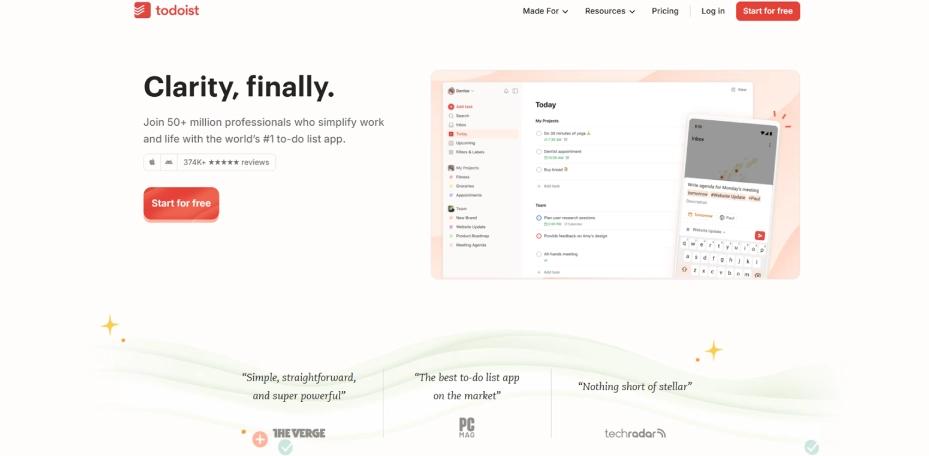
Todoist is a task-management and to-do-list app focused on helping you to organize personal and shared tasks. It supports projects, recurring tasks, priorities, and collaboration while keeping the interface simpler than many full-scale project management platforms.
Key Features
- Breaks larger responsibilities into smaller actions.
- Groups related tasks by workstream, client, or goal.
- Schedules routine responsibilities automatically.
- Marks important tasks and organizes your workload.
Pros
- Simple and easy to start using.
- Works well for personal task organization.
- Supports recurring tasks and project grouping.
- Available across devices with a free option.
Cons
- Less suitable for complex project management.
- Collaboration features are more limited than dedicated team platforms.
- Advanced workflows may require another tool.
- Some users may find paid plans expensive for a task-list app.
Pricing
- Comes with a free trial
- Pro: $5 /user/month (billed annually)
- Business: $8 /user/month (billed annually)
Reviews
Video Conferencing
7. Zoom
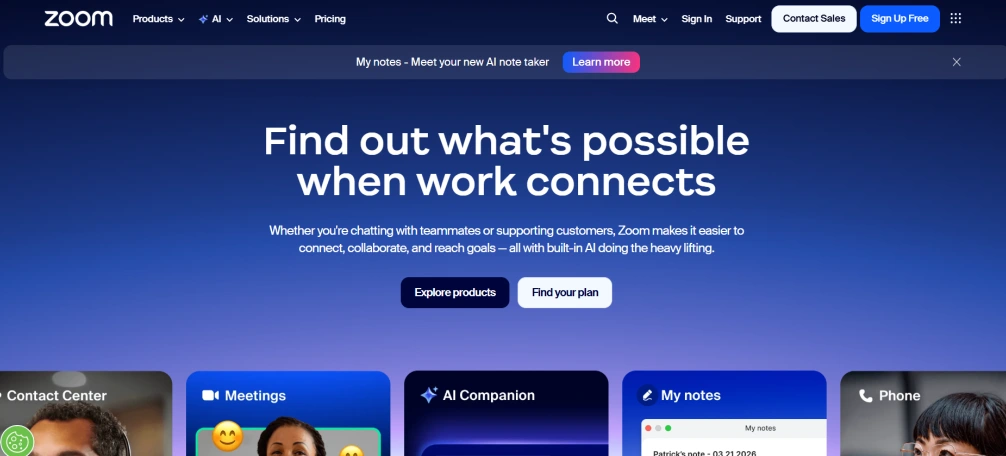
Zoom is a video-conferencing platform used for remote meetings, team calls, presentations, training, and virtual collaboration. It supports features such as screen sharing, breakout rooms, chat, whiteboards, captions, and meeting security controls.
Key Features
- Holds one-to-one and group video meetings.
- Presents documents, applications, or your entire screen.
- Splits larger meetings into smaller discussion groups.
- Uses chat, whiteboards, captions, and related meeting features.
Pros
- Familiar interface for remote meetings.
- Strong video and screen-sharing capabilities.
- Breakout rooms support smaller group discussions.
- Useful across meetings, training, presentations, and virtual events.
Cons
- Frequent meetings can contribute to video-call fatigue.
- Some advanced features require paid plans.
- Meeting quality depends on internet connection.
- You may still need separate tools for task and project management.
Pricing
- Comes with a free trial
- Pro: $14.16 /user/month (billed annually)
- Business: $ 18.33 /user/month (billed annually)
- Enterprise: Contact the Zoom sales team for pricing details
Reviews
Document & File Collaboration
8. Google Workspace
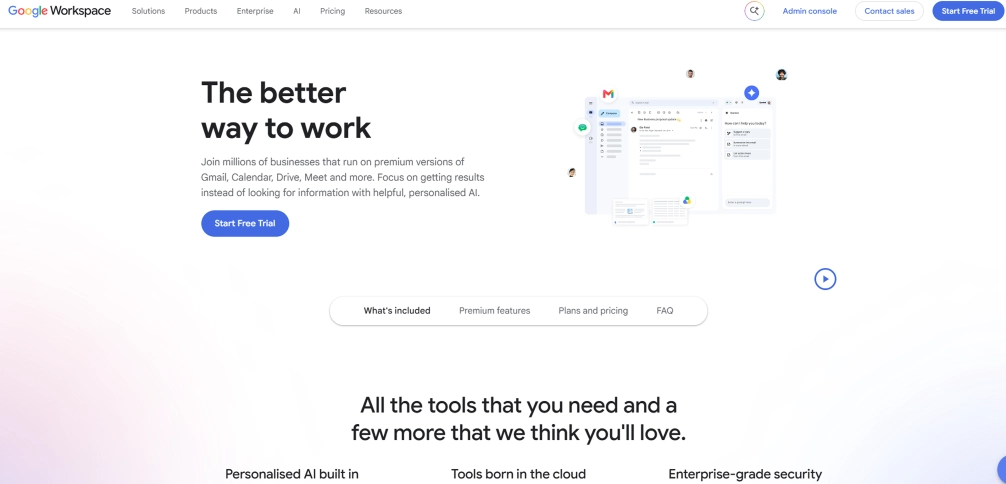
Google Workspace combines tools such as Docs, Sheets, Slides, Drive, Gmail, Calendar, and Meet to support everyday remote work. Its collaborative documents allow multiple people to edit, comment, assign tasks, and review changes from different locations.
Key Features
- Creates and edits documents collaboratively.
- Stores and shares work files in the cloud.
- Works together through comments, edits, and assigned actions.
- Reviews previous changes and restores earlier versions.
Pros
- Combines many everyday work tools.
- Real-time collaboration works well for distributed teams.
- Cloud storage makes files accessible from different devices.
- Familiar tools reduce the learning curve for many employees.
Cons
- The large ecosystem can feel overwhelming.
- Storage and advanced business features depend on the plan.
- You may still need separate project or time management tools.
- Managing permissions across many files can become complicated.
Pricing
- Starter: $3.50 /user/month (billed annually)
- Standard: $7 /user/month (billed annually)
- Plus: $11 /user/month (billed annually)
- Enterprise: Contact the Google Workspace sales team for pricing details
Reviews
9. Notion
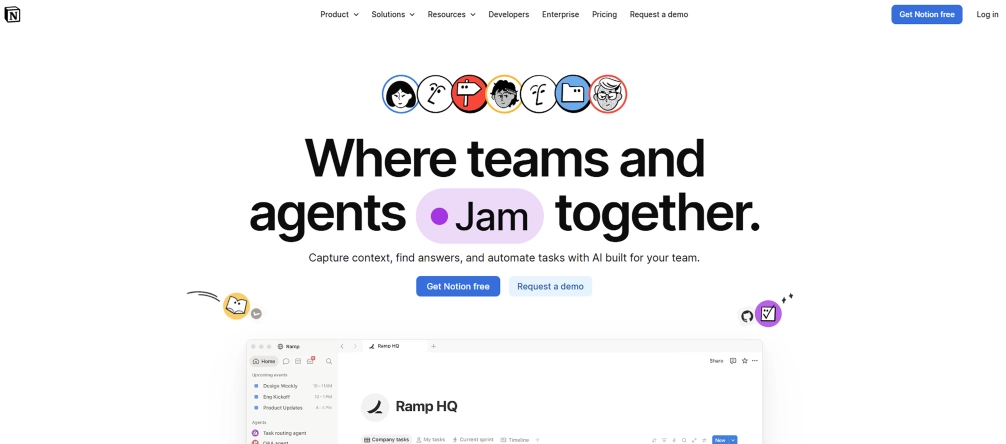
Notion is a connected workspace that combines documents, wikis, databases, projects, and knowledge management. You can use it for meeting notes, project information, team documentation, task lists, and shared knowledge.
Key Features
- Creates flexible documents with text, media, tables, and other content.
- Centralizes team knowledge and reference information.
- Organizes projects, tasks, and structured information.
- Displays work through boards, timelines, databases, and other views.
Pros
- Combines documentation and project information.
- Highly flexible and customizable.
- Useful for creating team knowledge bases.
- Connects with tools such as Slack, GitHub, and Asana.
Cons
- High flexibility can make setup confusing.
- Large workspaces can become difficult to navigate.
- Some advanced features require paid plans.
- It may take time to create consistent team structures.
Pricing
- Comes with a free trial
- Plus: $10 /user/month (billed annually)
- Business: $20 /user/month (billed annually)
- Enterprise: Contact the Notion sales team for pricing details
Reviews
Async Communication
10. Loom
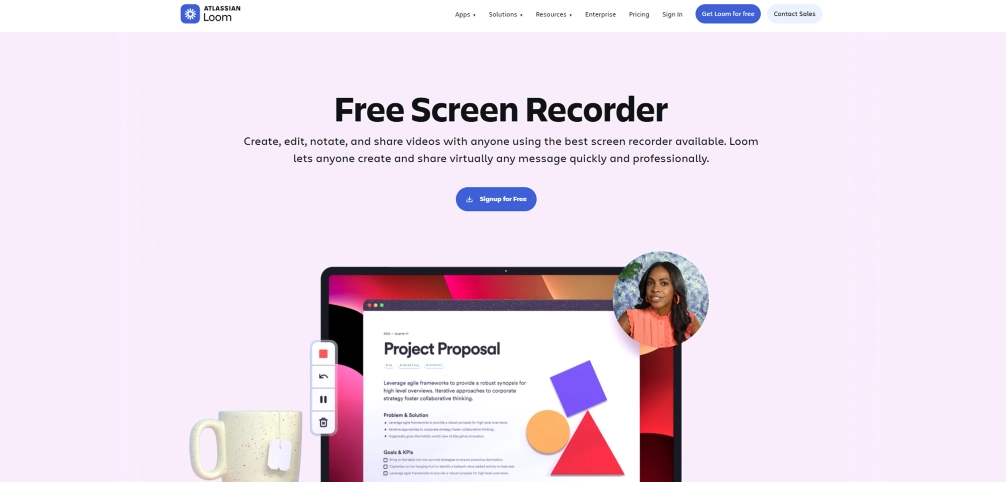
Loom is an asynchronous video and screen-recording tool that lets you explain work without scheduling another meeting. You can record the screen, webcam, or both and share the recording with teammates. Current productivity reviews also highlight Loom for quick screen recordings and async communication.
Key Features
- Captures your screen while explaining a process or task.
- Adds your camera to make updates more personal.
- Shares recordings through links without scheduling calls.
- Generates transcripts and summaries from recordings.
Pros
- Reduces the need for some live meetings.
- Makes complex explanations easier to follow.
- Easy to share walkthroughs and status updates.
- Useful for async teams working across different schedules.
Cons
- Not suitable for every type of discussion.
- Video recordings can accumulate quickly.
- Some advanced features require paid plans.
- You still need another tool for structured task tracking.
Pricing
- Comes with a free trial
- Business: $18 /user/month (billed annually)
- Business +AI: $24 /user/month (billed annually)
- Enterprise: Contact the Loom sales team for pricing details
Reviews
Visual Collaboration
11. Miro
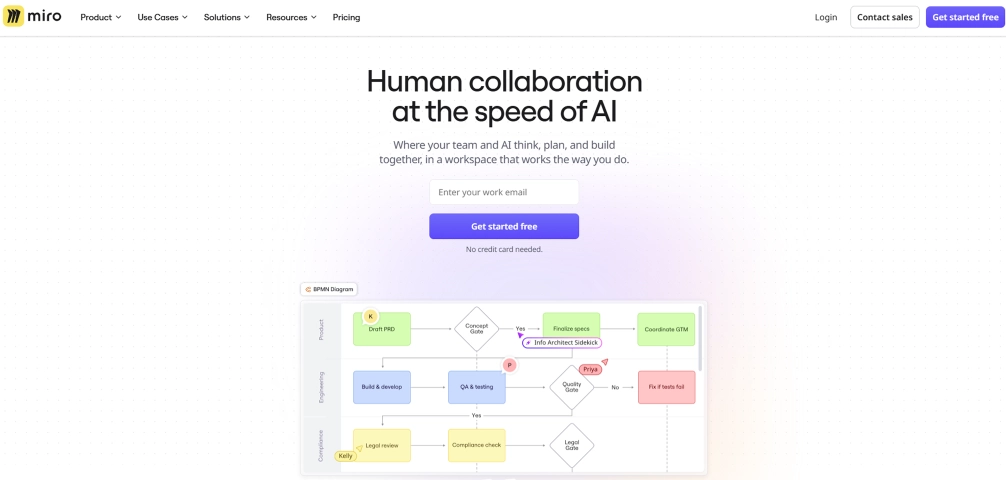
Miro is an online visual collaboration platform built around an interactive digital canvas. You can use it for brainstorming, planning, workshops, diagrams, mind maps, and other activities that benefit from visual collaboration.
Key Features
- Organizes ideas and content in a flexible visual workspace.
- Captures and groups ideas during brainstorming sessions.
- Collects team feedback and prioritizes ideas.
- Provides structure to ideas and shows relationships visually.
Pros
- Excellent for remote brainstorming.
- Supports real-time and asynchronous collaboration.
- Offers templates for different workflows.
- Helps distributed teams visualize ideas together.
Cons
- Large boards can become cluttered.
- It may offer more features than are needed for simple day-to-day planning.
- Advanced capabilities may require paid plans.
- Visual collaboration does not replace dedicated task management software.
Pricing
- Comes with a free trial
- Starter: $8 /user/month (billed annually)
- Business: $20 /user/month (billed annually)
- Enterprise: Contact the Miro sales team for pricing details
Reviews
Writing & Communication
12. Grammarly
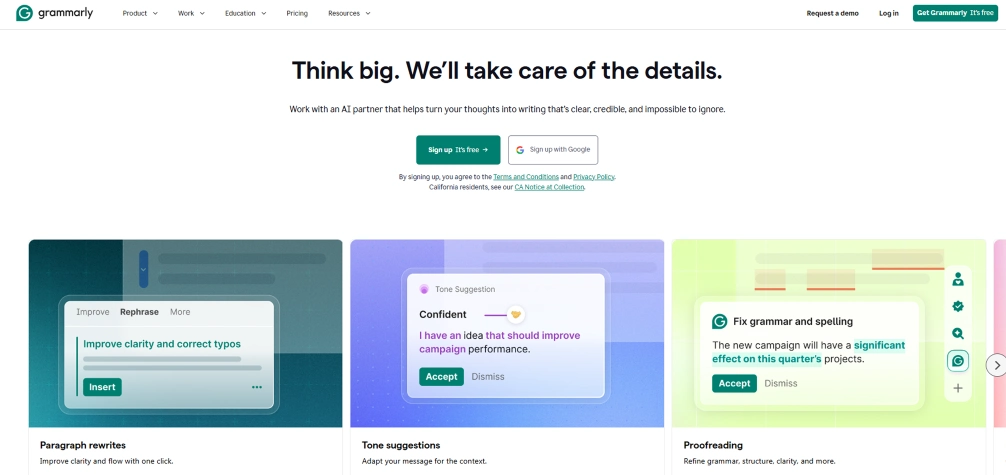
Grammarly is a writing and communication assistant that helps you improve grammar, clarity, tone, and overall writing quality. It works across different writing environments and now includes AI-powered features for rewriting, drafting, and communication support.
Key Features
- Identifies common writing errors.
- Improves sentences and paragraphs with suggested rewrites.
- Helps adjust writing to suit different communication contexts.
- Assists with drafting, editing, and creating workplace content.
Pros
- Helps make workplace writing clearer.
- Useful for emails, documents, messages, and reports.
- Works across many writing environments.
- Supports multilingual writing and translation features.
Cons
- Advanced AI features require paid access.
- Suggestions may not always match your intended tone.
- Heavy reliance on automated suggestions can make writing feel less personal.
- It focuses on communication rather than broader remote-work management.
Pricing
- Contact the Grammarlysales team for pricing details
Reviews
How to Choose the Right Remote Working Tools
Choosing a remote work tool isn’t about picking the one with the most features. The right choice depends on your workflow, daily needs, budget, and how your teammates collaborate.
1. Identify What You Need the Tool to Solve
Understand the main problem you want to fix, like communication or task management. This helps you focus on what really matters. It also prevents you from choosing tools with unnecessary features.
2. Match the Tool to Your Daily Workflow
Pick a tool that fits smoothly into your everyday work routine. Make sure it supports both solo tasks and team collaboration. The goal is to make your work easier, not more complicated.
3. Check Integrations with Your Existing Tools
Make sure the tool works well with apps you already use. This includes email, calendars, and file storage systems. Good integrations save time and reduce switching between apps.
4. Prioritize Ease of Use
Choose a tool that is simple and easy to understand. You should not need long training to start using it. If it feels confusing, it will slow you down instead of helping.
5. Compare Free Plans and Pricing
Look at what features are included in free or trial versions. Check limits like storage, users, and upgrades. This helps you avoid unexpected costs later.
6. Check Security and Access Controls
Ensure the tool keeps your data safe and secure. Look for features like permissions and authentication. This is very important for sensitive or private work.
7. Test the Tool Before You Commit
Try the tool before fully adopting it in your workflow. Use a trial or free version to explore its features. This helps you see if it truly fits your needs.
Too many tools making your workday harder?
Use Time Champ to track time, tasks, and productivity in one simple workspace.
Conclusion
The right remote work tools can significantly improve your productivity, organization, and communication while working remotely. Focus on selecting tools that align with your daily tasks, workflow, and communication style without overloading your system with unnecessary apps. Identify key areas like collaboration, task management, communication, and time tracking, then experiment with a few options to find what works best. Keep the setup simple, regularly review your tools, and remove anything that no longer adds value or slows your progress. A well-structured system helps you stay focused, work smarter, and achieve better results in remote work environments consistently and efficiently.

Anjali

Table of Content
 What Are Remote Work Tools?
- Quick Comparison of the Best Remote Work Tools
- 12 Best Remote Work Tools for Employees in 2026
- How to Choose the Right Remote Working Tools
- Conclusion
Related Blogs

Boost remote team productivity with practical management tips, proven best practices, key metrics, and tools that help your remote teams perform better.
Anjali | Jul 16, 2026
Learn how time tracking improves remote team productivity through better visibility, accountability, performance tracking, and smarter team management.
Anjali | May 16, 2026
Understand the role of productivity tracking in remote work and how it improves team clarity, workload balance, and performance with real insights.
Thasleem Shaik | May 01, 2026
Struggling with remote work productivity challenges? Learn what’s slowing your team down and how to improve focus, communication, and performance.
Guna Lakshmi | Apr 15, 2026
12 proven methods to improve employee productivity. Diagnose your biggest time leak first, then fix it with clarity, trust, focus, and the right tools.
Shabana Shaik | Jun 18, 2026
Compare top cloud-based productivity and collaboration tools for communication, project management, file sharing, teamwork, and productivity tracking.
Thasleem Shaik | Jul 03, 2026


 4.7/5 avg.
Ready to Manage Your Workforce Smarter?
Join our family of 1500+ companies using smart insights to redefine workforces!

Free Trial
No Credit Card Required