Free Overtime Calculator
One wrong overtime figure can throw off your entire payroll run. Our free overtime calculator breaks down regular pay, overtime pay, and total earnings in seconds, giving you the accuracy your team deserves and the clarity your budget needs.
What is the Overtime Calculator?
An overtime calculator is a tool that helps you determine how many extra hours your employees work beyond their regular schedule and how much additional pay those hours require. It automatically calculates overtime wages based on total hours worked, standard working hours, and the applicable overtime rate.
When you manage a team, overtime can quietly increase without noticing. A few extra hours each week may seem minor, but over time, they directly affect payroll costs, employee well-being, and overall productivity. The overtime calculator provides you with a clear picture of these extra hours to make informed decisions rather than relying on estimates.
It also helps you stay compliant with labor laws and internal policies. When you regularly monitor overtime, you can identify the imbalances in workloads, burnout, and manage unnecessary labor costs. Instead of reacting to rising costs at the end of the month, you stay ahead with accurate data and better workforce planning.

Did you Know?
The U.S. Department of Labor recovered over $274 million in back wages for workers. A significant portion of which was due to overtime violations. Accurate calculation isn't just good practice, it's your first line of defense.
Why Should You Use Overtime Calculator?
An overtime calculator helps you understand the extra hours with complete clarity. It transforms the complicated math of work hours into fast and precise outputs. Below are the key reasons why using one can make a real difference in managing overtime accurately and confidently.
- Ensures Accurate Pay Calculations: Human calculations can easily lead to errors, especially when overtime rates vary. An overtime calculator automatically calculates the standard, time‑and‑a‑half, or double‑time rates and makes sure that employees receive the exact amount that they've earned.
- Eliminates Misunderstandings: Clear, transparent calculations reduce confusion and prevent disagreements about overtime pay. Both parties can review the same calculated hours and amounts, promoting trust and clarity.
- Saves Time and Reduces Manual Effort: Manually calculating overtime for multiple days or employees can be time‑consuming. A calculator speeds up the process by delivering instant results, allowing you to focus on more important tasks.
- Supports Better Financial Planning: Knowing the exact overtime cost helps you manage payroll budgets and forecast expenses. Employees can also estimate their additional earnings more accurately for personal budgeting.
- Fits for Any Work Schedule: Whether it’s night shifts, weekend duty, split shifts, or unpredictable schedules, an overtime calculator adapts easily. It handles variable hours without requiring complex formula knowledge.
How to Use the Overtime Calculator?
Using this calculator takes less than a minute. Enter your numbers, and it does the math instantly, no formulas, no spreadsheets. Follow the steps below to use it correctly and get reliable results.
Step 1: Set Your Work Settings
Start by selecting the currency, hours per day, and days per week at the top of the calculator. These settings define the employee’s regular work structure.
This helps the calculator understand how many hours count as normal working hours before overtime begins.
After this, decide whether you want to calculate for a single employee or multiple employees by using the toggle option.
Let’s start by calculating overtime for a single employee. Then, move on to see how the calculator works when calculating overtime for multiple employees at once.
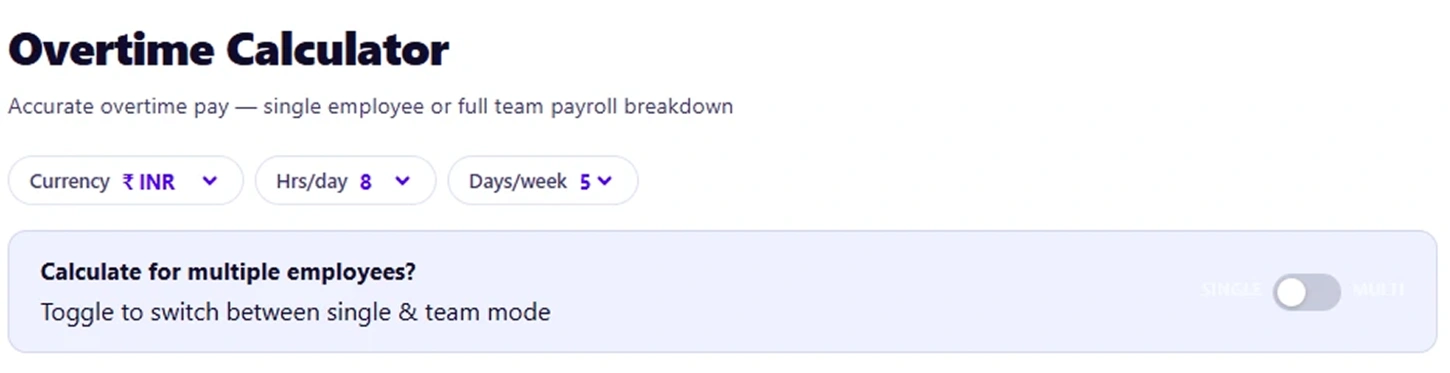
Step 2: Enter the Regular Pay Rate
In the Regular Work Time section, enter the employee’s regular pay rate per hour. This is the base hourly wage used to calculate normal earnings.
The calculator will use this value to determine both regular pay and overtime pay later in the process.
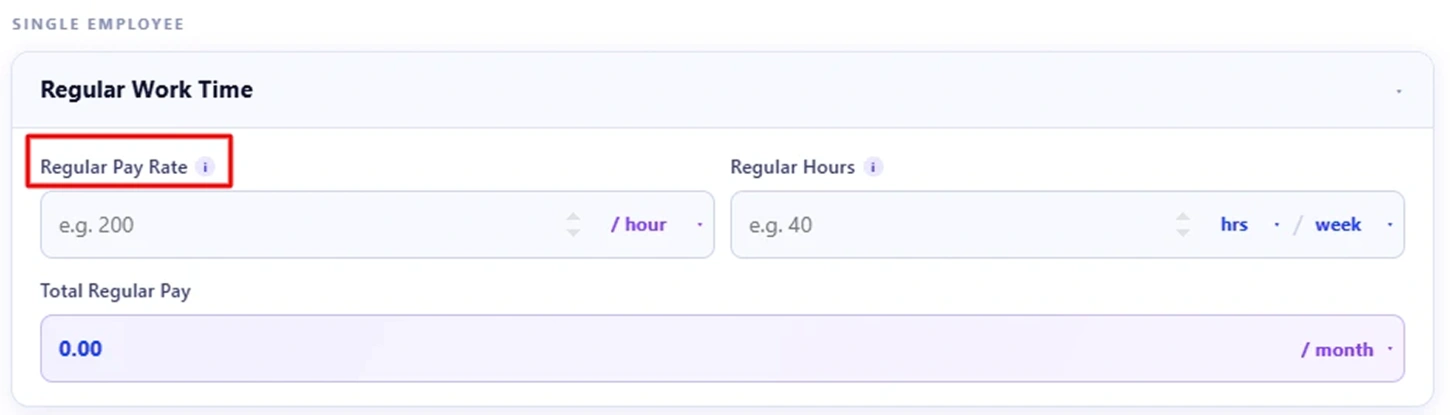
Step 3: Add the Regular Working Hours
Next, enter the regular hours worked per week. This represents the number of hours the employee normally works before overtime begins.
Once both the pay rate and regular hours are entered, the calculator automatically shows the total regular pay.
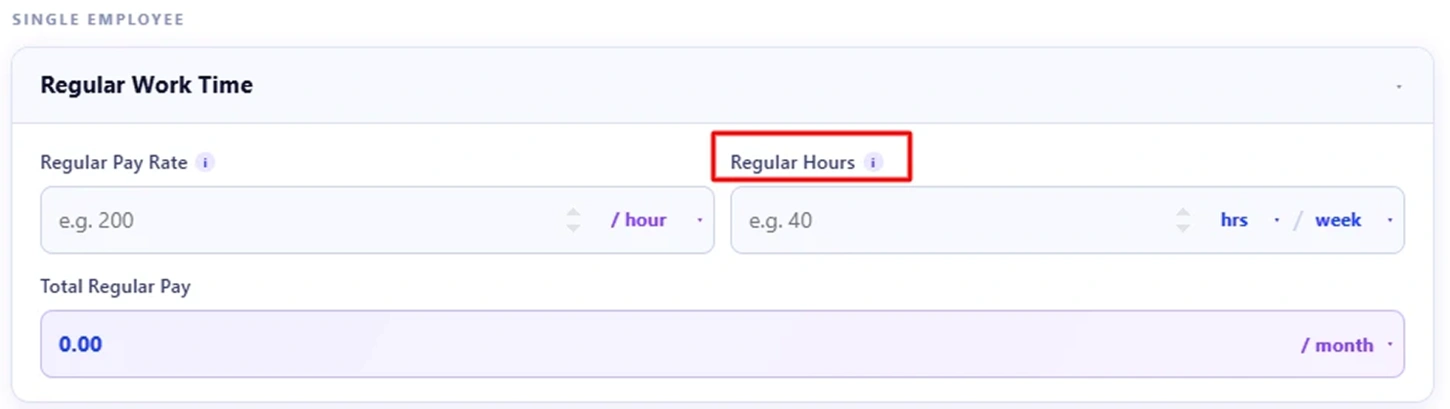
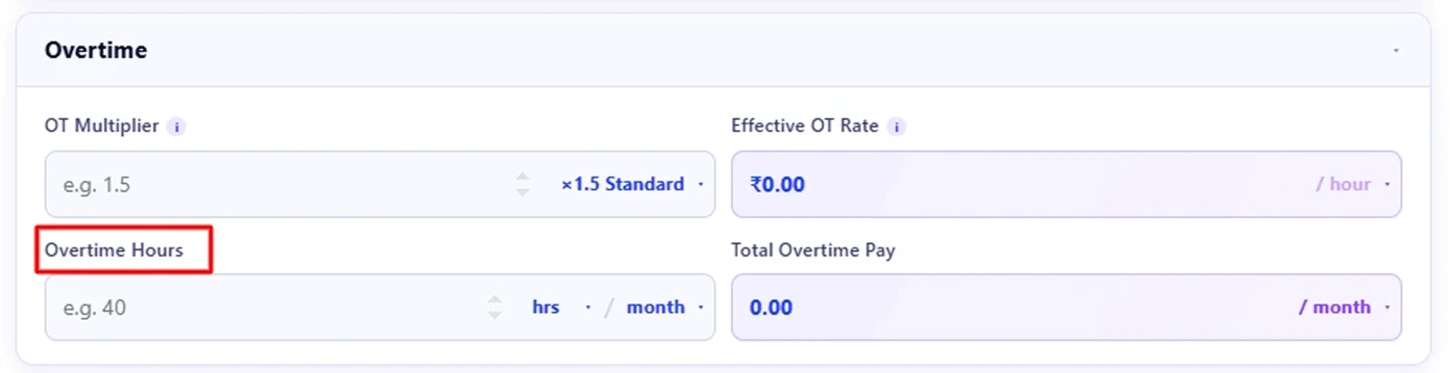
Step 4: Set the Overtime Multiplier
Move to the Overtime section and enter the OT multiplier. The standard value is 1.5, which means overtime hours are paid at one and a half times the normal rate.
The calculator immediately displays the effective overtime rate per hour based on the multiplier you provide.
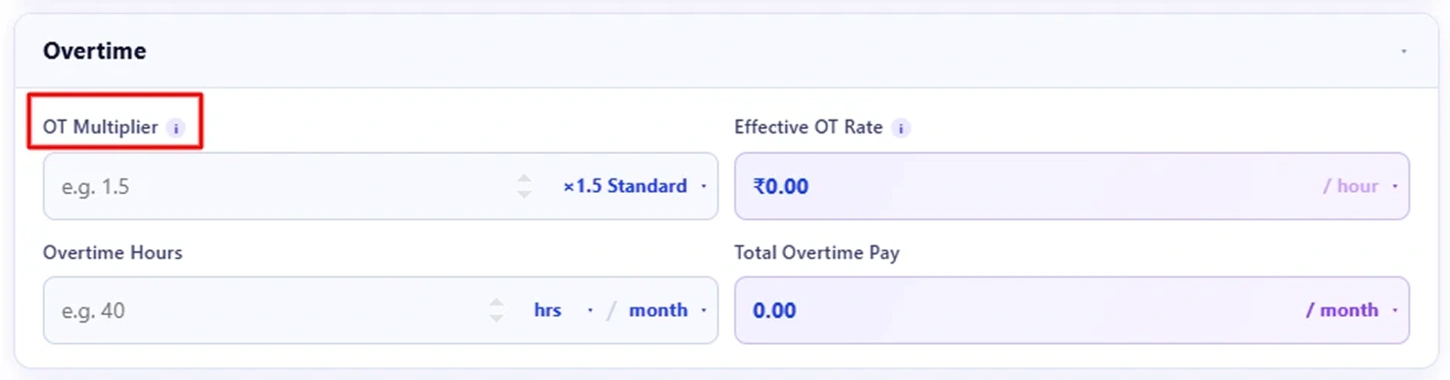
Step 5: Enter the Overtime Hours
Now add the total overtime hours worked during the period. The calculator will instantly calculate the total overtime pay using the multiplier and hourly rate.
This step shows exactly how much extra pay comes from overtime work.
Step 6: Add Bonuses or Deductions (Optional)
If there are any bonuses or deductions, you can enter them in this section. This helps you get a more accurate final pay calculation for the employee.

Step 7: Review the Total Pay Breakdown
At the bottom of the calculator, you will see the Total Pay section. This area shows the complete pay breakdown, including:
- Regular pay
- Overtime pay
- Overtime percentage
- Base rate
- Overtime rate
- Net pay
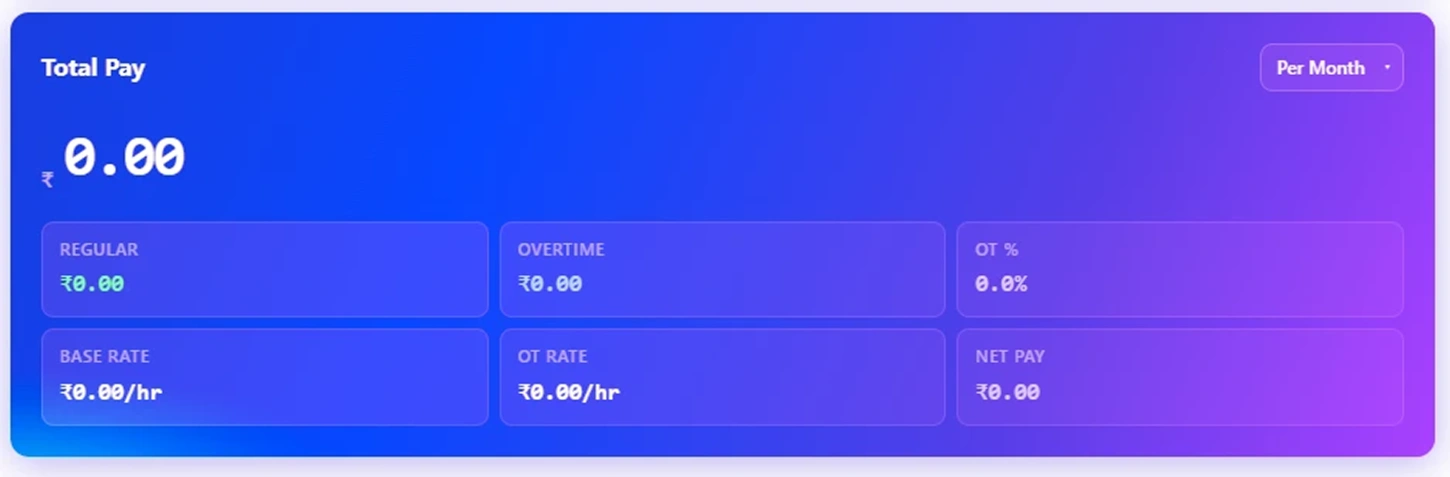
This summary helps you quickly understand how overtime affects the employee’s total earnings.
Now that you know how to calculate overtime for a single employee, let’s see how the calculator works when you want to calculate overtime for multiple employees or an entire team.
Step 8: Switch to Team Mode
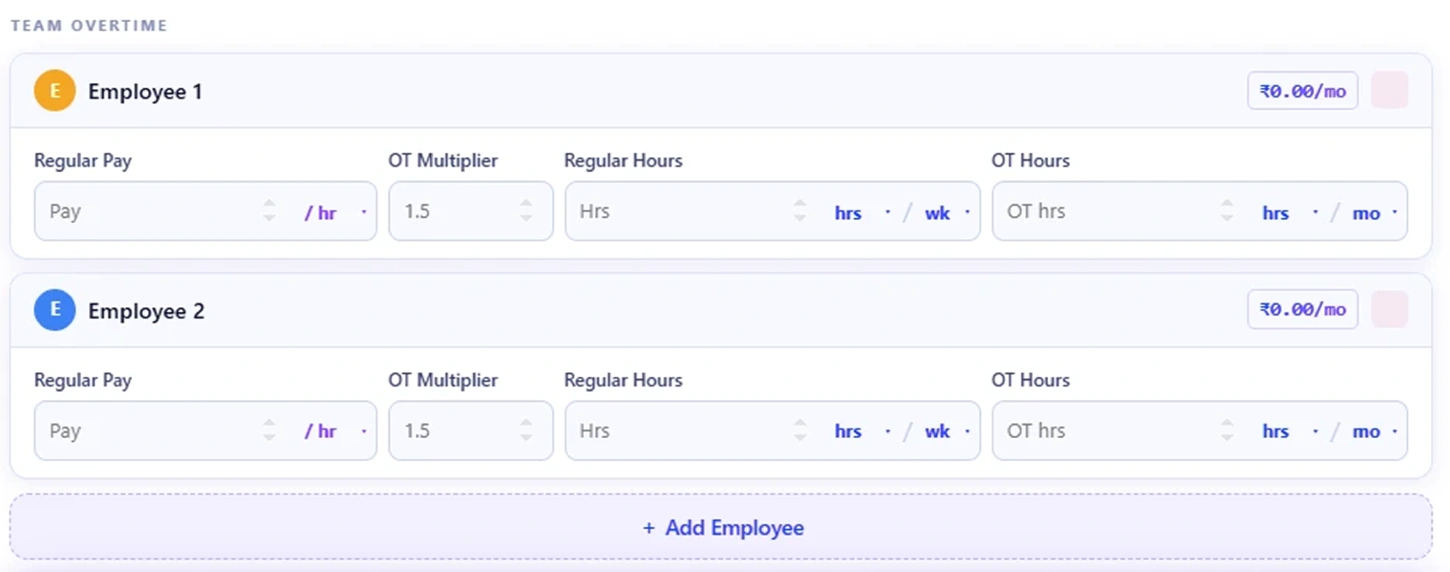
Under the calculator settings, turn on the “Calculate for multiple employees” toggle. This switches the calculator from single employee mode to team mode.
Once enabled, a Team Overtime section appears where you can manage multiple employees.

Step 9: Enter Details for Each Employee
Each employee appears in a separate row. For every employee, enter the following details:
- Regular pay rate per hour
- Overtime multiplier
- Regular working hours
- Overtime hours worked
You can also click “Add Employee” if you want to include more team members in the calculation.
Step 10: Review the Team Summary
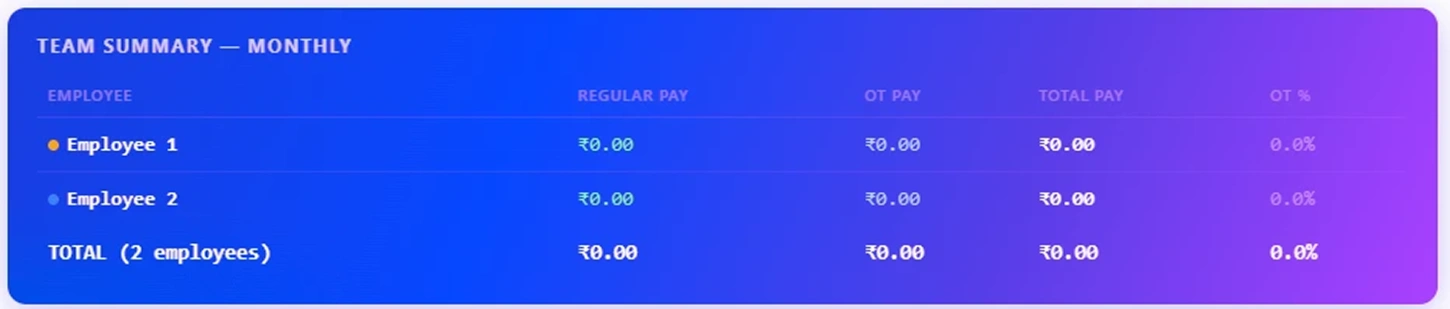
At the bottom, the Team Summary section displays the combined results for all employees. You can see each employee’s regular pay, overtime pay, total pay, and overtime percentage.
This gives you a clear overview of overtime costs across the entire team in one place.
How to Calculate the Overtime?
The calculation of overtime is far simpler when you divide it into a few simple steps. The goal is to know the employee’s regular hourly pay rate, the overtime hours, and then apply the correct overtime multiplier. Let’s go through it in a clear, structured way.
Step 1: Start with the Employee Details
Begin with the basic inputs required for the calculation. These values usually come from the employee’s pay rate and working hours.
Example:
- Hourly Pay Rate = $20 per hour
- Regular Working Hours = 40 hours per week
- Overtime Multiplier = 1.5
- Overtime Hours Worked = 8 hours
These inputs form the base for all overtime calculations.
Step 2: Calculate the Weekly Regular Pay
The first calculation determines how much the employee earns during regular working hours in a week.
Formula:
Weekly Pay = Hourly Rate × Weekly Hours
Calculation:
Weekly Pay = 20 × 40
Weekly Pay = $800
This means the employee earns $800 per week before overtime is added.
Step 3: Convert Weekly Pay to Monthly Pay
Most payroll systems show earnings on a monthly basis. To convert weekly earnings into a monthly salary, the calculator uses the average number of weeks per month (4.3333).
Formula:
Monthly Regular Pay = Weekly Pay × 4.3333
Calculation:
Monthly Regular Pay = 800 × 4.3333Monthly Regular Pay = $3,466.67
So, the employee’s regular monthly salary becomes $3,466.67.
H3: Step 4: Calculate the Overtime Rate
Overtime pay is usually calculated using a multiplier applied to the regular hourly rate.
Formula:
OT Rate = Hourly Rate × OT Multiplier
Calculation:
OT Rate = 20 × 1.5OT Rate = $30 per hour
This means every overtime hour is paid at $30 instead of $20.
H3: Step 5: Calculate the Overtime Pay
Now, calculate how much the employee earns from overtime work.
Formula:
OT Pay = OT Rate × OT Hours
Calculation:
OT Pay = 30 × 8OT Pay = $240
So, the employee earns $240 as overtime pay.
H3: Step 6: Calculate the Total Salary
Finally, combine the regular salary and overtime earnings to determine the employee’s total pay.
Formula:
Total Pay = Regular Pay + OT Pay
Calculation:
Total Pay = 3,466.67 + 240Total Pay = $3,706.67
Final Result
For this example:
- Regular Monthly Pay = $3,466.67
- Overtime Pay = ₹240
- Total Salary = $3,706.67
This step-by-step approach shows how overtime increases an employee’s total earnings and why accurate overtime tracking is important for payroll calculations.
H2: What Are the Pros and Cons of the Overtime Calculator?
An overtime calculator helps you stay accurate and informed, but it’s important to understand where it adds value and where it has limits. Here’s a clear comparison to help you decide how to use it effectively.
| Pros of Overtime Calculator | Cons of Overtime Calculator |
|---|---|
| Calculates total, regular, and overtime pay instantly without manual math. | Does not account for region-specific overtime laws or daily overtime thresholds. |
| Reduces the chance of payroll errors that could lead to underpaying or overpaying employees. | Requires you to manually separate regular and overtime hours before entering data. |
| Works for any hourly rate and any overtime multiplier, making it flexible across different pay structures. | Does not handle multiple employees or batch payroll calculations in one go. |
| Clear breakdown of regular pay and overtime pay, making it easier to understand total earnings. | Does not provide insights into overtime trends or explain why overtime is increasing. |
| Saves time during payroll runs, especially when your employee has worked irregular hours. | Does not store or track historical pay records across multiple pay periods. |
What Your Overtime Data Could Be Telling You?
An overtime data gives you numbers. However, with a closer look, those figures will tell you something about workload, staffing, and cost pressure within your team. Once you monitor overtime regularly, you will begin to notice signs which enable you to work more efficiently rather than respond too late. Here’s what your overtime data might be showing you:

Spot Overloaded Roles
See which teams or positions consistently push beyond normal hours, signalling uneven workload.

Catch Early Burnout Signs
Rising overtime patterns help you notice employee fatigue before it becomes a bigger issue.
Find Staffing Gaps Fast
Repeated overtime in the same areas shows where additional hiring or schedule adjustments may be needed.
Uncover Process Slowdowns
When certain tasks consistently spill into overtime, it signals workflow inefficiencies that need attention.
Identify Overtime‑Heavy Projects
Patterns reveal which managers, shifts, or projects regularly create overtime, helping you improve planning.
Forecast Labor Costs Better
Consistent overtime trends give you a clearer picture of where payroll spikes, helping you plan smarter.
How Time Champ Goes Beyond a Basic Overtime Calculator?
Managing overtime is not just a simple matter of typing figures into a calculator. You need clarity, visibility, and context behind those hours so you can plan better, protect your team, and control labor costs. An easy overtime calculator is useful in adding hours, but it cannot reveal the patterns and workforce signs behind the repeated overtime.
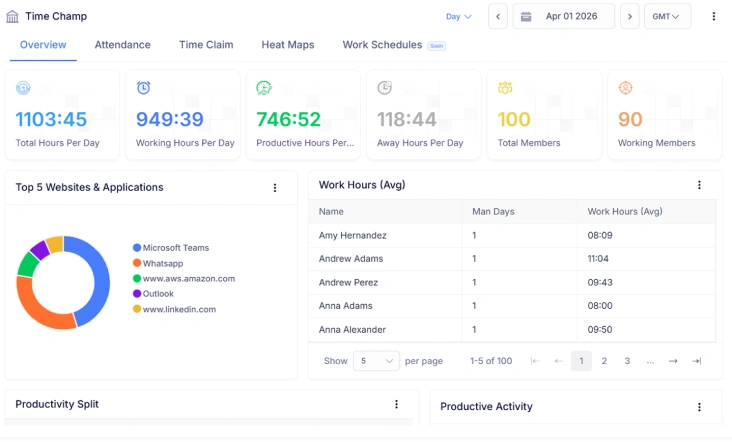
Time Champ takes it further. Instead of manually entering hours into a calculator at the end of every pay period, Time Champ tracks your employee hours automatically as they work. It flags overtime the moment it happens, so you know about it before payroll processes it.
On top of that, you can classify billable and non-billable hours easily, generate accurate timesheets for every employee, and keep overtime records organized without any manual effort. You do not have to switch between spreadsheets, calculators, and payroll sheets. With everything connected in one system, Time Champ makes overtime management proactive, accurate, and much easier to control.
| Feature | Time Champ | Spreadsheets | Manual Calculators |
|---|---|---|---|
| Automatic Time Tracking | ✓ | ✗ | ✗ |
| Accurate Overtime Tracking | ✓ | ✗ | ✗ |
| Team-Wide Overtime Insights | ✓ | Limited | ✗ |
| Workload Patterns and Trends | ✓ | Limited | ✗ |
| Real-Time Overtime Alerts | ✓ | ✗ | ✗ |
| Attendance and Total Working Hours Tracking | ✓ | Manual Entry | ✗ |
| Shift-Based Overtime Monitoring | ✓ | Limited | ✗ |
| Billable/Non-Billable Hour Classification | ✓ | Manual Setup | ✗ |
| Automated Timesheets | ✓ | Manual Entry | ✗ |
| Remote & Hybrid Work Visibility | ✓ | Limited | ✗ |
| Freelance / Contract / Client Hour Tracking | ✓ | Limited | ✗ |
| Instant Payroll Breakdown | ✓ | ✓ | ✓ |
| Burnout Risk Visibility | ✓ | ✗ | ✗ |
| Detailed Reports and Analytics | ✓ | ✓ | ✓ |
Move from Time-consuming Overtime Calculations to Smart Workforce Insights
Understand productivity trends, control labor costs, and plan ahead with Time Champ!
- Automatic overtime reports across teams
- Real-time alerts before overtime exceeds limits
- Clear view of shifts, remote, and field work hours
- Accurate payroll-ready data in one place
- Detailed workload insights to prevent burnout
 Start 7-day free trial
A Workforce Intelligence Tool Built for Smarter Performance
See What Our Happy Customers Say
See how organizations improved performance through workforce intelligence

Time Champ brought structure to our operations. Project management, time tracking, and attendance handling became smooth and easy. The platform feels simple to use, and their support team genuinely cares. It has streamlined our entire workflow.

Time Champ quickly replaced our previous tool and simplified our daily processes. With flexible time tracking and responsive support, it gave us clear visibility into employee work hours, overtime, and overall productivity.

We saw measurable gains after adopting Time Champ. Our performance metric improved from 2.36 to 1.99, cutting time wastage by nearly 20%. It helps our employees stay focused without constant supervision, and I’d rate it 9/10.

Time Champ provided full transparency into how our teams' time was being spent and helped us manage remote teams much more effectively.

Manual time tracking was slow and often inaccurate. Time Champ gave us transparent insights into app and website usage while respecting employee privacy. Our payroll accuracy improved, and overall team performance became stronger.

Finally, we found a tool that’s actually easy to use. Time Champ gave us a clear look at where our time goes and helps us support the team better, all while staying cost-effective. --Prithvi Ram Raj Garga, Assistant Manager
Lead Smarter with Workforce Intelligence Connect with our product experts for a live demo and discuss your business requirements.
Explore Other Calculators

Absence Percentage Calculator
Calculate employee absence percentage easily with our absence percentage calculator - a fast, accurate tool for tracking attendance and workforce.
Try Now →Schedule Variance Calculator
Calculate schedule variance with our schedule variance calculator, a simple tool for tracking project timelines and evaluating schedule performance.
Try Now →Employee Turnover Rate Calculator
Calculate employee turnover rate with our Turnover Rate Calculator, a simple tool for measuring workforce stability and tracking HR performance.
Try Now →


 4.7/5 avg.
Ready to Manage Your Workforce Smarter?
Join our family of 1500+ companies using smart insights to redefine workforces!

Free Trial
No Credit Card Required