Work From Home Essentials for Professional Remote Setup
Still working from your dining table? Discover the work from home essentials you need to build a comfortable, productive workspace.

Your home office doesn't need to look like a CEO's corner office. But it also shouldn't feel like you're working between the salt shaker and your morning coffee. If you’re working like this, it's probably time for an upgrade. The right work from home essentials can help you stay comfortable, productive, and ready for every meeting.
From ergonomic furniture to productivity tools, this guide covers everything you need to build a professional remote workspace.
What Are Work from Home Essentials?
Work from home essentials are the furniture, equipment, technology, and software you need to create a comfortable, productive, and professional workspace at home. They help you stay focused, reduce physical strain, communicate effectively, and perform your daily tasks with fewer interruptions.
The exact essentials depend on your job and workspace, but most remote professionals benefit from ergonomic furniture, reliable technology, a stable internet connection, and productivity tools. Whether you're working from a dedicated home office or a small corner of your living room, the right setup can improve both your comfort and efficiency throughout the day.
Work From Home Setup Budget: 3 Tiers to Consider
Creating a comfortable home office doesn't mean you have to spend thousands of dollars. The best work from home essentials are the ones that fit your budget while giving you the tools to work efficiently. These three budget tiers can help you decide where to invest and which upgrades can wait.
Essential Setup ($500)
If you're new to remote work or working with a tight budget, this setup gives you everything you need to work comfortably without overspending. Focus on an ergonomic chair, a sturdy desk, a reliable laptop, and a stable internet connection. Add a basic webcam, a headset, and a few desk accessories, and you'll have a functional workspace for everyday tasks.
Best for:
Students, freelancers, and first-time remote workers.
Comfort Setup ($1,500)
This budget allows you to create a workspace that's comfortable enough for long working hours. You can invest in a better ergonomic chair, a height-adjustable desk, an external monitor, noise-canceling headphones, and improved lighting. These upgrades reduce strain and help you stay productive throughout the day.
Best for:
Full-time remote employees and hybrid professionals.
Professional Setup ($2,500+)
If you spend most of your workday at your desk, a premium setup is a worthwhile investment. This budget covers a high-end ergonomic chair, an electric standing desk, dual monitors, a professional webcam, quality audio equipment, and productivity-enhancing accessories. The result is a workspace designed for maximum comfort, efficiency, and a polished professional appearance.
Best for:
Executives, software developers, designers, content creators, and anyone who works remotely every day.
Home Office Furniture Essentials
Your furniture forms the foundation of your home office. While laptops and software help you get work done, the furniture you use determines how comfortable, healthy, and productive you feel throughout the day. These work from home essentials can reduce fatigue, improve posture, and make long work hours much more manageable.
1. Ergonomic Chair
An ergonomic chair is one of the most important investments for any remote worker. Sitting for hours in an unsupportive chair can lead to back pain, neck strain, and poor posture. A quality ergonomic chair provides proper lumbar support and multiple adjustment options, helping you stay comfortable during long work sessions.
Price Range:
$125 – $190
Product Link: Ergonomic Chair
What to Look For:
- Adjustable lumbar support
- Seat height and armrest adjustments
- Breathable mesh or fabric material
- Reclining backrest
- Comfortable seat cushion
2. Desk (Standard or Sit-Stand)
Your desk should provide enough room for your laptop, monitor, keyboard, and everyday accessories. A standard desk is ideal for most home offices, while a sit-stand desk lets you switch between sitting and standing to reduce fatigue and encourage movement throughout the day. Choosing the right desk size also keeps your workspace organized and gives you enough room to work without feeling cramped.
Price Range:
$20 - $150
Product Link: Standard Desk,Electric Sit-Stand Desk
What to Look For:
- Spacious work surface
- Sturdy construction
- Comfortable desk height
- Built-in cable management
- Height adjustment (for sit-stand desks)
3. Monitor Stand or Monitor Arm
Looking down at your screen all day can put unnecessary strain on your neck and shoulders. A monitor stand or adjustable monitor arm raises your screen to eye level while freeing up valuable desk space. If you use multiple monitors, an adjustable arm also makes positioning much easier. It's a simple upgrade that improves both your posture and overall workspace ergonomics without taking up extra room.
Price Range:
$20 - $50
Product Link: Monitor Stand,Monitor Arm
What to Look For:
- Adjustable height and tilt
- Strong, stable construction
- VESA compatibility
- Space-saving design
- Easy installation
4. Keyboard Support & Wrist Rest
Typing for several hours each day can put stress on your wrists if your keyboard isn't positioned correctly. A keyboard tray or wrist rest helps maintain a natural typing posture, reducing strain and improving comfort during extended work sessions. These affordable accessories can make a noticeable difference if you spend most of your day writing, coding, or handling spreadsheets.
Price Range:
$7 - $50
Product Link: Keyboard Tray,Wrist Rest
What to Look For:
- Memory foam or gel cushioning
- Non-slip base
- Comfortable wrist alignment
- Durable, easy-to-clean material
5. Task Lighting
Proper lighting is often overlooked but plays a major role in reducing eye strain and improving concentration. A good desk lamp provides focused lighting for your workspace and makes you appear more professional during video meetings, especially in low-light environments. Positioning your light correctly can also reduce screen glare, making it easier to work comfortably for longer periods.
Price Range:
$15 - $20
Product Link: Task Lighting
What to Look For:
- Adjustable brightness levels
- Flexible lamp arm
- Warm and cool color temperature settings
- Flicker-free LED lighting
- Anti-glare design
Technology Hardware Essentials for Work from Home
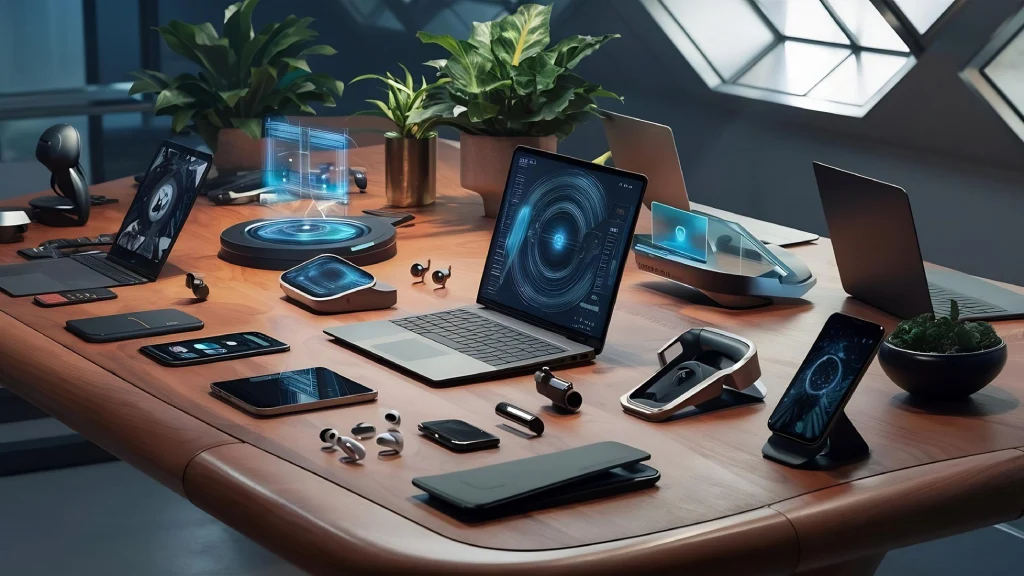
The right technology is one of the most important work from home essentials. Reliable hardware helps you work faster, communicate clearly, and avoid unnecessary disruptions throughout the day. Whether you're attending virtual meetings, collaborating with teammates, or handling demanding projects, these essentials ensure your home office is ready for any task.
6. Reliable Computer (Laptop or Desktop)
Your computer is the heart of your home office setup. Whether you choose a laptop for flexibility or a desktop for performance, make sure it can handle your daily workload without slowing you down. Investing in a capable device today can save you years of frustration later.
Price Range:
$200 - $500
Product Link: Laptop, Desktop PC
What to Look For:
- Intel Core i5/Ryzen 5 processor or higher
- At least 16GB RAM
- SSD storage (512GB or more)
- Full HD display
- Multiple USB and HDMI ports
7. External Monitor(s)
Working on a single laptop screen can quickly become limiting, especially when multitasking. An external monitor gives you more screen space, making it easier to compare documents, manage multiple applications, and reduce constant window switching. If your work involves spreadsheets, design, or coding, dual monitors can significantly improve efficiency.
Price Range:
$60 - $120
Product Link: 24-inch Monitor, 27-inch Monitor
What to Look For:
- Full HD (1080p) or higher resolution
- IPS display panel
- Adjustable stand
- Thin bezels
- HDMI or USB-C connectivity
8. High-Speed Internet Connection
Even the best equipment can't compensate for slow internet. A reliable internet connection keeps video calls smooth, speeds up file transfers, and prevents interruptions during important meetings. If multiple people share your network, consider a faster plan or upgrading your router for better performance.
Price Range:
$40-$90
What to Look For:
- Download speed of at least 100 Mbps
- Upload speed of 20 Mbps or higher
- Dual-band or Wi-Fi 6 router
- Reliable service provider
- Ethernet support for maximum stability
9. Quality Webcam
Your webcam is often your first impression during virtual meetings. While built-in laptop cameras are convenient, an external webcam offers sharper video quality, better low-light performance, and improved positioning. A clear video feed helps you appear more professional and engaged.
Price Range:
$25 - $90
Product Link: Quality Webcam
What to Look For:
- 1080p Full HD resolution
- Autofocus
- Auto light correction
- Wide viewing angle
- Built-in privacy shutter
10. Headset with Noise-Cancelling Microphone
Clear audio is just as important as clear video. A headset with a noise-cancelling microphone blocks background noise, making conversations easier for everyone on the call. It's especially useful if you work in a shared space or have frequent virtual meetings.
Price Range:
$30 - $70
Product Link: Headset with Noise-Cancelling Microphone
What to Look For:
- Active or passive noise cancellation
- Comfortable ear cushions
- High-quality microphone
- Long battery life (wireless models)
- USB or Bluetooth connectivity
11. Surge Protector or UPS
Power outages and voltage spikes can interrupt your work or even damage expensive equipment. A surge protector safeguards your devices from electrical surges, while a UPS (Uninterruptible Power Supply) provides temporary battery backup, giving you enough time to save your work and shut down safely.
Price Range:
$10 - $250
Product Link: Surge Protector,UPS
What to Look For:
- Multiple protected outlets
- High joule rating
- Battery backup (UPS)
- Automatic voltage regulation
- Equipment protection warranty
Productivity Software Essentials for Remote Work

A well-equipped home office isn't complete without the right software. While furniture and hardware create a comfortable workspace, productivity software helps you communicate, collaborate, manage tasks, and protect your work. The right tools can simplify your daily workflow, reduce manual effort, and keep your team connected no matter where they're working.
12. Video Conferencing Software
Virtual meetings are a part of almost every remote job. A reliable video conferencing platform lets you collaborate with teammates, meet clients, and share ideas from anywhere. Look for software that offers stable connections, screen sharing, meeting recording, and calendar integration for a smoother meeting experience.
Popular options:
Zoom, Microsoft Teams, Google Meet
What to Look For:
- HD video and audio
- Screen sharing
- Meeting recording
- Virtual backgrounds
- Calendar integration
13. Team Communication Software
Quick communication keeps remote teams connected throughout the day. Team messaging platforms make it easy to ask questions, share updates, and collaborate without relying on lengthy email chains. Organized channels and searchable conversations also make finding information much easier.
Popular options:
Slack, Microsoft Teams, Discord
What to Look for:
- Instant messaging
- Team channels
- File sharing
- Voice and video calls
- Third-party integrations
14. Project Management Software
Managing projects remotely requires visibility into tasks, deadlines, and responsibilities. Project management software helps you organize work, assign tasks, monitor progress, and collaborate with your team more efficiently. It also gives you a clear view of what's completed, what's pending, and what needs your attention next.
Popular options:
Asana, Time Champ, Jira
What to Look For:
- Task management
- Project timelines
- Kanban boards or Gantt charts
- Team collaboration
- Progress reporting
15. Time Tracking & Workforce Intelligence Software
Knowing where your time goes helps you work smarter and stay accountable. Time tracking and workforce intelligence software automatically records your work hours, provides productivity insights, and helps you understand how your time is spent throughout the day. Whether you're a freelancer or part of a remote team, these insights can help you improve efficiency and make better decisions about your workload.
Popular Options:
Time Champ, Toggl Track, Clockify
What to Look For:
- Automatic time tracking
- Productivity analytics
- Attendance management
- Project time tracking
- Detailed reports and dashboards
Looking for a smarter way to manage your workday?
Time Champ helps remote teams stay focused, track time accurately, and get more done from any home office setup.
16. Cloud Storage & File Sharing
You need quick and secure access to your files, no matter where you're working. Cloud storage platforms let you store, organize, and share documents while making collaboration easier through real-time editing and automatic syncing. They also ensure you always have access to the latest version of your files across all your devices.
Popular Options:
Google Drive, Microsoft OneDrive, Dropbox, Box
What to Look For:
- Automatic file sync
- Secure file sharing
- Version history
- Collaboration features
- Cross-device access
17. Security Software
When you work remotely, you often access company data from home networks or personal devices. Security software helps protect your information by securing your internet connection, managing passwords, and defending against malware and cyber threats. A strong security setup gives you peace of mind and helps keep your personal and work data safe from unauthorized access.
Popular Options:
Bitdefender, Norton, 1Password, NordVPN
What to Look For:
- Antivirus and malware protection
- VPN support
- Password management
- Multi-factor authentication
- Automatic security updates
Ergonomics and Health Essentials
A well-designed home office is also about protecting your health. Sitting in the same position for hours, staring at a screen, and using poorly positioned equipment can lead to discomfort and long-term health issues. When you follow a few ergonomic best practices, you can stay comfortable, reduce fatigue, and work more efficiently every day.
18. Proper Ergonomic Workstation Setup
Your workstation should support a natural and comfortable posture while you work. A properly arranged desk, chair, and monitor reduce strain on your neck, shoulders, back, and wrists, helping you stay productive throughout the day. Even small adjustments to your setup can make a noticeable difference in your comfort over long work sessions.
What to Look For:
- Monitor positioned at eye level
- Feet flat on the floor or on a footrest
- Elbows bent at about 90 degrees
- Wrists in a neutral position while typing
- Chair with adjustable lumbar support
19. Movement and Break Essentials
Even the most ergonomic workspace can't replace regular movement. Sitting for long periods can lead to stiffness, fatigue, and reduced circulation. Make it a habit to stand up, stretch, or take a short walk every 30 to 60 minutes to keep your body active and your mind refreshed.
Healthy Habits to Follow:
- Take short walking breaks
- Stretch your neck, shoulders, and back
- Alternate between sitting and standing
- Stay hydrated throughout the day
- Set reminders to move regularly
20. Eye Care and Screen Health
Spending hours in front of a screen can cause eye strain, dryness, headaches, and blurred vision. Taking simple steps to protect your eyes helps you stay focused and reduces discomfort during long workdays. Small habits like adjusting your screen brightness and giving your eyes regular breaks can make screen time much more comfortable.
What to Look For:
- Follow the 20-20-20 rule (every 20 minutes, look at something 20 feet away for 20 seconds)
- Wear blue light-filtering glasses during long screen sessions to reduce eye strain.
- Adjust screen brightness to match your surroundings
- Reduce glare with proper lighting
- Position your monitor about an arm's length away
- Increase text size if needed to reduce eye strain
Video Call Quality Essentials
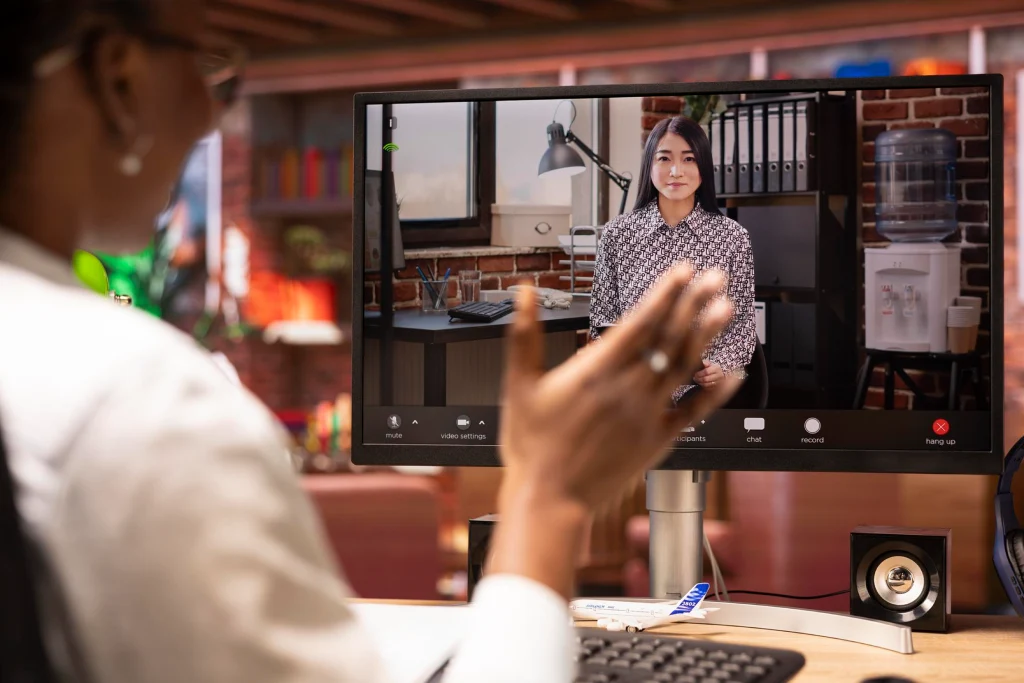
In remote work, your video calls are often your first impression. A clear camera, good lighting, and quality audio help you communicate confidently and professionally.
21. Webcam Positioning
A high-quality webcam won't make much difference if it's positioned incorrectly. Place your webcam at eye level so you're looking straight into the camera instead of down at your screen. This helps you maintain natural eye contact and present yourself more professionally during virtual meetings.
What to Look For:
- Webcam positioned at eye level
- Stable placement on your monitor
- 1080p Full HD resolution
- Autofocus and auto light correction
- Privacy shutter for added security
22. Lighting Setup
Good lighting makes you look more professional and helps others see you clearly. Natural light works best, but if that's not available, a desk lamp or ring light placed in front of you can make a big difference. Avoid sitting with a bright window behind you, as it can leave your face looking dark on camera.
What to Look For:
- Soft lighting in front of your face
- Adjustable brightness
- Ring light or LED desk lamp
- Natural light when possible
- Glare-free setup
23. Audio Quality
People are more likely to tolerate slightly blurry video than poor audio. A quality headset or external microphone helps your voice sound clear while reducing background noise. If you're working from a shared space, noise-cancelling headphones can make conversations easier for both you and your teammates.
What to Look For:
- Noise-cancelling microphone
- Clear voice quality
- Comfortable headset for long meetings
- Wired or Bluetooth connectivity
- Background noise reduction
24. Background and Framing
A clean background keeps the focus on you instead of your surroundings. Position yourself in the center of the frame with enough space above your head and remove unnecessary clutter behind you. If your workspace isn't ideal, use a professional virtual or blurred background to maintain a polished appearance. You can try artificial window frames as well.
Price Range:
$10 - $20
Product Link: Background and Framing
What to Look For:
- Clean and uncluttered background
- Camera centered at eye level
- Proper head and shoulder framing
- Neutral or blurred background
- Good distance between you and the camera
Small Space Home Office Solutions

You don't need a dedicated room to create a productive home office. With the right furniture and smart space-saving ideas, even a small apartment or shared room can become an efficient workspace. The key is making the most of every square foot while keeping your setup organized and comfortable.
25. Closet Office Setup
If you're short on space, a closet can become a surprisingly functional home office. By adding a compact desk, floating shelves, and proper lighting, you can create a dedicated workspace that stays out of sight when you're off the clock. Simply close the doors at the end of the day to create a clear separation between work and personal life.
Price Range:
$45 - $90
Product Link: Closet Office Setup
What to Consider:
- Compact desk
- Floating shelves
- Built-in lighting
- Cable management
- Comfortable chair that fits the space
26. Corner Workspace Ideas
Unused corners are perfect for creating a compact home office without taking over the entire room. A corner desk maximizes available space while giving you enough room for your laptop, monitor, and work essentials. Adding a small bookshelf or storage cabinet nearby keeps everything within reach without creating clutter.
Price Range:
$80 - $130
Product Link: Corner Workspace
What to consider:
- Corner desk
- Space-saving chair
- Monitor arm
- Small storage unit
- Good lighting
27. Wall-Mounted & Foldable Desks
A wall-mounted or foldable desk is an excellent option if your workspace needs to double as a living or bedroom area. When you're done working, simply fold the desk away to free up valuable floor space. It's a practical solution for studio apartments, shared rooms, or anyone looking to keep their workspace neat and flexible.
Price Range:
$50 - $90
Product Link: Wall-Mounted & Foldable Desks
What to Consider:
- Foldable wall desk
- Strong wall mounting
- Compact office chair
- Nearby power outlets
- Lightweight desk accessories
28. Using Vertical Storage
When desk space is limited, vertical storage helps you keep your workspace organized without occupying additional floor space. Wall shelves, pegboards, hanging organizers, and storage racks allow you to store office supplies, documents, and accessories within easy reach while keeping your desk clutter-free. Using your wall space efficiently creates a more organized workspace and gives you more room to focus on your work.
Price Range:
$15 - $50
Product Link: Floating Shelves,Pegboards,Wall Organizers
What to Consider:
- Floating shelves
- Pegboards
- Wall organizers
- Cable organizers
- Storage baskets or bins
What NOT to Buy for Your Home Office
When setting up your home office, it's easy to get caught up in trendy gadgets and expensive accessories. However, not every purchase adds real value to your workspace. Before spending your budget, focus on items that improve comfort and productivity, and avoid those that look impressive but offer little practical benefit.
Gaming Chairs
Gaming chairs may look stylish, but they aren't always the best choice for long workdays. Many prioritize appearance over ergonomic support, making them less comfortable for extended periods of sitting. Instead, invest in a quality ergonomic office chair designed to support your posture throughout the workday.
Skip if: You're buying it mainly for its appearance rather than comfort and adjustability.
Expensive Mechanical Keyboards
Mechanical keyboards can provide a satisfying typing experience, but you don't need to spend hundreds of dollars unless you type extensively or have specific preferences. For most remote workers, a comfortable, reliable keyboard offers nearly the same productivity benefits at a much lower cost.
Skip if: You only use your keyboard for everyday office work like emails, meetings, and documents.
Overcomplicated Lighting Kits
Professional lighting kits are useful for content creators, but they're unnecessary for most remote professionals. A simple LED desk lamp or an affordable ring light provides enough illumination for daily work and video calls. Keeping your lighting setup simple saves money while still helping you look professional on camera.
Skip if: Your job doesn't involve recording videos or live streaming.
Standing Desks Without Memory Presets
A standing desk is a worthwhile investment, but models without memory presets can become inconvenient over time. Constantly adjusting the desk manually often discourages you from switching positions regularly. Memory presets let you change between sitting and standing with a single button, making the feature much more useful.
Skip if: The desk requires manual height adjustments every time you change positions.
Excessive Desk Accessories
Desk organizers, decorative gadgets, and multiple accessories can quickly crowd your workspace instead of improving it. Choose accessories that solve a specific problem rather than filling every empty corner of your desk. A clean, uncluttered workspace often helps you stay more focused than one packed with unnecessary items.
Skip if: The accessory doesn't improve your comfort, organization, or productivity.
Decorative Office Items
Plants, artwork, and personal décor can make your workspace more enjoyable, but they shouldn't take priority over essential furniture and equipment. Once you've invested in the basics, you can personalize your workspace with décor that motivates you without creating distractions.
Skip if: You're buying decorations before purchasing the essentials you use every day.
Work From Home Essentials Checklist
Before you start working, use this checklist to see if your home office covers all the essential work from home items.
| video call quality essentials | Essential Items | Status |
|---|---|---|
| Furniture | Ergonomic chair | ☐ |
| Standard or sit-stand desk | ☐ | |
| Monitor stand or monitor arm | ☐ | |
| Keyboard tray or wrist rest | ☐ | |
| Adjustable task lighting | ☐ | |
| Technology Hardware | Reliable laptop or desktop | ☐ |
| External monitor | ☐ | |
| High-speed internet connection | ☐ | |
| HD webcam | ☐ | |
| Noise-cancelling headset | ☐ | |
| Surge protector or UPS | ☐ | |
| Productivity Software | Video conferencing software | ☐ |
| Team communication platform | ☐ | |
| Project management software | ☐ | |
| Time tracking & workforce intelligence software | ☐ | |
| Cloud storage & file sharing | ☐ | |
| Security software (VPN, antivirus, password manager) | ☐ | |
| Ergonomics & Health | Monitor at eye level | ☐ |
| Comfortable sitting posture | ☐ | |
| Regular movement and stretch breaks | ☐ | |
| Proper desk lighting | ☐ | |
| Follow the 20-20-20 eye care rule | ☐ | |
| Video Call Setup | Webcam positioned at eye level | ☐ |
| Front-facing lighting | ☐ | |
| Clear microphone or headset | ☐ | |
| Clean or blurred background | ☐ | |
| Workspace Organization | Space-saving desk or corner workspace | ☐ |
| Vertical storage solutions | ☐ | |
| Organized cables | ☐ | |
| Clutter-free desk | ☐ |
You don't need to check every box on day one. Start with the work from home essentials that improve your comfort and productivity, then upgrade your workspace as your needs and budget grow.
Working from home shouldn't feel like a daily game of "Where did I leave my charger?" The right work from home essentials can transform any space into a comfortable, productive, and professional workspace. Start with the basics, upgrade as your needs grow, and invest in tools that genuinely improve the way you work.

Table of Content
 What Are Work from Home Essentials?
- Work From Home Setup Budget: 3 Tiers to Consider
- Home Office Furniture Essentials
- Technology Hardware Essentials for Work from Home
- Productivity Software Essentials for Remote Work
- Ergonomics and Health Essentials
- Video Call Quality Essentials
- Small Space Home Office Solutions
- What NOT to Buy for Your Home Office
- Work From Home Essentials Checklist
Related Blogs
Performance evaluation in remote workforces: 7 metrics that matter, common biases to avoid, and how to run reviews your team trusts.
Guna Lakshmi | Apr 14, 2026
Learn how to track time for remote workers using simple methods and remote tracking tools and learn best practices that improve trust and productivity.
Guna Lakshmi | May 18, 2026
Explore 15 advantages and disadvantages of working from home in 2026, with the latest insights, practical solutions, and strategies for remote workers.
Jahnavi Pulluri | Jul 29, 2026
Always stuck in work mode at home? Learn how to set clear work-life boundaries, reduce stress, and and stay productive while working from home!
Jahnavi Pulluri | Mar 12, 2025
Explore these proven strategies that will help you stay focused, efficient, and productive when working from home.
Sai Keerthi Uppala | Feb 22, 2025
Struggling to focus while working from home? Discover practical tips to manage distractions like chores, pets, and social media for better productivity.
Shabana Shaik | Oct 26, 2024


 4.7/5 avg.
Ready to Manage Your Workforce Smarter?
Join our family of 1500+ companies using smart insights to redefine workforces!

Free Trial
No Credit Card Required