PC Monitoring Software: 7 Productivity Barriers Fixed
Find out how PC monitoring software helps businesses overcome 7 major productivity barriers by improving accountability, workflow visibility, and security.
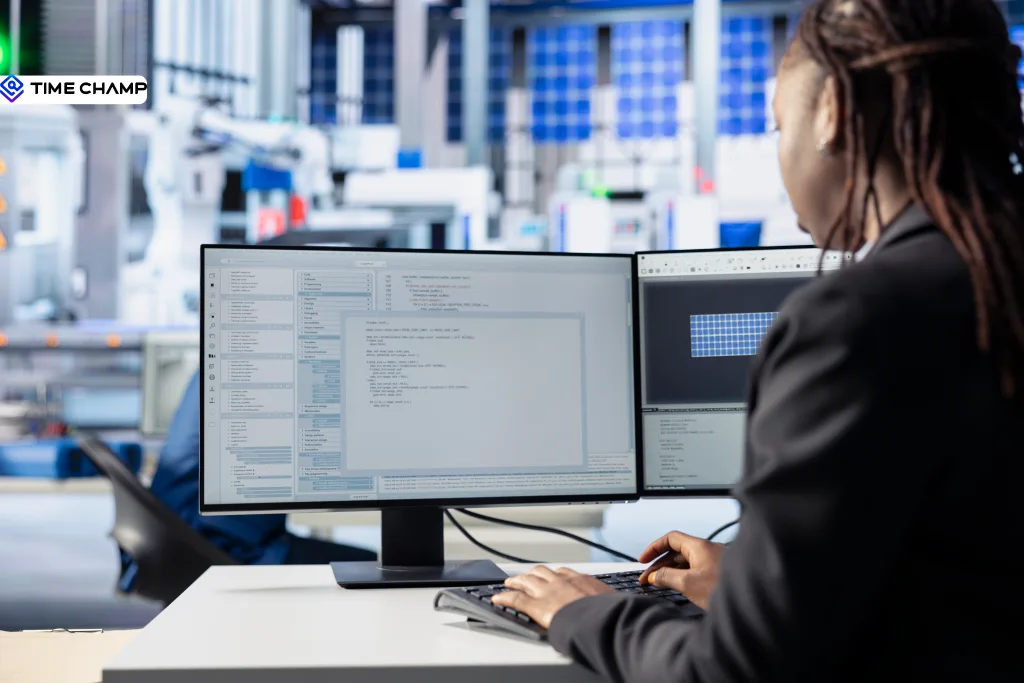
It’s late afternoon, and your team looks busy on paper, answering hundreds of messages, finishing meetings, moving tasks forward, but deadlines are still slipping.
When this happens, the usual answer is “we’re overloaded,” but in most cases, the real issue isn’t workload, it’s hidden productivity barriers that are hard to see from surface-level updates.
This is where PC monitoring software becomes useful, not as a surveillance tool, but as a way to understand how work actually happens inside a team. In this blog, I’ll break down the most common productivity barriers teams face and how to identify them using real usage data.
Why Most Productivity Barriers Stay Invisible
Productivity barriers are hard to find because they are hidden inside normal-looking work activities. Meetings, Slack activity, and long hours all look like productivity, but they don’t show whether meaningful work is actually getting done or if teams are stuck in low-impact cycles.
The problem is that most workplace signals measure activity, not output.
Microsoft’s Work Trend Index 2025 found that employees are interrupted roughly every two minutes by meetings, messages, or notifications. Nearly half of all meetings also happen during peak focus hours like 9 -11 AM and 1–3 PM, breaking deep work time.
At the same time, Asana’s Anatomy of Work Index shows that about 60% of an employee’s time is spent on “work about work”, coordination, updates, and communication rather than core tasks.
As we’ve seen, productivity barriers are quietly draining focus and time throughout the workday, even when teams appear constantly busy on the surface.
How PC Monitoring Software Reveals Work Patterns
PC monitoring software, when used as a work analysis tool, reveals patterns that are hard to see with the human eye. It can show meeting load by team, focused vs fragmented work time, app and website usage by role, time spent on projects vs admin work, after-hours activity, and how workload is distributed across employees.
The data is detailed, but its value depends on how it is used. It can either improve how teams work or create distrust.
A good approach follows three simple principles.
First, look at trends over weeks, not isolated days. Second, treat unusual patterns as questions, not conclusions. Third, give employees access to their own data so it becomes a shared tool for improvement, not one-sided monitoring.
Want to See Your Team's Productivity Work Patterns?
7 Productivity Barriers PC Monitoring Software Surfaces
These are the seven common productivity barrier patterns observed across most teams that report productivity issues.
Barrier 1. Meeting Overload
A 12-person marketing team is missing deadlines. The main issue is not skill or effort, but too many meetings. Senior writers are stuck in about 22 meetings a week, often during important morning work hours.
Symptom: Even though everyone is busy, deadlines are slipping. Employees feel like they don’t have time to think because their calendars are full of back-to-back meetings.
Signal: PC monitoring data shows that employees can only focus in short bursts (usually under 30 minutes). Very few get long, uninterrupted focus time. Real focused work only happens early in the morning or late in the evening, outside of meeting hours.
Fix: Review and reduce unnecessary meetings. Protect specific focus hours during the day so people can work without interruption. After two weeks, check again, teams usually regain several hours of productive time each week without hurting coordination.
Barrier 2. Context Switching Tax
A customer support team uses many tools, such as Zendesk, Slack, CRM, knowledge base, and engineering systems, to handle tickets. On each tool, employees look busy, but overall their output has dropped by 22%.
Symptom: They are active in many tools, but tickets resolve slowly. Employees feel like the whole day passes without real progress.
Signal: PC usage monitoring software data shows people are switching between tools more than 100 times per hour. Even though they are working on tickets, constant switching is wasting time and breaking focus, so they finish fewer tickets in a day.
Fix: Reduce the number of tools if possible. If not, organize work into focused time blocks (for example, mornings for tickets, afternoons for documentation). Also, identify which tool combinations cause the most switching.
Barrier 3. Tool Sprawl and Shadow IT
The company believes the team uses 14 tools, but in reality, they are using 27. Many of these are personal apps, free trials, or unofficial tools, and some are even preferred over the official ones because they work better.
Symptom: Employees feel overwhelmed by too many tools (“tool fatigue”), yet they continue adding new ones. This leads to extra spending on duplicate tools and raises security concerns due to unapproved apps and data risks.
Signal: PC monitoring data shows which apps people actually use. It reveals that employees spend significant time on unofficial tools, meaning they prefer them over the official ones.
Fix: Review all tools using real data. If employees prefer certain unofficial tools, either officially adopt them or improve the existing ones. Also, restrict installing random tools on work devices to avoid future mess.
Barrier 4. Ambiguous Priorities
A sales operations team is meant to focus on key work like pipeline analysis and quota planning but instead spends much of its time handling random requests, extra reports, and non-priority Slack messages.
Symptom: Delays pile up on important strategic work, and the team feels like they’re operating more like a help desk than focusing on their core responsibilities.
Signal: PC activity monitoring software data reveals that employees are spending most of their time on tasks that don’t align with their main priorities, showing that the team is working on the wrong things.
Fix: Talk to each team member and find out which tasks are wasting their time. Set up a system that filters incoming requests so only high-priority work reaches the team. Check again after a month to see improvement.
Barrier 5. Workload Imbalance
A finance team of seven is working on quarter-end closing, but the work is not evenly shared. One senior analyst is working 11-hour days, while two others are only doing about 6 hours of active work.
Symptom: Everything appears fine at first sight. The senior analyst is delivering work, and others seem available, but in reality, one person is overloaded while others are underused.
Signal: PC monitoring data shows how work hours are distributed across the team. It clearly reveals the imbalance, even though it’s not obvious from day-to-day observations.
Fix: Redistribute work and the tasks more evenly. The senior analyst should hand off tasks to the underused team members. Check again after two weeks, this usually reduces burnout and improves overall team efficiency.
Barrier 6. Burnout Creep
A BPO operations team works 24/7 in shifts. On paper, the 6 PM to 2 AM shift looks normal, but the data shows two team leads are regularly working about 90 extra minutes after their shift ends.
They are not reporting overtime, they are just quietly handling extra work.
Symptom: Performance on the late shift is starting to drop. The strongest employees look tired during meetings, but no official overtime is recorded, so the problem goes unnoticed.
Signal: PC monitoring software data shows consistent after-hours activity from the same employees over several weeks. This pattern reveals hidden overwork that isn’t visible in reports.
Fix: Have a direct conversation with the employees about workload, not performance. Either redistribute tasks or officially adjust their shift with proper compensation.
Barrier 7. Stuck Patterns
A new team member joins the team, but after three weeks, they are still stuck on the same task. In stand-ups, everything sounds normal, but real progress is not happening.
The member is working, using the right tools, and putting in effort, but they are stuck on something they don’t fully understand and haven’t asked for help.
Symptom: One task stays open for too long. The member looks active, but nothing is actually moving forward.
Signal: PC monitoring software data shows that they are spending a lot of time in tools like the code editor and documentation, but there are no real outputs like commits or pull requests. This suggests they are working alone but not making meaningful progress.
Fix: Quickly step in and arrange a short session with a senior team member. In most cases, this solves the issue immediately and prevents weeks of wasted effort or frustration.
How to Read PC Monitoring Software Data Without Misreading It
This is the part most blogs skip, but it often decides whether monitoring actually improves productivity or creates confusion and trust issues inside the team. The difference comes down to a few simple principles.
1. Look at Patterns, Not Single Days
A single bad or unusual day in the data doesn’t really tell you much on its own, because work naturally fluctuates depending on meetings, deadlines, and interruptions. A full week starts to reveal whether something is consistently off, while a month gives you enough context to confirm if it is actually a real productivity issue or just a normal variation in workload.
2. Compare Employees to their Own Patterns
Different roles and individuals work in very different work styles, so a fixed benchmark often leads to wrong conclusions. For example, late-night work might be completely normal for global teams, and heavier activity near deadlines is expected in finance or operations. That’s why it’s more accurate to compare each person against their own baseline instead of applying one standard across everyone.
3. Talk Before You Act
Raw data can show what is happening, but it rarely explains why it is happening, which is why acting on it too quickly can lead to misunderstandings. Before making any decisions based on a pattern, it’s important to have a conversation with the person involved so you understand the context behind the numbers and avoid misinterpreting normal behavior as a problem.
4. Share the Data with Employees
When employees can see their own work patterns, they are often better at noticing inefficiencies, distractions, or overload. This turns monitoring into a self-improvement tool, helping your employees adjust their focus and workload naturally instead of feeling like the system is being used only for control.
What PC Monitoring Software Does Not Fix
Honest framing matters here, as PC monitoring software is a tool for understanding work, it helps you find patterns in how work is happening, but it does not replace the core foundations of how a team or company operates.
It Does Not Fix Bad Strategy
If a team is working on the wrong priorities, the data will still show high activity, but on the wrong work. In that case, the problem is strategy, not visibility.
It Does Not Fix Bad Culture
If employees don’t feel safe or trusted, monitoring won’t improve performance. Instead, it can lead to people just trying to look busy rather than doing real, meaningful work.
It Does Not Fix Bad Incentives
If you focus on hours, people will work more hours. If you focus on results, you’ll get better outcomes. The way you design incentives will always shape the behavior you see in the data.
It Does Not Fix Bad Management
Monitoring tools can support managers, but they cannot replace them. Without active and engaged management, dashboards alone cannot guide or improve a team.
If you can clearly explain the problem in simple terms, like “our finance team is overloaded at quarter close” or “our engineering team has too many meetings”, then monitoring data can help you solve it, but if the real issue is strategy or culture, the data will only show what is happening, not why it is happening or how to fix it.
How Time Champ Helps Fix Productivity Barriers
Time Champ is an employee monitoring software with a built-in workforce intelligence layer designed to help teams understand productivity patterns at scale. It combines activity tracking with workforce analytics to surface issues that are usually hidden in day-to-day work.
Key Features
App and Website Tracking
It tracks how your employees spend their work time across different applications and websites during the workday. This helps you understand actual usage patterns and see which tools are being used for work versus non-work activities.
Task and Project Time Tracking
It records the time spent on specific tasks and projects so you can clearly see how effort is distributed across work. This helps you measure progress better, estimate effort more accurately, and identify where time is being over- or under-utilized.
Work Hours and Attendance Tracking
Time Champ monitors daily work hours, login patterns, and attendance to give you a clear view of employee availability. It helps you understand consistency in work schedules and find irregular patterns over time.
Idle vs Active Time Detection
It tracks idle time and shows how much time is being spent inactive across different apps and websites, helping you understand when and where work is getting interrupted or losing focus.
Productivity Classification
It allows you to categorize apps and websites as productive, non-productive, or neutral based on their roles. This helps you evaluate whether your team’s time spent on digital tools is aligned with work goals and expected outcomes.
Utilization Rate Tracking
You can measure how effectively each employee’s working hours are being used by comparing active productive time with total logged hours. This helps you understand efficiency levels and identify output gaps.
Workload Balance Insights
You get visibility into how work is distributed across your team, helping you identify who carries overload. This allows you to balance workloads better and reduce the risk of burnout or underperformance.
Performance Insights
Time Champ helps you identify productivity patterns across your team so you can understand who is consistently performing well and who may need support. This gives you clearer visibility for decision-making and team management.
See How These Insights Work in Real Time with Time Champ!
Explore how you can track productivity patterns and improve team performance easily.
Conclusion
Productivity barriers are rarely about effort because they are usually hidden in how work is structured and tracked. With the right visibility, you can clearly see where time is being lost across meetings, tools, and workloads. PC monitoring software helps you identify these patterns so you can fix root causes instead of guessing. When used correctly, it leads to more balanced teams, better focus, and improved output over time.

Jahnavi Pulluri

Table of Content
 Why Most Productivity Barriers Stay Invisible
- How PC Monitoring Software Reveals Work Patterns
- 7 Productivity Barriers PC Monitoring Software Surfaces
- How to Read PC Monitoring Software Data Without Misreading It
- What PC Monitoring Software Does Not Fix
- How Time Champ Helps Fix Productivity Barriers
- Key Features
- Conclusion
Related Blogs
Toxic productivity at the workplace harms employee well-being and leads to burnout. Discover what it is, signs to watch for, and strategies to overcome it.
Sai Keerthi Uppala | Jan 10, 2025
Discover the best ways to introduce productivity monitoring in your organization smoothly and effectively.
Thasleem Shaik | Mar 18, 2025
Learn how to boost productivity by finding the right balance in employee monitoring, focusing on key indicators, and maintaining transparency for a driven team.
Tarun Kumar | Mar 14, 2025
Discover different productivity styles, their unique approaches, and find the best way to maximize your efficiency and workflow.
Thasleem Shaik | Mar 13, 2025
Organize your workplace with these best productive tips. Boost efficiency, reduce clutter, and optimize your work environment today!
Sai Keerthi Uppala | Feb 22, 2025


 4.7/5 avg.
Ready to Manage Your Workforce Smarter?
Join our family of 1100+ companies using smart insights to redefine workforces!

Free Trial
No Credit Card Required