Free Time Card Calculator- Track Work Hours & Overtime
Calculate accurate work hours with our time card calculator, a reliable tool for tracking shifts, breaks, overtime, and payroll totals, quickly and accurately.
What is Time Card Calculator?
A time card calculator is an online tool that helps employees and employers calculate the total number of hours worked based on clock-in and clock-out times. By entering details such as start time, end time, and break duration, the tool calculates the total working hours for a day or week. This makes it easier to track work hours without doing manual calculations.
The main purpose of a timecard calculator is to simplify time tracking and payroll calculations. You can quickly check how many hours you have worked, while managers and HR teams can review work hours more efficiently. This is especially useful for businesses with hourly employees, shift workers, or remote teams, where accurate time tracking is important.
A timecard calculator also helps reduce mistakes that can happen with manual timesheets. It calculates total work hours and overtime quickly, saving time for both you and managers. This helps organizations maintain clearer and more reliable records of employee working hours.
Why Should You Use a Time Card Calculator?
Tracking your work hours manually can be time-consuming and sometimes confusing, especially when breaks, overtime, and different shifts are involved. A work hours calculator simplifies this process by quickly calculating your total work hours based on your clock-in and clock-out times.
Here are some key reasons why using a time clock calculator can be helpful:
1. Quick Calculation of Work Hours
A timesheet calculator helps you quickly calculate your daily or weekly work hours. You just need to enter your start time, end time, and break duration, and it will give you the total instantly. For example, if you work from 9:00 AM to 5:30 PM with a 30-minute lunch break, you can immediately see that you’ve worked 8 hours, without doing the math yourself.
2. Reduces Manual Errors
When you calculate work hours manually, you can easily make mistakes, especially when converting minutes into decimal hours or adding multiple shifts. A timesheet calculator does this for you automatically, reducing errors. This is especially useful if you have an irregular schedule or multiple clock-ins during the day.
3. Saves Time When Reviewing Timesheets
Instead of manually adding up hours from multiple entries, you can get your totals instantly. This makes it easier for you and your manager to review your work hours, helping speed up payroll and scheduling processes. It also simplifies end-of-week timesheet reviews and reduces administrative work.
4. Helps You Track Overtime Hours
You can clearly see how many hours you’ve worked beyond your regular schedule. The calculator highlights your overtime automatically, making it easier for you to track extra hours. For example, if your standard workweek is 40 hours, you can quickly identify any additional time you’ve worked.
5. Useful for Hourly and Shift-Based Jobs
If you work hourly, freelance, or follow shift-based schedules, a clock calculator can help you keep accurate records. Whether you’re working morning, evening, or night shifts, you can ensure every minute is counted correctly.
6. Improves Your Payroll Accuracy
Accurate time tracking directly affects how much you get paid. By using a time card calculator, you can reduce errors and ensure you’re paid correctly for all the hours you’ve worked. This also helps you avoid confusion and potential payroll issues.
7. Provides You a Clear Summary of Work Hours
Timecard calculators offer you a clear, organized summary of work hours, including breaks and overtime. This record can be used for reporting, audits, or performance tracking. Having a visual summary also helps you understand your own schedules and manage time effectively.
How to Use the Time Card Calculator
The work hour calculator helps you track employee work hours, breaks, and overtime for a selected pay period. Once daily work times are entered, the calculator automatically calculates total hours and distinguishes between regular and overtime hours.
Follow the steps below to complete a timesheet.
1. Enter Basic Employee Details
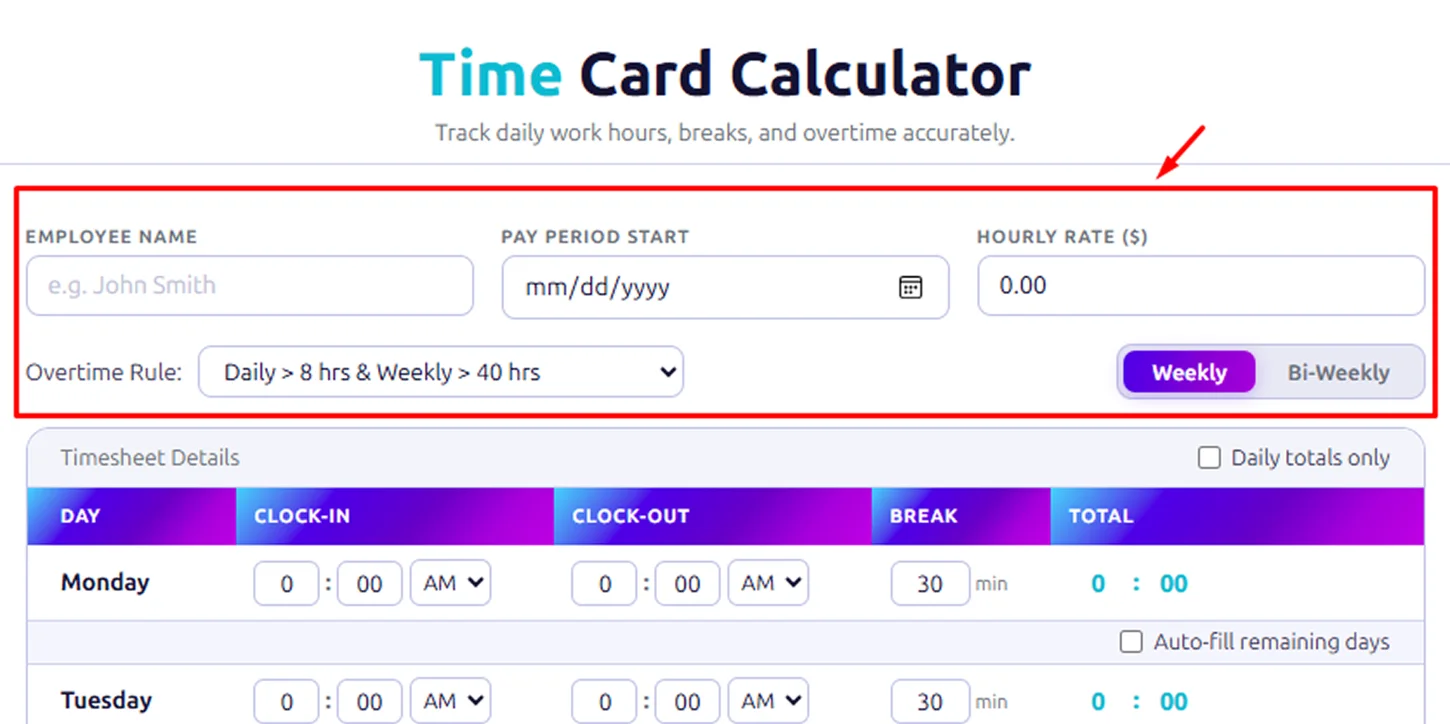
Start by filling in the information at the top of the calculator. These details define who the timesheet belongs to and how hours will be calculated.
Employee Name: Enter the name of the employee whose work hours you are tracking.
Pay Period Start: Select the starting date of the pay period using the calendar. The calculator will generate the corresponding workdays based on the selected pay period type.
Hourly Rate ($): Enter the employee’s hourly wage. This value will be used to calculate total pay if payroll calculations are enabled.
Overtime Rule: Choose how overtime should be calculated.
For example:
- Daily > 8 hrs & Weekly > 40 hrs
This means overtime will apply if an employee works more than 8 hours in a single day or more than 40 hours in a week.
Select Pay Period Type
Choose the length of the pay period:
- Weekly – Covers 7 days of work entries
- Bi-Weekly – Covers 14 days of work entries
2. Enter Daily Work Hours
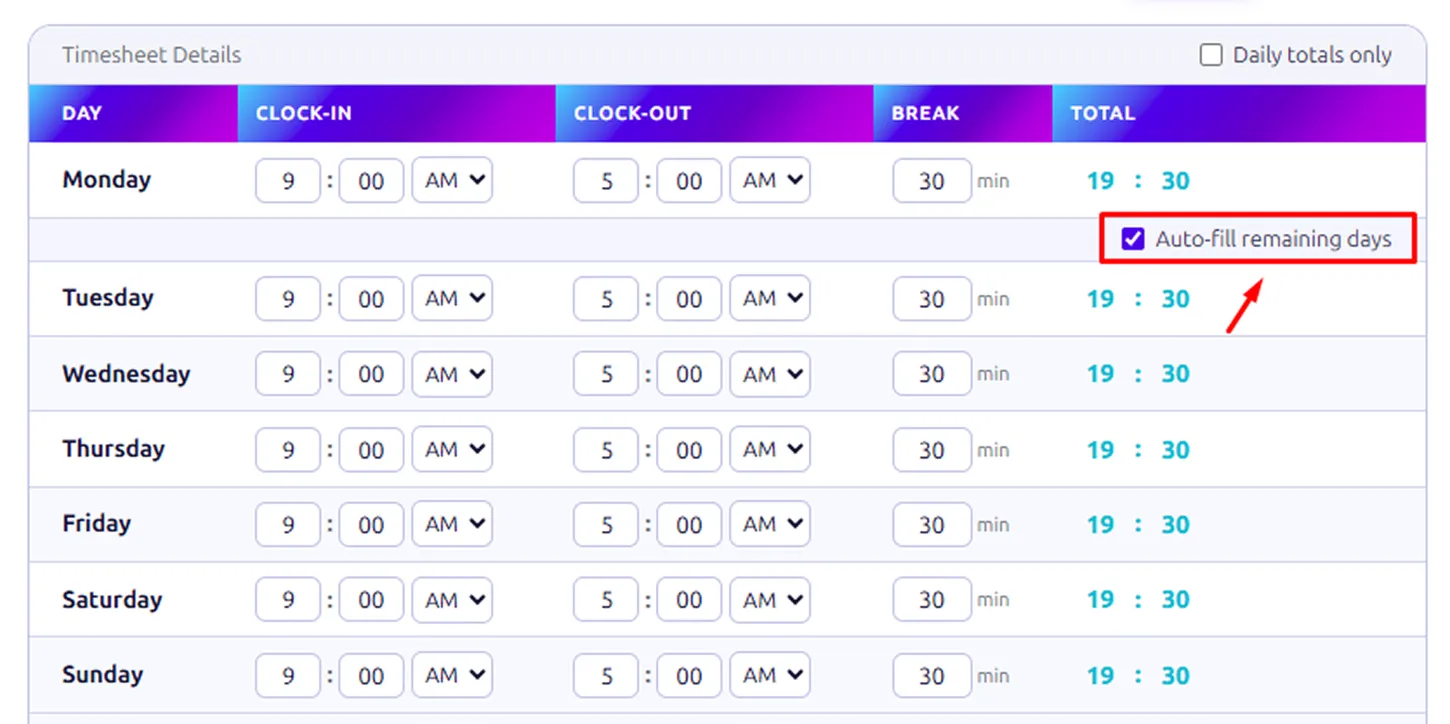
Next, move to the Timesheet Details section. This is where you record the employee’s working hours for each day.
For every day listed in the table, enter:
- Clock-In: The time the employee starts work.
- Clock-Out: The time the employee finishes work.
- Break: The length of any unpaid break in minutes. The default value is 30 minutes, but this can be adjusted if needed.
Once the times are entered, the calculator will automatically determine the total hours worked for that day after subtracting the break.
Helpful Options
- Daily totals only – Displays only daily hour totals for a cleaner view.
- Auto-Fill Remaining Days – If the employee works the same schedule each day, this option will automatically copy the entered hours to the remaining days of the pay period.
3. Show Advanced Options
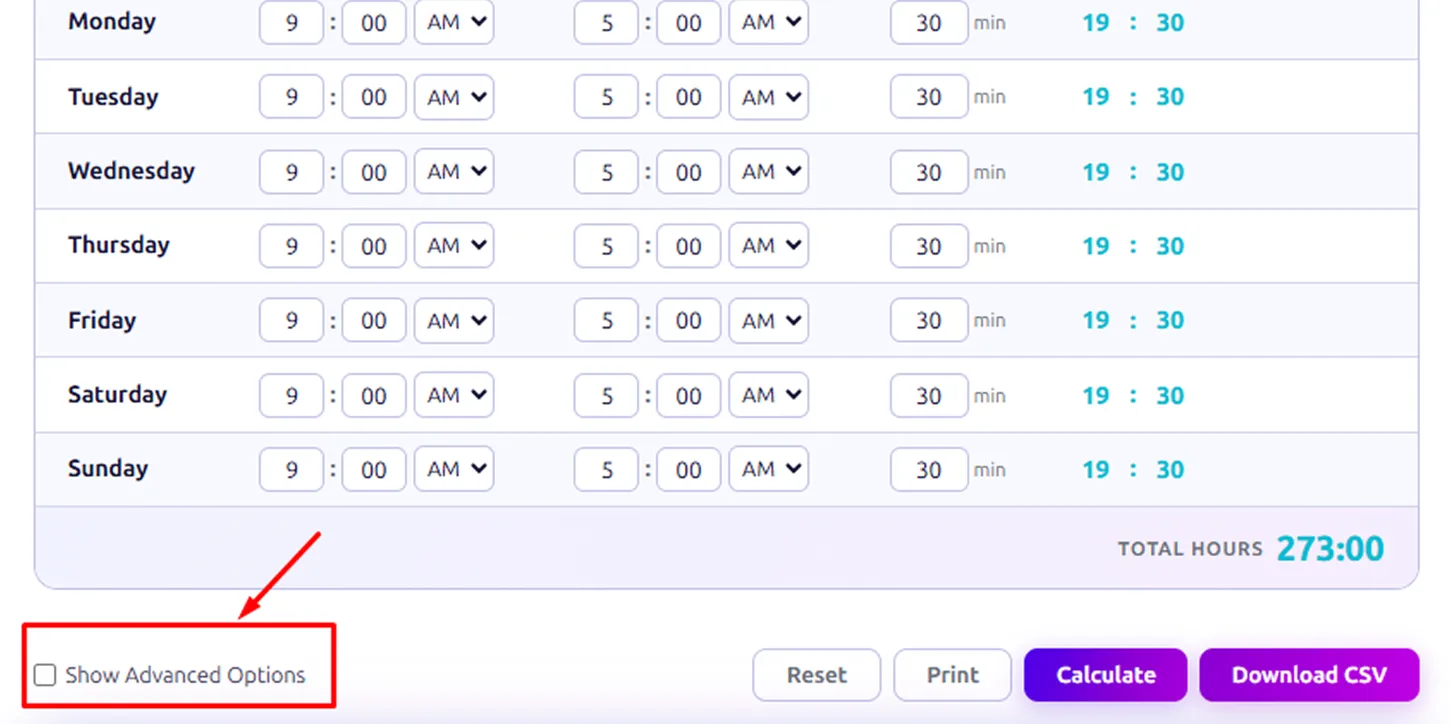
If you need more control over how time and pay are calculated, select “Show Advanced Options.”
This expands additional settings that allow you to adjust display preferences, payroll calculations, and overtime rules.
These settings are organized into three main sections.
Step 1. Display Format Settings
These options control how time and information appear in the timesheet.
- Hide week: Removes the week label from the display if you prefer a simpler layout.
- Specify break start/end: Instead of entering the total break duration in minutes, you can record the exact start and end times of the break. The calculator will determine the break length automatically.
- Use 24-hour format: Changes the time display from standard AM/PM format to 24-hour (military) time.
Example: 9:00 AM → 09:00, 5:00 PM → 17:00
- Add note to printout: Allows you to include a custom note when printing the timesheet. This can be useful for comments, approvals, or payroll references.
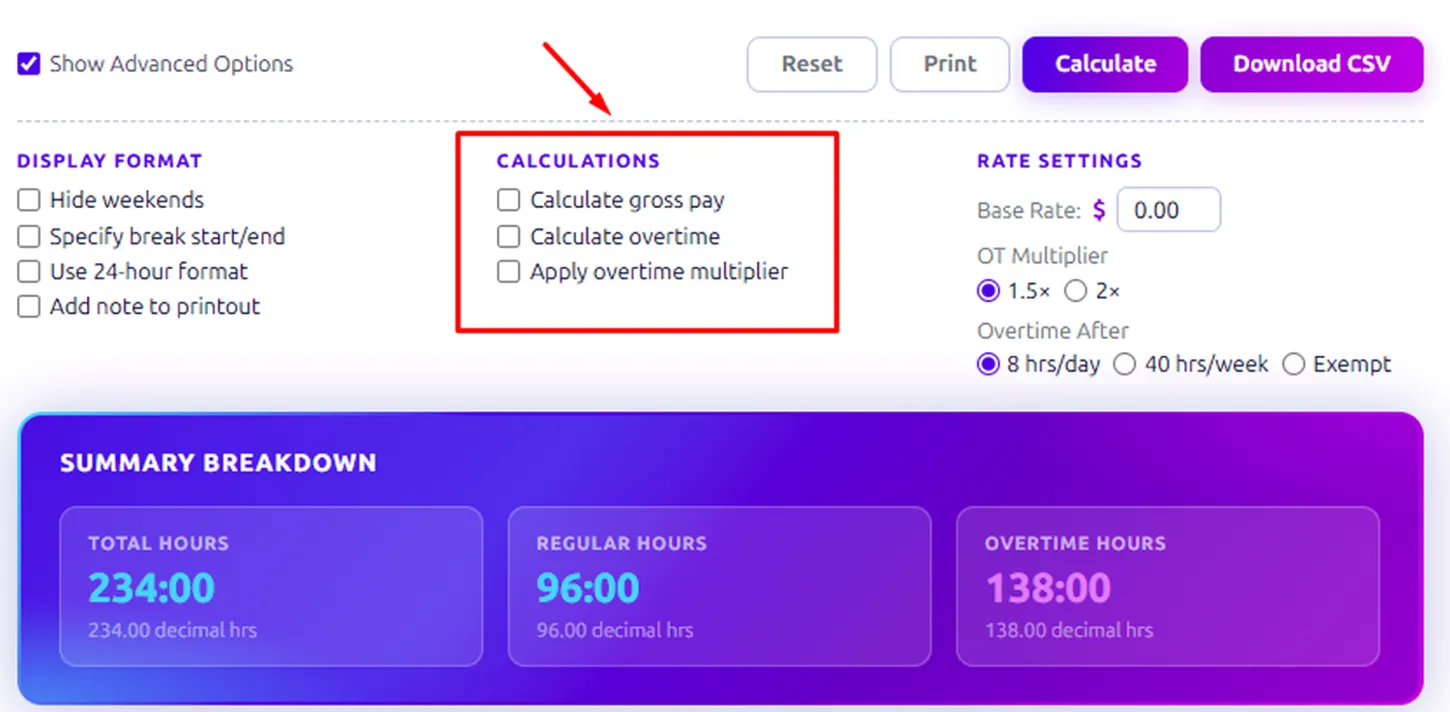
Step 2. Calculation Options
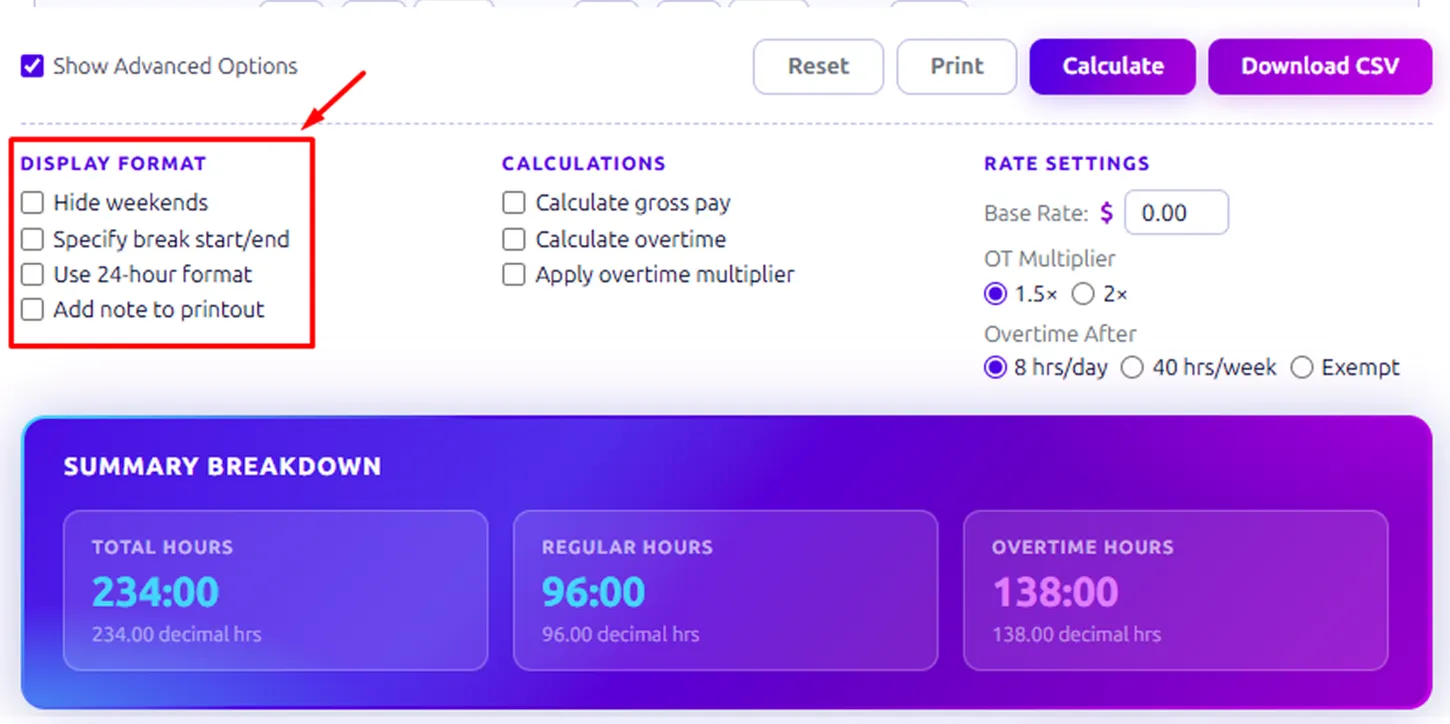
These settings determine how the calculator processes hours and pay.
- Calculate gross pay: When enabled, the calculator multiplies the employee’s total worked hours by the hourly rate to estimate total earnings for the pay period.
- Calculate overtime: Separates work hours into regular hours and overtime hours based on the selected overtime rule.
- Apply the overtime multiplier: When overtime occurs, this option increases the hourly pay rate for those hours.
Example: If the base rate is $20 per hour and the overtime multiplier is 1.5x, overtime hours will be paid at $30 per hour.
Step 3. Rate Settings
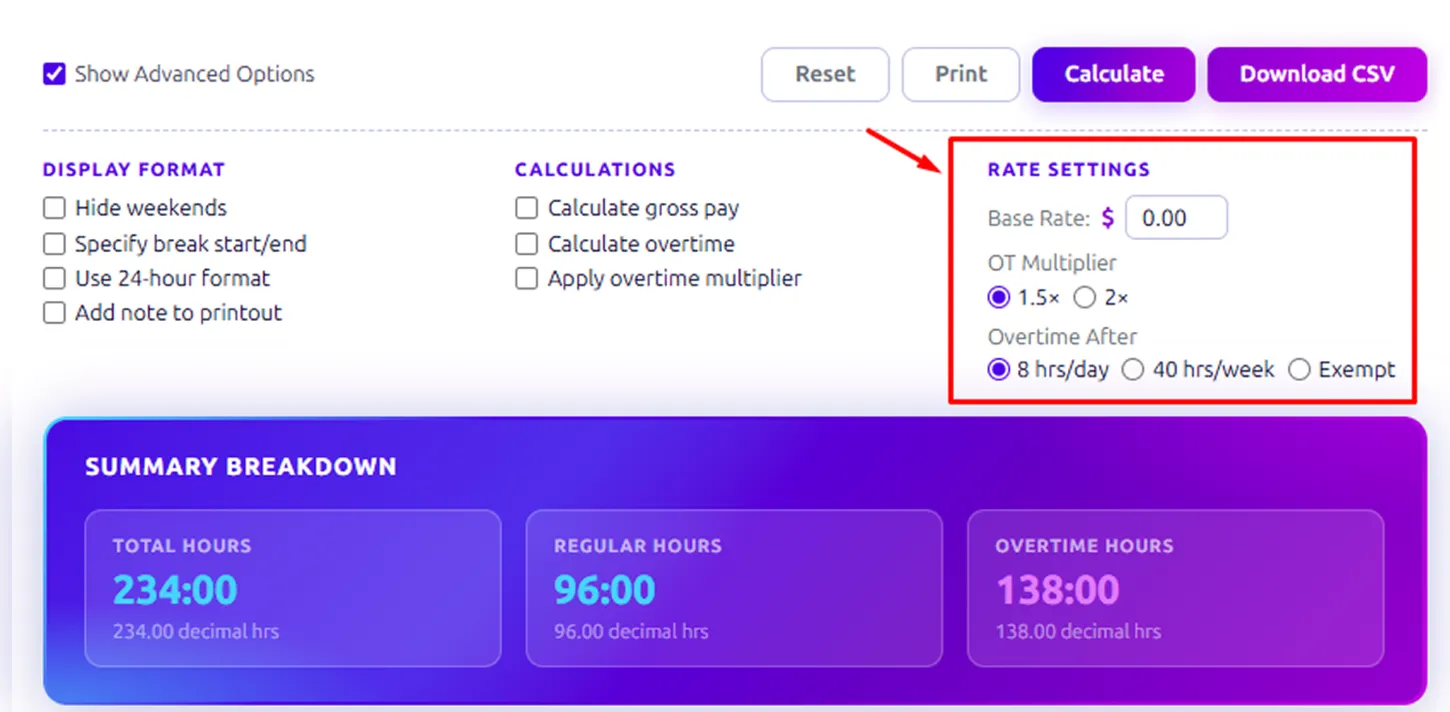
These settings allow you to define the pay rate used in calculations.
Base Rate ($): Enter the employee’s regular hourly wage.
Example: Base Rate = $20 per hour
OT Multiplier: Select the overtime pay rate:
- 1.5x – Standard overtime rate
- 2x – Double pay rate
Example calculation:
Base Rate = $20Overtime Multiplier = 1.5x
Overtime Pay = $30 per hour
Overtime Rules: Here you can define when overtime begins.
Available options include:
- 8 hrs/day: Overtime starts when an employee works more than 8 hours in a single day.
- 40 hrs/week: Overtime starts when the total weekly hours exceed 40 hours.
- Exempt: Overtime will not be calculated for the employee.
Step 4. Calculate the Timesheet
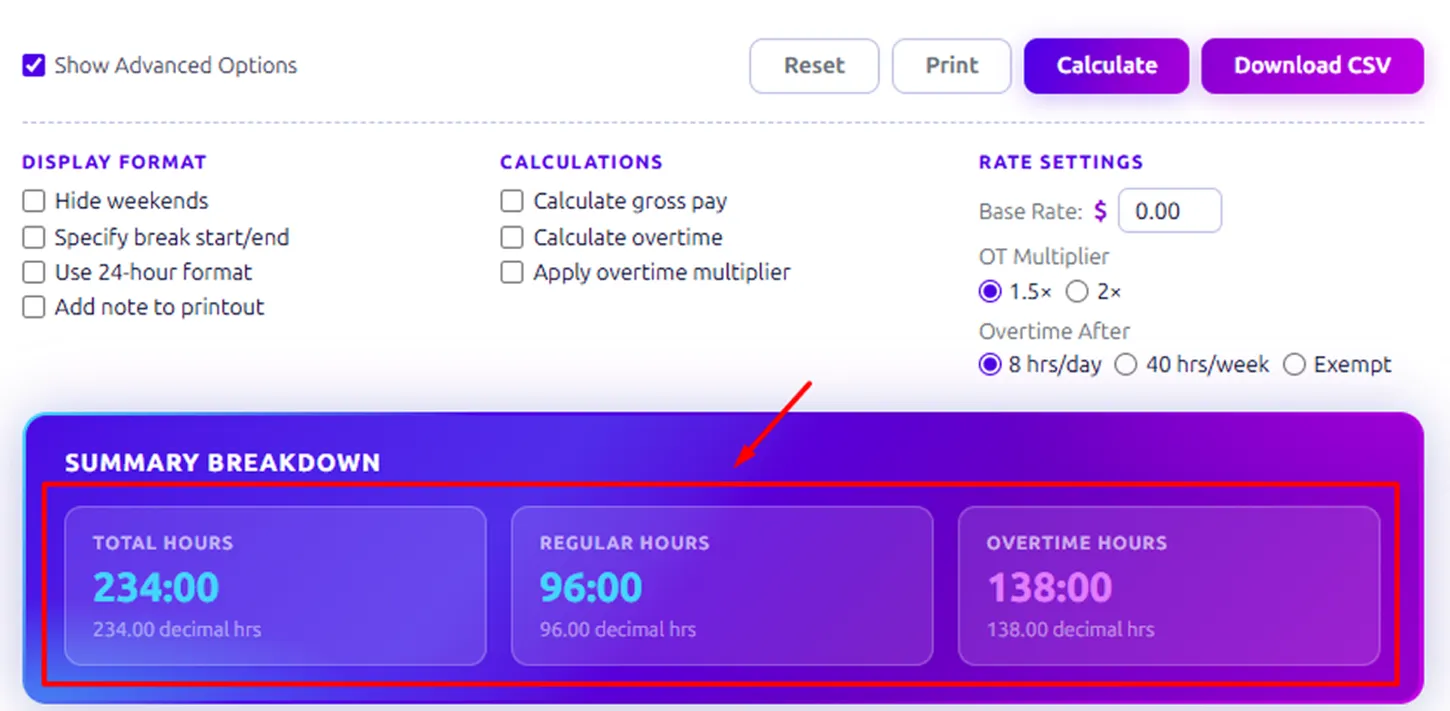
After entering all work hours and selecting the appropriate settings, click Calculate.
The calculator will generate a summary breakdown, which includes:
- Total Hours – All hours worked during the pay period
- Regular Hours – Hours paid at the normal rate
- Overtime Hours – Hours exceeding the overtime threshold
- Total Pay – The calculated earnings (if gross pay calculation is enabled)
This summary helps quickly review the employee’s work hours and payroll estimate.
Step 5. Export or Print Results
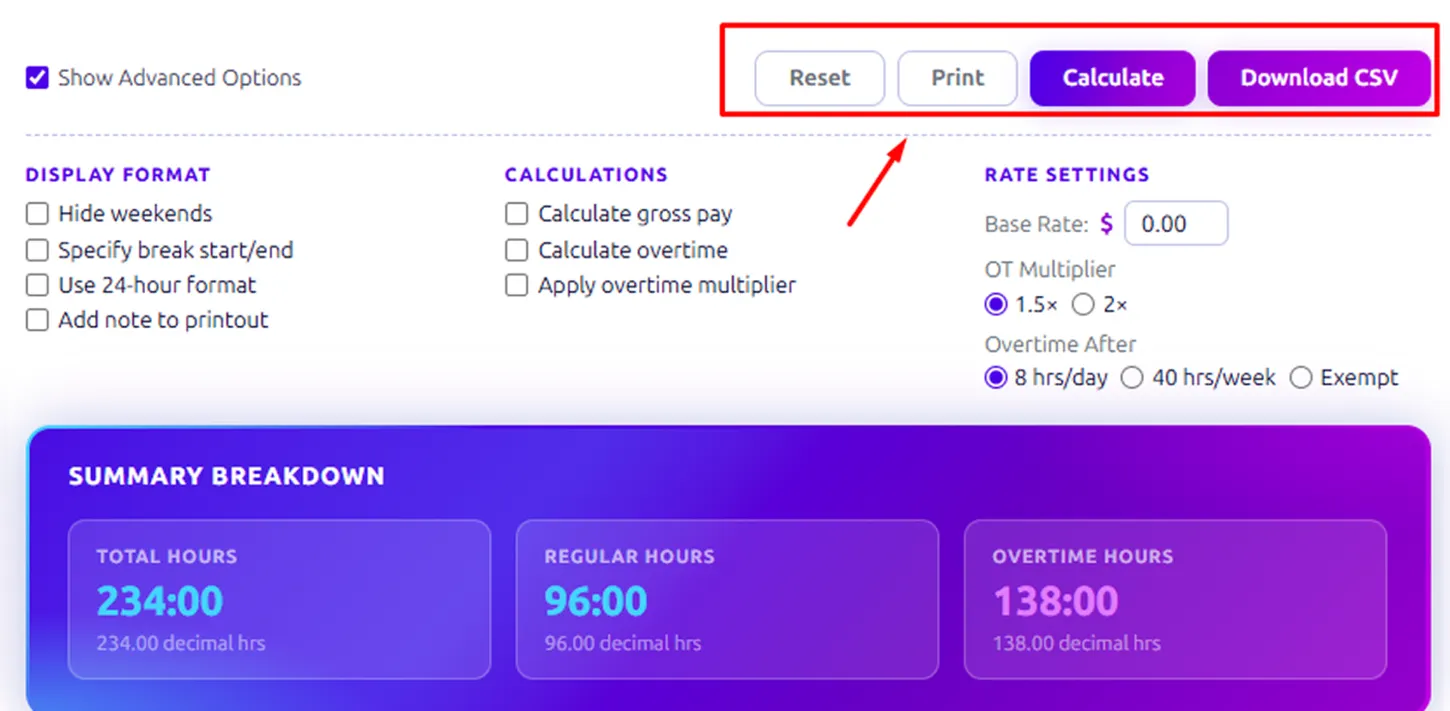
Once the timesheet is complete, you can manage the results using the options at the bottom of the page.
- Reset: Clears all entered data so you can start a new timesheet.
- Print: Creates a printable version of the completed timesheet.
- Download CSV: Exports the data into a CSV file, which can be opened in spreadsheet programs like Excel for payroll processing or record-keeping.
How Do You Calculate a Time Card?
Calculating a time card means determining how many hours an employee worked during a specific period and separating regular hours, overtime hours, and total pay. This is typically done using a few simple formulas based on clock-in time, clock-out time, and break duration.
Below is a step-by-step explanation with formulas and calculation examples.
1. Record Clock-In and Clock-Out Times
The first step in calculating a time card is recording the start time and end time for each workday. These two values are used to determine the total time spent at work before subtracting breaks.
2. Calculate Total Worked Time
To find the total time worked before breaks, subtract the clock-in time from the clock-out time.
Formula:
Total Worked Time = Clock-Out Time − Clock-In Time
Example: Clock-In = 9:00 AM Clock-Out = 5:30 PM
Total Worked Time = 5:30 PM − 9:00 AM
Total Worked Time = 8 hours 30 minutes
3. Subtract Break Time
Most time cards include unpaid breaks such as lunch. To determine actual work hours, subtract the break duration from the total worked time.
Formula:
Actual Work Hours = Total Worked Time − Break Time
Example:
Actual Work Hours = 8:30 − 0:30 Actual Work Hours = 8 hours
This means the employee worked 8 payable hours for the day.
4. Calculate Daily Work Hours
Repeat the same calculation for each day in the timesheet. Now add the daily hours to get the weekly total.
Formula:
Total Weekly Hours = Sum of Daily Work Hours
Example:
Total Weekly Hours = 8 + 8 + 8 + 8 + 9 Total Weekly Hours = 41 hours
5. Calculate Overtime Hours
Many payroll systems calculate overtime when an employee works more than 40 hours per week or 8 hours per day.
Formula:
Overtime Hours = Total Hours Worked − Overtime Threshold
Example
Total Weekly Hours = 41, Overtime Threshold = 40
Overtime Hours = 41 − 40 = 1 hour
Regular Hours = 40
Overtime Hours = 1
6. Calculate Total Pay
If you’re paid hourly, you can calculate your total earnings by multiplying your hours worked with your hourly rate.
Regular Pay Formula:
Regular Pay = Regular Hours × Hourly Rate
Overtime Pay Formula:
Overtime Pay = Overtime Hours × Hourly Rate × OT Multiplier
Most companies use an overtime multiplier of 1.5×.
Example
Hourly Rate = $20
Regular Hours = 40
Overtime Hours = 1
Example
Regular Pay:
40 × $20 = $800
Example
Overtime Pay:
1 × $20 × 1.5 = $30
Total Pay:
Total Pay = Regular Pay + Overtime Pay
Total Pay = $800 + $30
Total Pay = $830
Final Example Summary
| Category | Value |
|---|---|
| Total Hours Worked | 41 |
| Regular Hours | 40 |
| Overtime Hours | 1 |
| Hourly Rate | $20 |
| Total Pay | $830 |
What Are the Pros and Cons of a Time Card Calculator?
A time card calculator helps you & your organization to track work hours, calculate overtime, and estimate payroll. While it offers several advantages for managing time records efficiently, there are also a few limitations depending on how it is used.
The table below outlines the key pros and cons.
| Pros | Cons |
|---|---|
| Automatically calculates daily and weekly work hours without manual math. | Incorrect clock-in or clock-out entries will produce incorrect totals. |
| Automated formulas help minimize mistakes in calculating work hours and overtime. | Basic calculators may not integrate with payroll or HR systems. |
| Most tools only require clock-in, clock-out, and break times to generate results. | Users often have to enter hours manually unless connected to a time tracking system. |
| Automatically separates regular hours and overtime based on selected rules. | Standalone calculators may not scale well for companies with many employees. |
| Employees and managers can clearly see total hours worked and pay estimates. | Unlike time-tracking software, it does not track real-time attendance. |
| Many calculators allow exporting results to CSV or printable reports. | May lack scheduling, reporting, or compliance features found in full HR tools. |
What Your Time Card Calculator Helps You Understand
When you use a time card calculator, it gives you a clear picture of your actual work hours, including regular time, breaks, and overtime. This helps both employees and managers track time accurately, improve payroll accuracy, and maintain better work records.

Track Total Work Hours Accurately
Calculate daily and weekly hours from clock-in and clock-out times.

Identify Overtime Instantly
Quickly spot overtime when hours exceed limits.

Monitor Break Time Effectively
Track breaks and ensure accurate deductions.

Reduce Time Tracking Errors
Avoid mistakes with automated calculations.

Simplify Payroll Calculations
Use clear summaries for accurate pay.

Maintain Organized Work Records
Keep structured records for reporting and audits.
Is a Time Card Calculator Different from a Timesheet Calculator?
A work hours calculator and a timesheet calculator are generally the same and often used interchangeably. Both tools calculate total hours worked based on clock-in and clock-out times, accounting for breaks, overtime, and sometimes total pay. Many modern online tools also generate daily, weekly, or bi-weekly totals, making the two tools functionally very similar.
Historically, the terms came from slightly different workplace practices. A time card originally referred to the physical punch cards employees used to record arrival and departure times each day, and the calculator version converts those entries into total worked hours. A timesheet calculator usually summarizes work hours over a longer pay period and may include weekly totals, overtime, and payroll estimates. Today, most tools combine these functions, so the distinction is mostly contextual rather than functional.
Related tools, such as a work hours calculator or break time calculator, focus on specific parts of the process. A work hours calculator determines the time difference between start and end times, while a break time calculator subtracts unpaid break durations from total working time. A time card calculator typically includes both, allowing users to calculate daily hours, deduct breaks, track overtime, and generate weekly or bi-weekly summaries in one tool.
What Legal Guidelines Should Be Followed in a Timecard Calculator?
Timecard calculators must comply with labor laws to ensure employees are paid correctly, and employers avoid legal issues. Key considerations include minimum wage, overtime, and employee classifications, which affect how hours are recorded and pay is calculated.
1. Wage and Overtime Rules Under the FLSA
Employees must receive at least the federal minimum wage for all hours worked. Under the Fair Labor Standards Act (FLSA), eligible non-exempt employees must be paid overtime at 1.5× their regular rate of pay for hours worked over 40 in a workweek. Time card calculators should account for these overtime hours to help ensure accurate payroll calculations and compliance.
For more information about federal overtime requirements and wage laws, refer to the official guidelines provided by the U.S. Department of Labor: Overtime pay
2. Exempt vs Non-Exempt Employees
Non-Exempt Employees: Must be paid for all hours worked and are eligible for overtime. Accurate time tracking is essential.Exempt Employees: Paid a fixed salary regardless of hours worked and are not eligible for overtime if they meet the exemption criteria.
3. Common Employee Exemptions
Certain employees may be exempt from overtime rules if they meet specific criteria:
- Executives – Manage departments and supervise staff.
- Administrative Staff – Perform office work and exercise independent judgment.
- Professionals – Require advanced knowledge (e.g., engineers, teachers).
4. Professions That Are Not Exempt
Most hourly workers are non-exempt and must have accurate time tracking:
- Manual or blue-collar workers (construction, production, laborers)
- Clerical staff and routine office roles
- Public safety roles, unless specific exemptions apply
How Does Time Champ Help as a Timesheet Software?
Timesheets play an important role in tracking employee work hours and maintaining accurate payroll records. Many businesses use digital tools to automatically record working hours, manage attendance, and calculate overtime. This helps reduce errors, keeps work records organized, and gives managers a clear view of how employees spend their time.
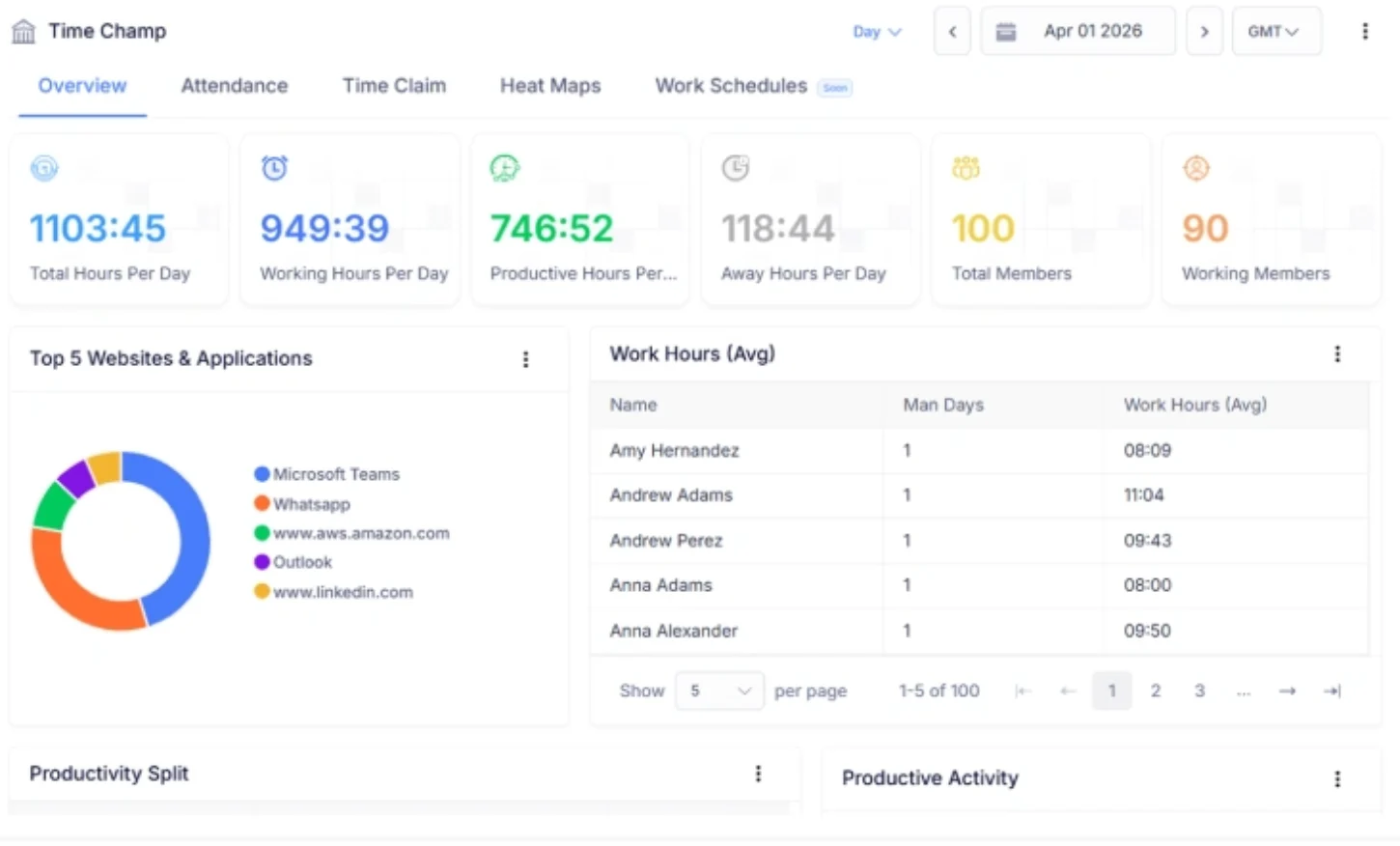
Time Champ is a Workforce Intelligence Platform that acts as both a timesheet management tool and a workforce intelligence software. It automatically generates timesheets using employee clock-in and clock-out signals, ensuring that working hours are recorded accurately without manual input. These timesheets help simplify payroll processing, support invoice generation for billable work, and provide reliable records of employee hours.
Managers can review submitted timesheets and approve or reject them when necessary, helping maintain accuracy and accountability. Along with timesheets, Time Champ also provides insights into attendance, overtime, and productivity trends, allowing businesses to better understand their workforce performance while keeping payroll and reporting processes organized.
| Feature | Time Card Calculator | Spreadsheets | Manual Calculations |
|---|---|---|---|
| Automatic Work Hour Calculation | ✓ | ✕ | ✕ |
| Break Time Deduction | ✓ | Manual | ✕ |
| Overtime Calculation | ✓ | Limited | ✕ |
| Daily & Weekly Hour Totals | ✓ | Manual | ✓ |
| Payroll Estimation | ✓ | Limited | ✕ |
| Error-Free Calculations | ✓ | ✕ | ✕ |
| Easy Timesheet Review | ✓ | ✕ | ✕ |
| Instant Results | ✓ | ✕ | ✕ |
| Export & Print Options | ✓ | Limited | ✕ |
| User-Friendly Interface | ✓ | ✕ | ✕ |
Track Work Hours Without the Hassle
Time Champ helps you automate time tracking, manage timesheets, and get accurate work hour insights in real time.
- Automatic Work Hour Tracking
- Accurate Overtime Calculations
- Real-Time Timesheet Insights
- Centralied Attendance & Payroll Data
- Export-Ready Reports for Payroll
- Built for Teams of All Sizes
 Start 7-day free trial
A Workforce Intelligence Tool Built for Smarter Performance
See What Our Happy Customers Say

Time Champ gave us clear visibility into how our team spends time. It helped improve productivity and simplified our billing process. The platform was straightforward to use and delivered real value.

It was difficult to understand how our teams were working without constant follow-ups. Time Champ gave us clear visibility into daily activities and provided useful insights that helped us make more informed decisions.

Time Champ helped us bring order to how we manage our work. Managing projects, tracking hours, and handling attendance is now simple and stress-free. The platform is easy to use, and the support team truly cares. Time Champ has made our workflow smoother and easier to manage.

Finally, we found a tool that was genuinely easy to use. Time Champ gave us clear visibility into how our time was being spent. It helped us support our team more effectively while still being affordable.

We highly recommend Time Champ for improving our workforce efficiency. It’s affordable, easy to use, and great for monitoring, productivity, attendance, and time tracking, an all-in-one solution every team needs.

Managing remote teams became much easier for us. We gained clearer visibility into work habits, productivity levels, and attendance patterns. The custom reporting feature also helped us quickly identify areas that required attention.
Connect with our product experts for a live demo and discuss your business requirements.


 4.7/5 avg.
Ready to Manage Your Workforce Smarter?
Join our family of 1500+ companies using smart insights to redefine workforces!

Free Trial
No Credit Card Required